

Ticket notifications for your customers and team
When you install the Support tickets skill, you get ready-made notifications in Arabic and English that go out automatically, with nobody typing anything:
| Notification | To | Via | When |
|---|---|---|---|
| Ticket received | The customer | When the ticket opens, with the request number. | |
| Ticket resolved | The customer | Whenever the ticket moves to Resolved. | |
| New ticket | Your team | For every new ticket, with the customer’s name, subject, category, priority, and details. |
Customer notifications go out in the customer’s language, Arabic or English, to the mobile number on their record.
What you need for notifications to go out
Section titled “What you need for notifications to go out”- For customer WhatsApp notifications: a WhatsApp number connected to your account, and Meta’s approval of the two messages. tkana submits them to Meta for review automatically when you connect your number. Review usually takes a few minutes and can take up to 24 hours. See Connect your WhatsApp Business number.
- For your team’s email: an address in Support team email in the skill’s settings. See How your agent opens tickets.
Turn notifications on or off and reword them
Section titled “Turn notifications on or off and reword them”-
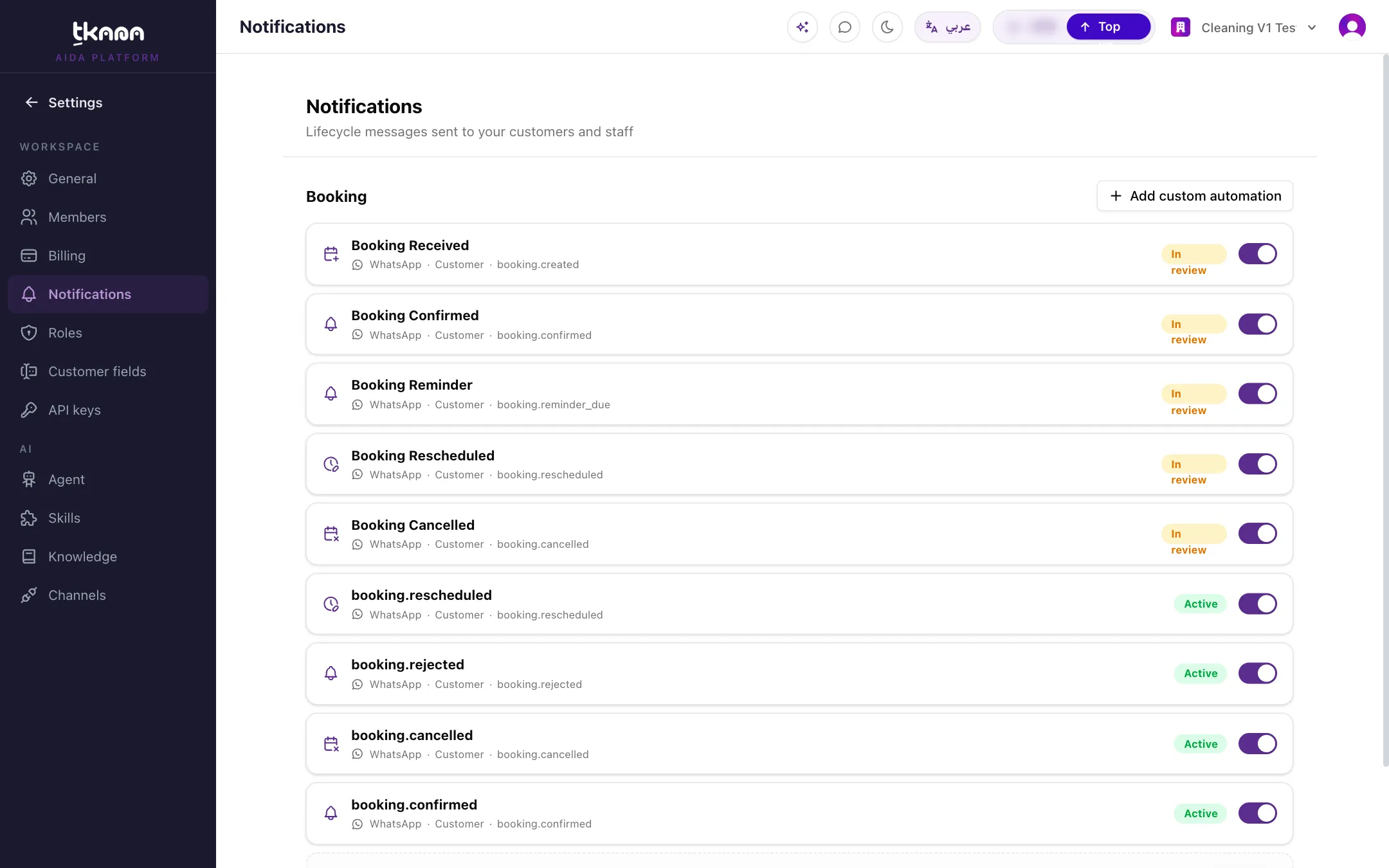
In Settings, open Notifications. (Or click Notification settings at the top of the tickets page.)
-
Go to the Ticketing group. Each row is one event for one audience, Customer or Staff.
-
Use the switch on a row to turn that notification on or off.
-
To change the wording, click Edit message and edit the text around the locked placeholders, such as the request number, in the Arabic and English tabs.
-
Click Save & resubmit.
Message statuses
Section titled “Message statuses”| Status | What it means |
|---|---|
| Approved or Active | The message is ready and goes out when the event happens. |
| In review | Waiting for WhatsApp’s approval. |
| Pending connection | Not submitted for review yet, because no WhatsApp number is connected. |
| Rejected | WhatsApp turned it down. Click Fix & resubmit to edit the text and send it again. |
| Off | You turned the notification off with its switch. |
| Not set up | The notification is not prepared. Click Set up to prepare it. |
Add a custom notification
Section titled “Add a custom notification”If you want an extra message, such as emailing another manager whenever a ticket is resolved, add a custom automation:
-
In the Ticketing group, click Add custom automation.
-
Choose the Trigger event: Created or Resolved.
-
Choose the Channel: WhatsApp or Email.
-
Under Notify, choose who receives it: Customer or Staff. For staff by email, enter the address in Send to.
-
Write the Message, then click Save.
For more on all notifications, including booking notifications, see Manage automated messages for your customers and team.
Was this article helpful?
Thanks for the feedback, it helps us improve these guides.