

Import and export contacts
If you already have a customer list, import it into tkana so your team and your campaigns can use it from day one. You can also export your contacts at any time.
Import contacts
Section titled “Import contacts”The import reads any file with a header row, whatever its columns are called. You choose what each column fills, including the customer fields you created, such as a branch or a membership number.
-
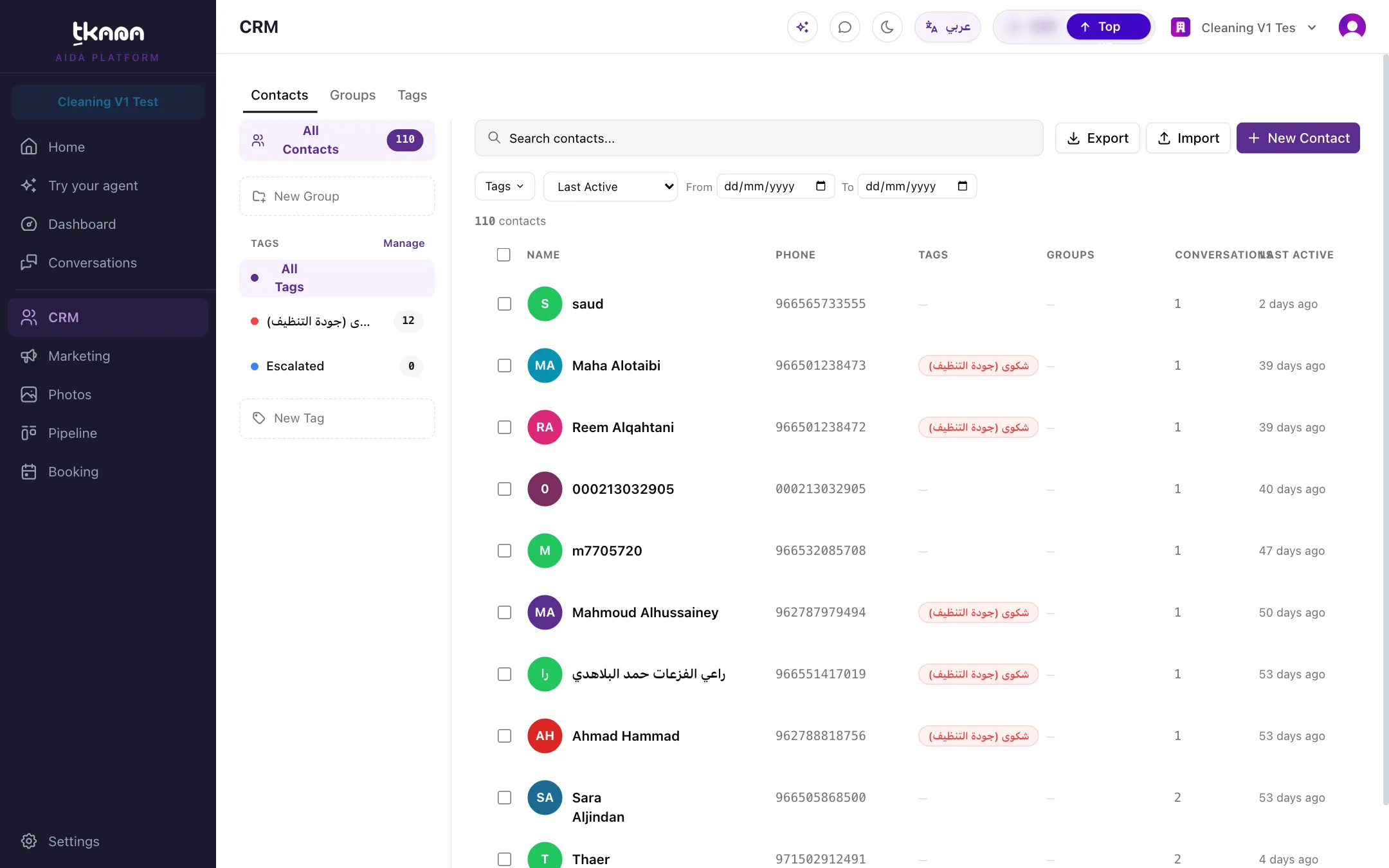
Open CRM, go to the Contacts tab, and click Import. The Import Contacts window has three steps: File, Map columns, and Preview.
-
If you are starting from scratch, click Download template and fill it in. The template has name, phone, email, and tags columns, plus one column for each of your customer fields.
-
Click Choose file and select your Excel (
.xlsx,.xls) or CSV (.csv) file. It needs a phone column with the country code, for example 966501234567, and at most 20,000 rows. -
In Map columns, each column in your file shows with a sample of its values. Under Imports into, choose what the column fills:
- Contact: Phone, First name, Last name, Full name (split into first and last), Email, or Tags (separated by ;).
- Customer fields: any field you created in Settings › Customer fields, with its type.
- Do not import: to ignore the column.
tkana suggests a mapping for headers it recognizes. Check it and change it if needed. Preview import stays disabled until a column maps to Phone.
-
Click Preview import. The preview shows how many contacts are to create and to update, how many values are rejected and phones are invalid, and the first rows as they will be saved. Below it, Values that will not import lists each one with its row, column, and reason.
-
Click Import followed by the number of contacts. You can close the window while it runs. The import keeps going, and View the last import shows the result when you open the window again.
-
Review the Import Results: new contacts, updated contacts, contacts left unchanged because the file held nothing new for them, values not imported, and invalid phones.
-
Optionally, type a group name to put everyone from this import into a new group, or click Skip.
How existing contacts are updated
Section titled “How existing contacts are updated”Contacts are matched by phone number. A phone already in your account updates that contact, and new phones become new contacts.
- Customer field values in the file replace the stored ones.
- An empty cell never wipes anything. The stored value stays.
- The name is only filled in when the contact has no name, so an import never overwrites a name your agent or your team already saved. Email is also only filled in when it is empty.
- Tags in the file are added to new and existing contacts. An import never removes a tag.
Rejected values
Section titled “Rejected values”If a value does not fit its field’s type, only that value is skipped, and the rest of the row still imports. For example, a number field refuses text, and a choice field refuses a value that is not one of its options. A row without a valid phone number is skipped entirely.
- Dates: a date typed as text is read day first, so
05/10/2026is 5 October. Excel date cells and2026-10-05always work. - Choices: write the option’s key or its Arabic or English name. Upper or lower case does not matter.
- Yes or no:
yes,no,true,false,نعم, andلاall work.
Export contacts
Section titled “Export contacts”- Open CRM and go to the Contacts tab.
- Filter the list if you only want some contacts, for example one tag or one group.
- Click Export. A CSV file of the contacts in your current view downloads.
The file opens in Excel, Google Sheets, or any spreadsheet app.
Was this article helpful?
Thanks for the feedback, it helps us improve these guides.