

Add the chat widget to your website and share your chat page
Every tkana account gets two channels automatically, ready to work with your agent from day one:
- Chat widget: a chat bubble in the corner of your website. Visitors click it to talk to your agent.
- Chat page: a full chat page hosted by tkana on your own link. Share it in your social media bio, in emails, or as a QR code.
You find both in Settings > Channels, and neither needs any extra connection.
Share your chat page
Section titled “Share your chat page”Your chat page link is my.tkana.sa/ followed by your organization’s identifier. To try it yourself, click Chat in the portal’s top bar and the page opens in a new tab.
To change the identifier in the link:
-
In Settings > Channels, click Manage on the chat page card.
-
Edit Public URL slug, for example
my-store, using English letters and numbers. -
Click Save changes.
Before the first message, the page asks the visitor for their mobile number, and that number is saved on the customer’s record in the portal.
Add the chat widget to your website
Section titled “Add the chat widget to your website”The widget goes on your website with a single line of code that carries your organization’s identifier.
-
Contact tkana support to get the code for your website.
-
Paste the code into your site just before the closing
</body>tag, or into the custom code box if you use a website builder. -
Open your website and check that the chat bubble appears in the corner.
When visitors open the bubble they see your agent’s name, your logo, and your greeting message, in your brand colors. The widget follows your page’s language and shows in Arabic when the page has none set. A visitor who comes back on the same browser returns to the same conversation.
Customize the look and the greeting
Section titled “Customize the look and the greeting”The widget and the chat page share your organization’s settings, so a change here shows in both:
- Colors and logo: in Settings > General, under Organization Logo and Branding Colors (Primary Color and Secondary Color).
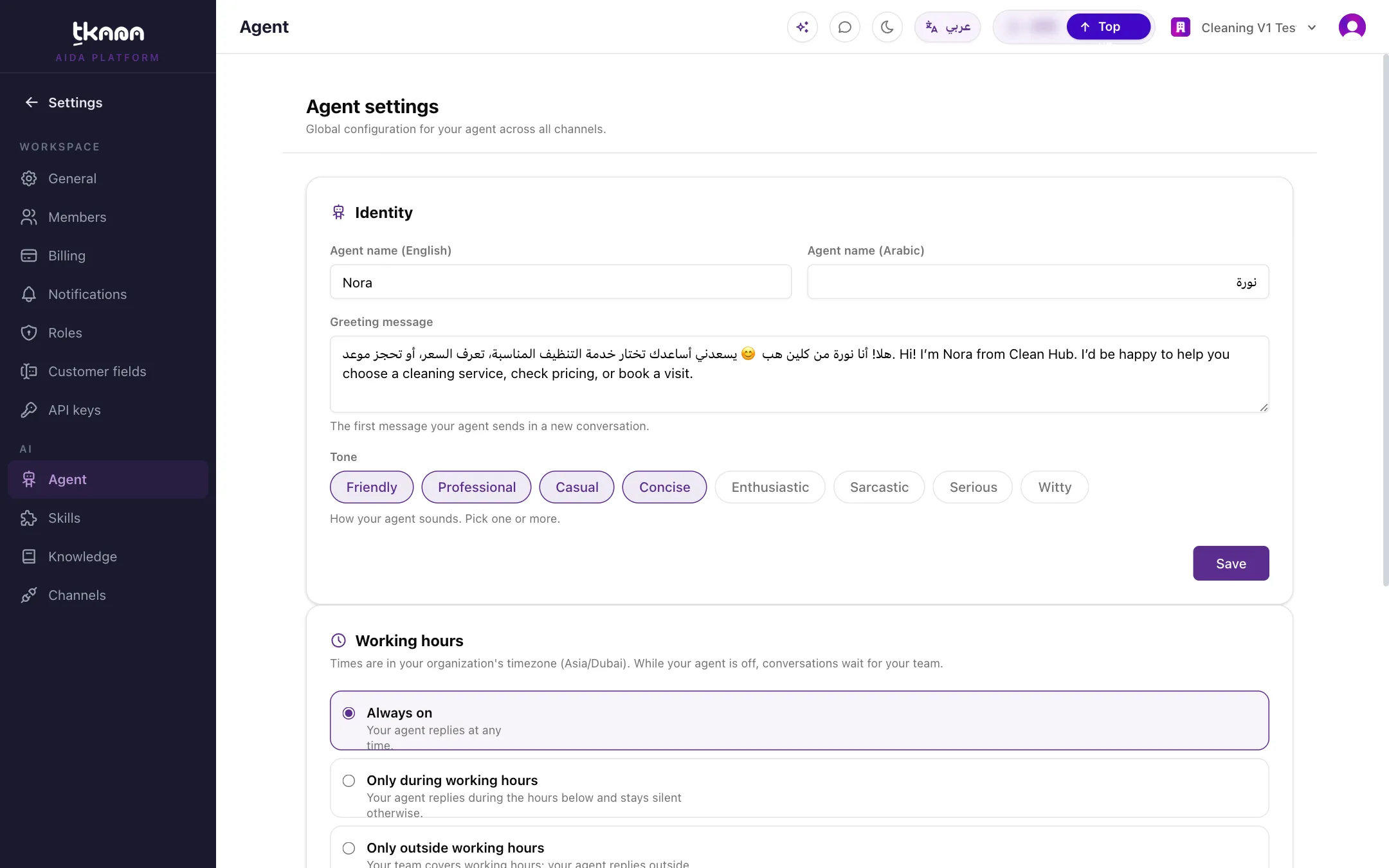
- Agent name and greeting: in Settings > Agent, in the Arabic and English agent name fields and Greeting message.
Where the conversations show up
Section titled “Where the conversations show up”Widget and chat page conversations appear in Conversations alongside your other channels, and you can filter them with the Web Chat channel. Your agent replies with text and can attach images from your photo library.
Was this article helpful?
Thanks for the feedback, it helps us improve these guides.