

Find your way around Conversations
The Conversations page is your team inbox. Every customer who writes to you, on WhatsApp, the chat widget, your chat page, or Telegram, appears here, with everything your agent and your team said to them. New messages show up within seconds, without reloading the page.
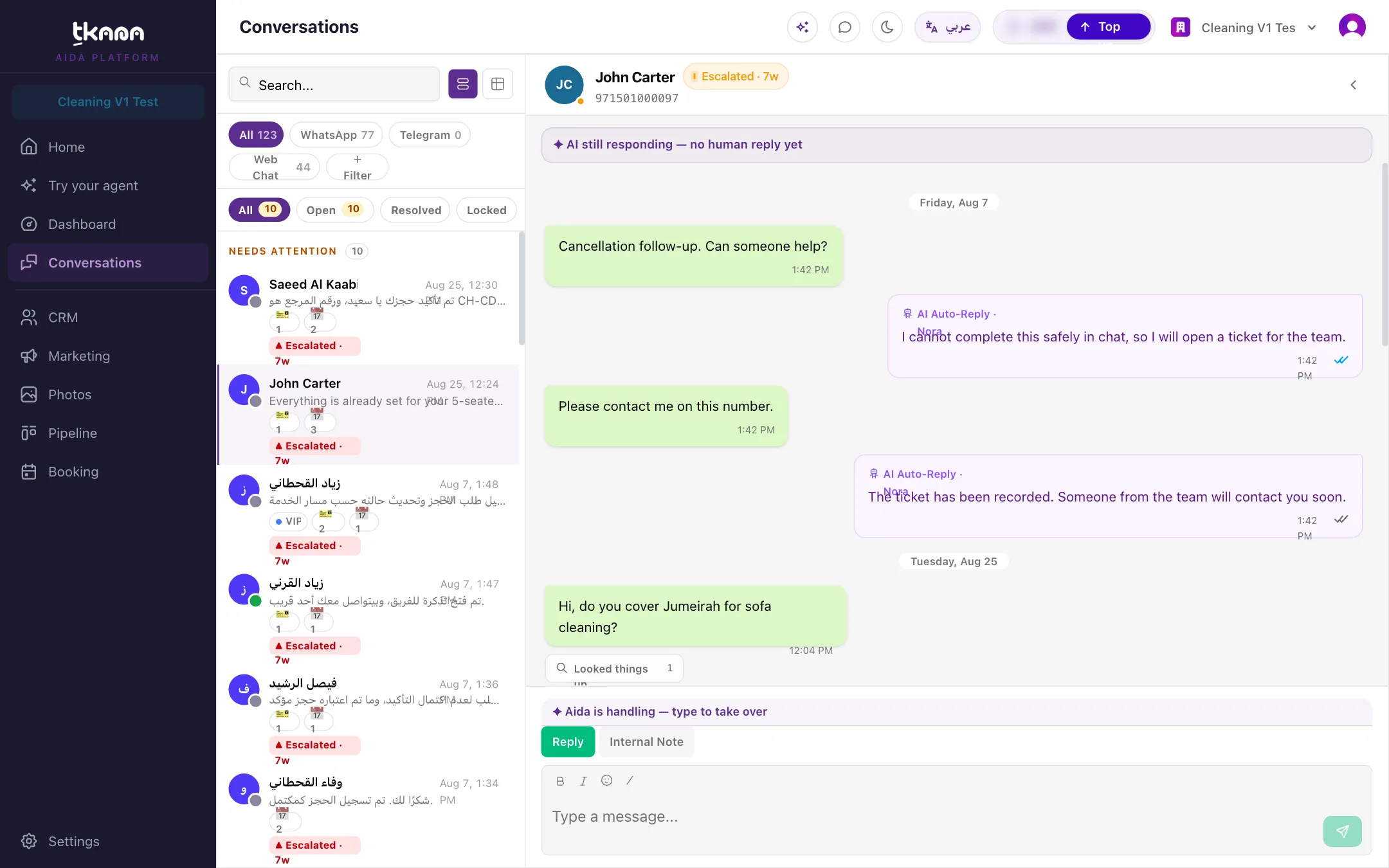
The list: one row per customer
Section titled “The list: one row per customer”Each row is one customer, showing their latest message, the channel, and any labels. If a customer has written to you more than once, the row shows how many conversations they have had, and how many tickets and bookings are linked to them.
At the top of the list:
- Needs attention pins customers whose latest conversation is escalated, or where the AI is paused because a person is handling it. Start your day here.
- The chips All, Open, Resolved, and Locked filter the list. Locked shows WhatsApp conversations whose 24-hour reply window has closed.
A row can also carry a marker that tells you its state at a glance:
| Marker | Meaning |
|---|---|
| AI paused | A teammate is handling it. The marker also shows when the pause ends. |
| Escalated | The conversation was handed to your team. |
| Observing | It came in on a channel in Observe mode, so the agent is only watching. |
| Reply window closed | WhatsApp’s 24-hour window has closed. You need a template to reply. |
| Meta ad | The customer started the chat from one of your Click-to-WhatsApp ads. See Find conversations that came from ads. |
Search and filter
Section titled “Search and filter”- Search by customer name, phone number, or words from the messages or the conversation summary.
- Click Filter to narrow the list by Status, Channel, Assignee, Sentiment, Label, Contact reason, Pain point, Source, Last activity, Unassigned, or Date range.
- Switch to Table view to see one conversation per row, which is easier to sort and scan. Switch back with List view.
Contact reasons and pain points
Section titled “Contact reasons and pain points”Once a conversation is summarized, AI picks out its Contact reason (why the customer wrote) and the customer’s Pain points (what bothers or blocks them), and shows them as badges on the customer’s row:
- The Contact reason badge comes first, then the Pain point badge in amber with a warning triangle, so you never mistake it for a contact reason or for a label your team added. The row shows only the first pain point, followed by +N if there are more.
- Click any badge on a row to filter the list by it. You can also pick Pain point from the Filter menu, then a specific pain point. The contact reason and pain point filters can be combined.
- If a pain point matches an earlier conversation with the customer rather than their latest, it shows Earlier next to it. Open the thread to see that conversation.
- In Table view, a Pain point column after Contact reason lists every pain point in the conversation, and a menu above the table lets you pick one pain point or All pain points.
- In the details panel, the Topics card shows the contact reason and every one of the customer’s Pain points in full.
The thread: a customer’s whole history
Section titled “The thread: a customer’s whole history”Open a row to see the thread. It shows every conversation you have had with that customer, oldest at the top and newest at the bottom. Between two conversations, a divider shows how the earlier one ended, a one-line AI summary, and any ticket or booking it produced. Scroll up to load earlier conversations.
Above the message box, a status bar tells you who is handling the conversation right now: your agent, or a person on your team. While your agent is handling it, you can simply type to take over.
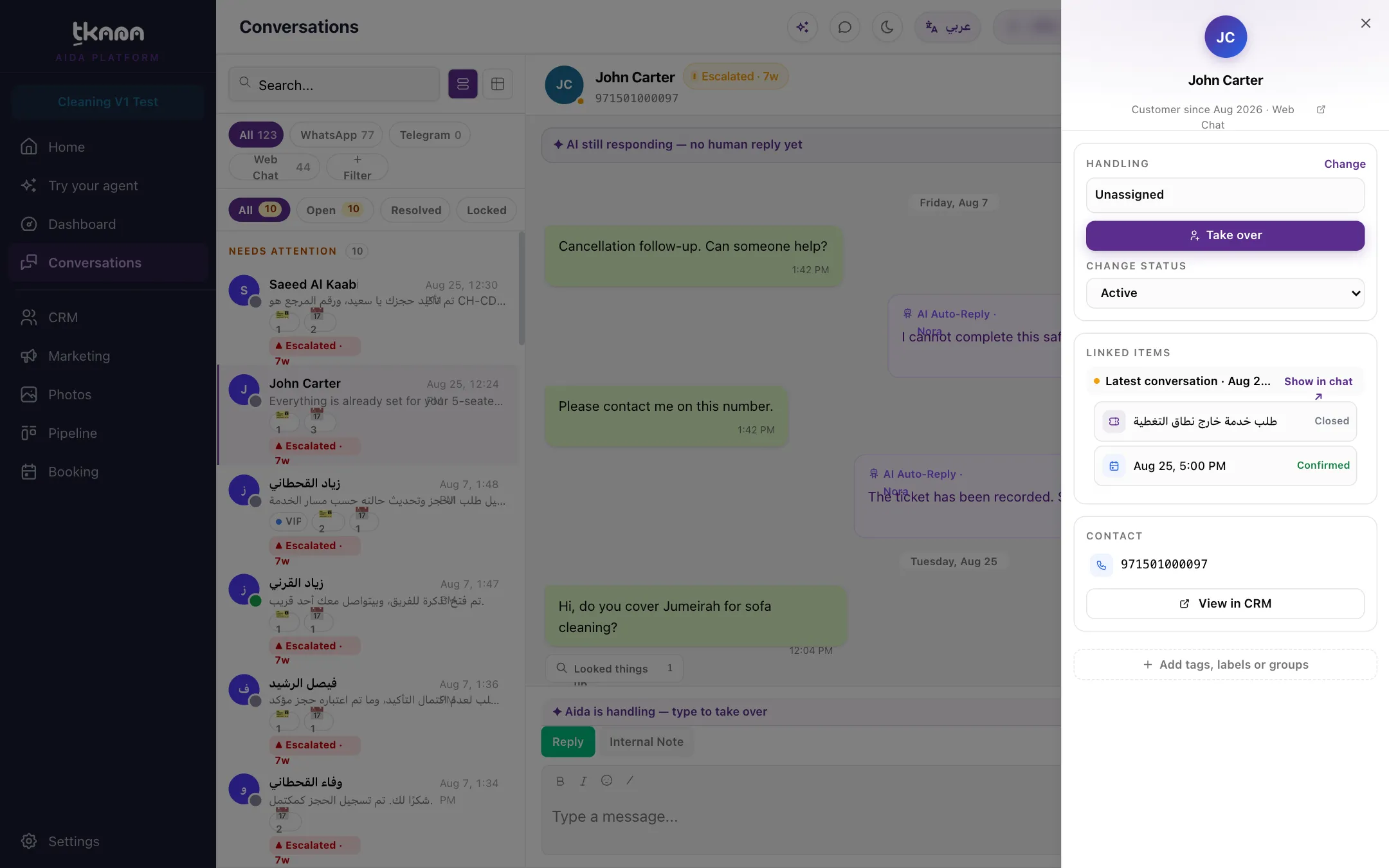
The details panel
Section titled “The details panel”Click Details (the arrow button in the conversation header) to open the details panel:
- Handling: who is in charge, the AI or a teammate, with Take over, Change, and Change Status.
- Linked items: tickets and bookings from this customer. Show in chat jumps to the conversation that created each one.
- Suggested next steps: ideas for what to do next with this customer.
- Contact: the customer’s details, with a link to View in CRM.
From the conversation you can also click Create Ticket to open a ticket by hand.
See conversations as a board
Section titled “See conversations as a board”To see all conversations by status, open Pipeline and choose Conversations. Each column is a status (Active, Pending customer, Escalated, Resolved, Closed), and you can drag a card to change its status. See Understand conversation statuses.
Where to go next
Section titled “Where to go next”Was this article helpful?
Thanks for the feedback, it helps us improve these guides.