

Choose how Aida asks for approval
By default, Aida asks you to approve every change on a card. If you make many small edits to your knowledge base, you can let her apply some of them without asking. The approval setting only affects edits to your knowledge base and agent settings; everything else always asks.
Change the setting
Section titled “Change the setting”-
Open Aida.
-
At the top of the panel, next to the + button for a new chat, open the approval menu. It shows Manual until you change it.
-
Pick one of the three options.
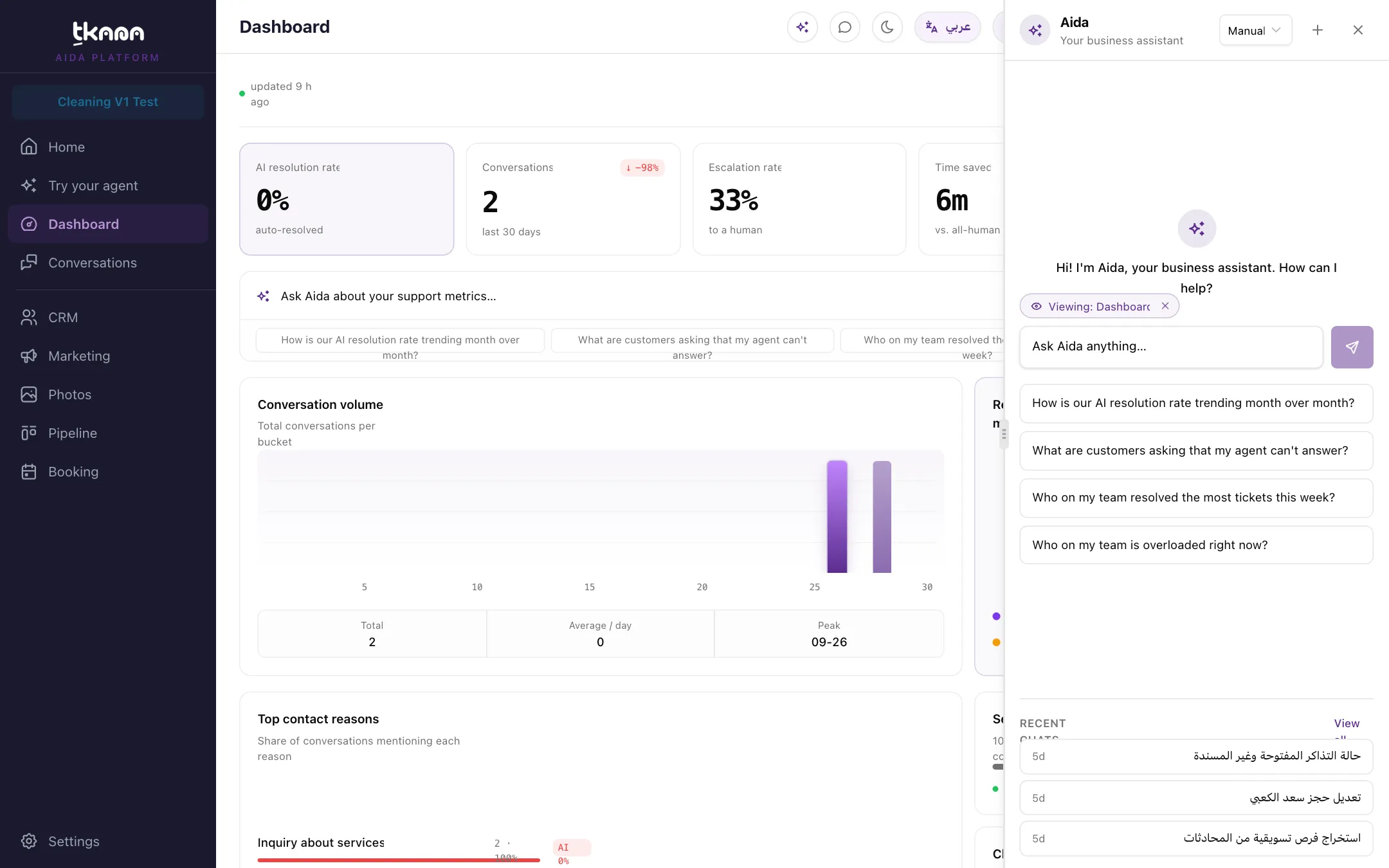
The three options
Section titled “The three options”| Option | What it does in Aida |
|---|---|
| Manual (default): Confirm every change | Every change waits for your yes on a card. |
| Agent decides: Confirm risky or unclear changes | Edits to your FAQs, Content, Additional Guidelines, and agent settings (name, greeting, tone, working hours, audience tags) are applied right away. Adding a document still asks. |
| Auto: Apply safe changes automatically | The same edits as Agent decides, and adding a document, are applied right away. |
The setting goes back to Manual every time you start a new chat.
Changes that always ask
Section titled “Changes that always ask”Whatever you choose, Aida always shows a card and waits for your yes before she:
- Deletes a document.
- Opens, moves, closes, or assigns a ticket.
- Escalates or resolves a conversation.
- Tags a contact or adds a note.
- Books, reschedules, or cancels a booking.
- Makes any change in a chat where she has read messages your customers wrote, for example during a gap check or while looking at a customer’s conversation. This protects you if a customer’s message tries to trick her into changing something.
When Aida applies a change without asking
Section titled “When Aida applies a change without asking”A change applied without a card still leaves a record in the chat. You see a card marked Auto that says Applied automatically, with the same before and after a confirmation card would show, and the note Your approval setting let Aida apply this without asking. If the change did not go through, the card says Couldn’t apply automatically instead.
To undo an automatic change, ask Aida to change it back, or edit it yourself in the portal.
Was this article helpful?
Thanks for the feedback, it helps us improve these guides.