

Manage bookings in the calendar and pipeline
Your team works with bookings in two places:
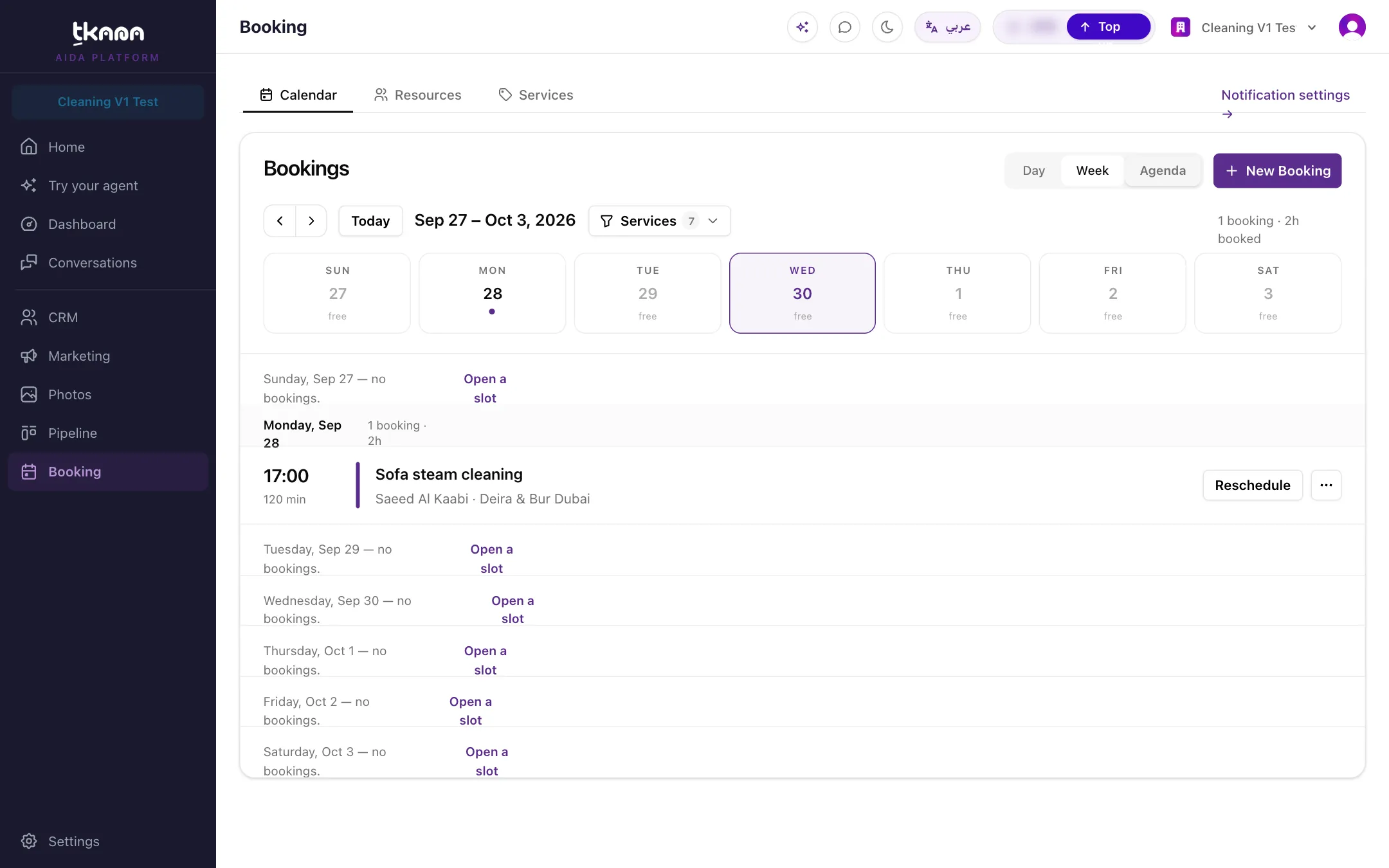
- The calendar (Booking > Calendar) shows bookings on a timeline. Use it to see the day at a glance, add bookings, and reschedule or cancel them.
- The bookings pipeline (Pipeline, then Bookings) shows bookings by status. Use it to confirm, reject, and close out bookings.
Use the calendar
Section titled “Use the calendar”Open Booking from the sidebar. The Calendar tab opens first. Switch between Week, Day, and Agenda views, and use the Services filter to show only the services you care about.
Add a booking yourself
Section titled “Add a booking yourself”-
Click New Booking, or click an empty time on the calendar.
-
Choose the service, the resource, the date and time, and the customer. You can add a note.
-
Click Create Booking.
If the time is outside the resource’s working hours, the portal tells you when the resource works so you can pick another time or resource. If the time is already taken, you are asked to choose another one.
Open a booking
Section titled “Open a booking”Click a booking to see its details: the service, resource, date and time, Booking ID, and Source. A booking the agent made shows Conversation as its source, with a Conversation summary and an Open conversation link. A booking your team created shows Added manually.
From the booking you can:
- Edit the details or the note.
- Reschedule to a new date or time. The customer is told about the change.
- Cancel with a reason. The customer is told and the time is freed.
- Delete it from More actions. This removes the booking permanently and does not tell the customer, so cancel instead whenever the customer should know.
Use the bookings pipeline
Section titled “Use the bookings pipeline”Open Pipeline from the sidebar and choose Bookings from the menu next to the page title. Bookings appear as cards in columns, one for each status. You can switch to a table view.
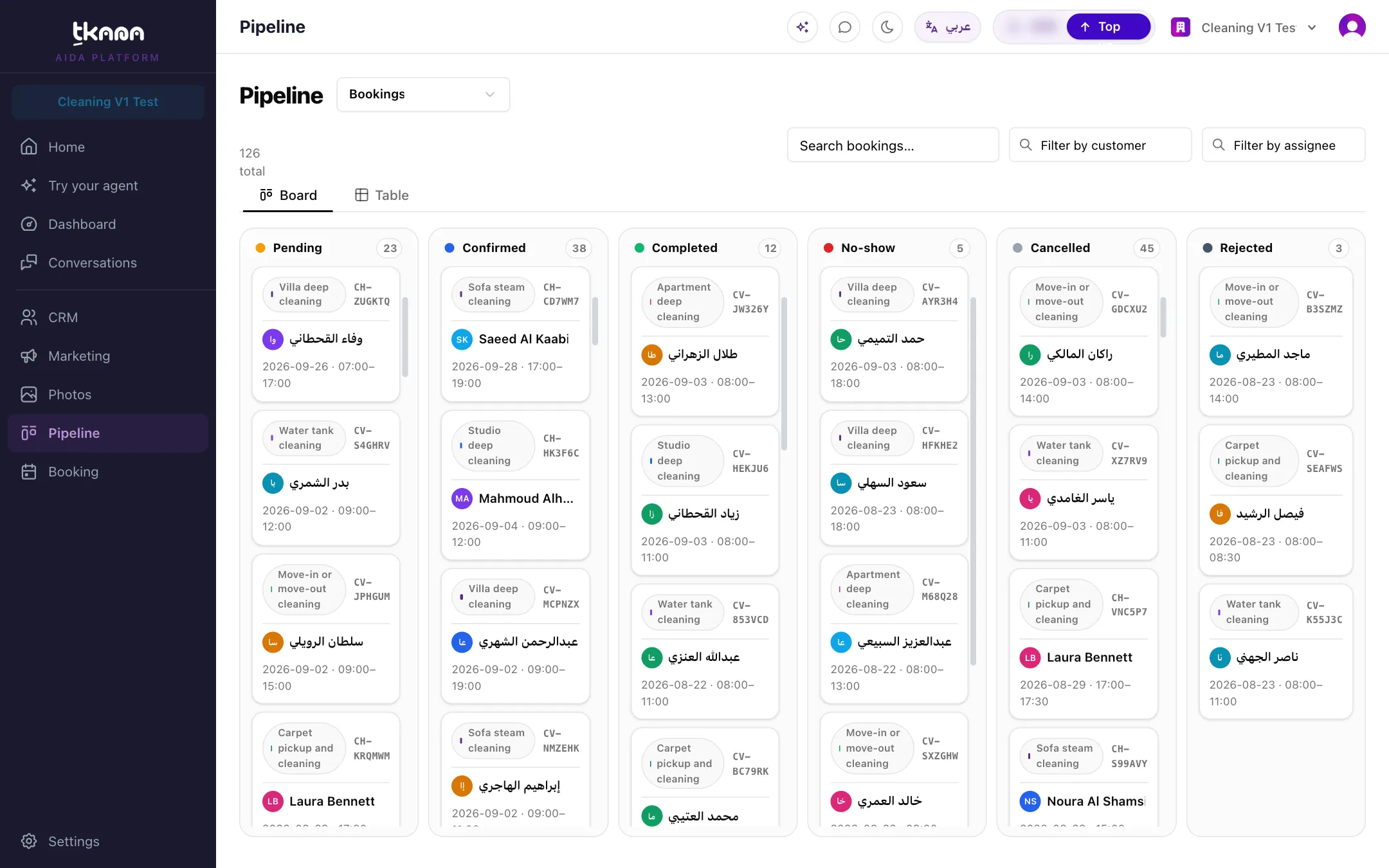
- Change a status by dragging a card to another column, for example from Pending to Confirmed, or from Confirmed to Completed or No-show. Only allowed moves work; see Understand booking statuses.
- Filter by service, status, resource, customer, booking date, or creation date. Click Clear filters to start over.
- Search by booking reference, customer name, or phone number.
- Click a card to see its details and jump to it with Open in calendar.
The board shows up to 200 bookings at a time. If you have more, use the filters to narrow the list.
Who sees which bookings
Section titled “Who sees which bookings”- Account owners see every booking.
- A team member who is set as Assigned to on a resource sees only that resource’s bookings.
- A team member who is not linked to any resource, such as a receptionist, sees all bookings.
What each person can do also depends on their role: creating, editing, and deleting bookings are separate permissions. If an action is missing for you, ask your account owner.
Was this article helpful?
Thanks for the feedback, it helps us improve these guides.