

Set your escalation rules
Your agent already escalates when a customer asks for a person, raises a complaint, or needs a decision it cannot make. With the Escalation skill’s settings, you add the rules that fit your business.
Change the escalation settings
Section titled “Change the escalation settings”-
Go to Settings, then under AI click Skills.
-
Click Escalation in the list of skills.
-
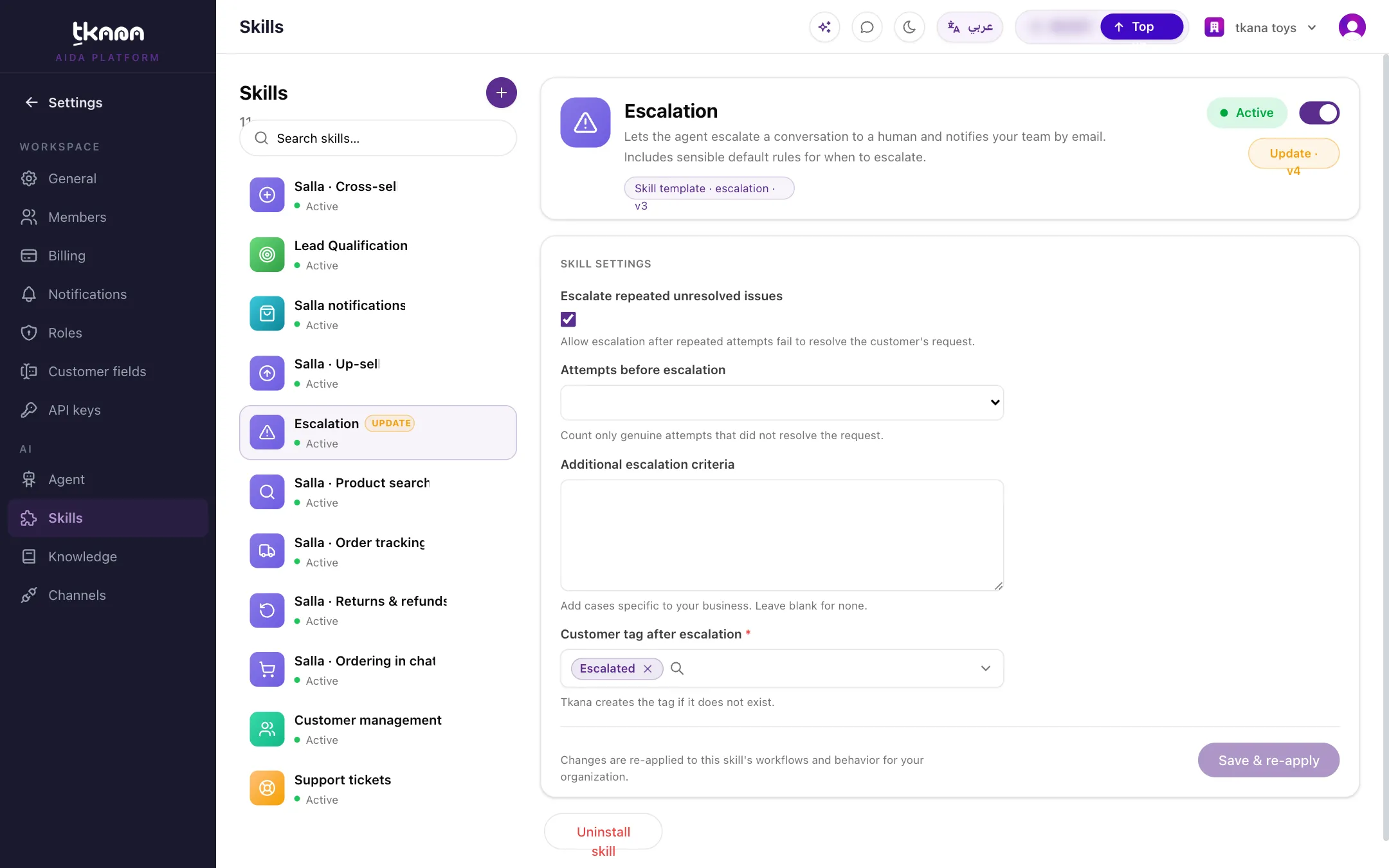
Under Skill settings, adjust:
- Escalate repeated unresolved issues: turn this on to escalate when the agent has tried to help and the customer is still unhappy.
- Attempts before escalation: how many failed attempts count, 1 attempt, 2 attempts (the default), or 3 attempts.
- Additional escalation criteria: extra cases in plain language (see the examples below).
- Customer tag after escalation: the tag added to escalated customers. The default is Escalated. If the tag does not exist, tkana creates it.
-
Click Save & re-apply.
Examples of additional criteria
Section titled “Examples of additional criteria”Write each rule the way you would explain it to a new employee:
- “Any order over 5,000 riyals goes to the sales manager.”
- “Escalate if a customer mentions a medical reaction after a treatment.”
- “Customers asking about corporate or bulk deals should talk to the team.”
- “Escalate if the customer is asking about an order that has not arrived after 7 days.”
Who gets notified
Section titled “Who gets notified”Every escalation sends an email to your team with the customer’s name, phone number, the reason, and who escalated. To make sure the right people receive it, check the members of your workspace in Settings > Members.
Control how long the agent stays quiet
Section titled “Control how long the agent stays quiet”After someone on your team replies, the agent pauses on that conversation for the channel’s hold window. You set it per channel on the Channels page, in Human hold window (hours): 24 hours by default, up to 168.
Related
Section titled “Related”Was this article helpful?
Thanks for the feedback, it helps us improve these guides.