

Track Meta's review and fix a rejected template
Every template you create goes to Meta for review before you can send it. This guide explains the statuses you will see on the Templates tab, how to fix a template Meta turned down, and what you can change after a template is submitted.
Template statuses
Section titled “Template statuses”Each template card on Marketing > Templates shows its status in the top corner.
| Status | What it means | What you can do |
|---|---|---|
| Pending Review | Meta is reviewing it, usually for a few minutes and up to 24 hours. | Wait. A template under review cannot be edited. |
| Approved | Ready to use in campaigns and conversations. | Send it. You can still edit its text, within Meta’s limits. |
| Rejected | Meta turned it down. | Edit and resubmit it, or create a new one. |
| Paused | Meta paused it because customers reacted badly to it, for example by blocking or reporting your number. It cannot be sent for now. | Improve the text and edit it, or wait for Meta to resume it. |
| Disabled | Meta disabled it for good after repeated quality problems. | Create a new template with different content. |
Check Meta’s latest decision
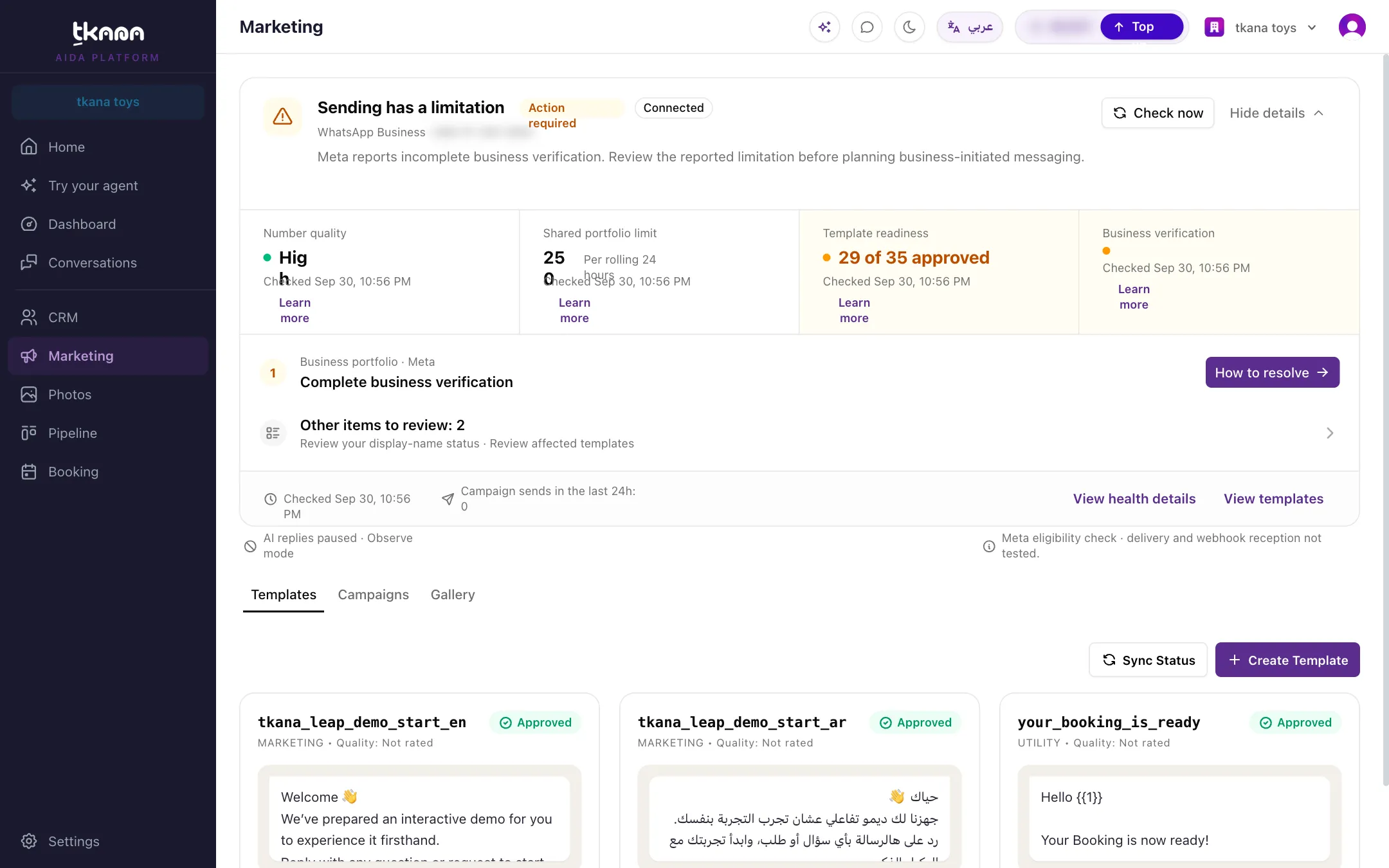
Section titled “Check Meta’s latest decision”Meta’s decision does not always show up in the portal straight away. Click Sync Status at the top of the Templates tab to pull the latest status of all your templates.
For more detail on one template, click Check health at the bottom of its card. It shows the template’s status, language, category, and its quality rating from Meta. The WhatsApp Health card at the top of the page also counts your approved templates and lists any that need attention.
Why Meta rejects templates, and how to fix it
Section titled “Why Meta rejects templates, and how to fix it”Meta does not always explain its decision in detail. These are the most common causes:
| Cause | How to fix it |
|---|---|
| Wrong category. A promotional message submitted as Utility. | Submit offers, discounts, and announcements as Marketing. See Marketing, Utility, and Authentication templates. |
| Variables without context. Several variables in a row, or a variable with no sentence around it. | Write full sentences, and keep variables inside the text, not at its start or end. |
| Unclear or misleading content. Vague wording, exaggerated claims, or a message that hides who is sending it. | Say who you are and what the message is about in the first line. |
| Broken or shortened links. A Visit Website link that does not open, or a link shortener. | Use your full website address, starting with https://. |
| Spelling and formatting mistakes. Typos, many emojis, or text in a different language from the one you chose. | Proofread, and match the text to the template’s Language. |
| Asking for sensitive information. Card numbers, passwords, or ID numbers. | Never ask for these in a template. |
| A copy of an existing template. The same text as another template on your account. | Change the wording, or use the existing template. |
You can see Meta’s full explanation, when it gives one, in WhatsApp Manager on Meta’s side.
Edit a template
Section titled “Edit a template”Hover over a template card and click Edit (the pencil icon), change the text, then click Save Changes. The template goes back to Meta for review.
- Approved templates can be edited, but Meta allows about one edit a day and 10 a month for each template, and the category stays the one it was approved under. While Meta reviews the edit, the template may not send.
- Rejected and paused templates can be edited as often as you need, and you can also change their category.
- Pending Review and Disabled templates cannot be edited, so the Edit icon does not appear.
Clone a template
Section titled “Clone a template”Hover over the card and click Clone. A copy of the form opens with everything filled in and _copy added to the name. Change the name, the language, or anything else, then click Submit to Meta for Review. The copy is a new template and goes through review on its own. Cloning is the way to make the other language version of a template, or to try a new version without losing the approved one.
Delete a template
Section titled “Delete a template”Hover over the card and click Delete (the bin icon). The template is removed from your WhatsApp account straight away, with no confirmation step, and cannot be restored. Campaigns you already sent keep their results.
Related
Section titled “Related”Was this article helpful?
Thanks for the feedback, it helps us improve these guides.