

Reply to a customer and hand the conversation back to the AI
Your AI agent answers your customers on its own. Sometimes you will want to step in yourself: a sensitive complaint, a big order, or a question only your team can answer. This guide shows you how to take over a conversation, reply, and hand it back to the AI when you are done.
Find the conversation
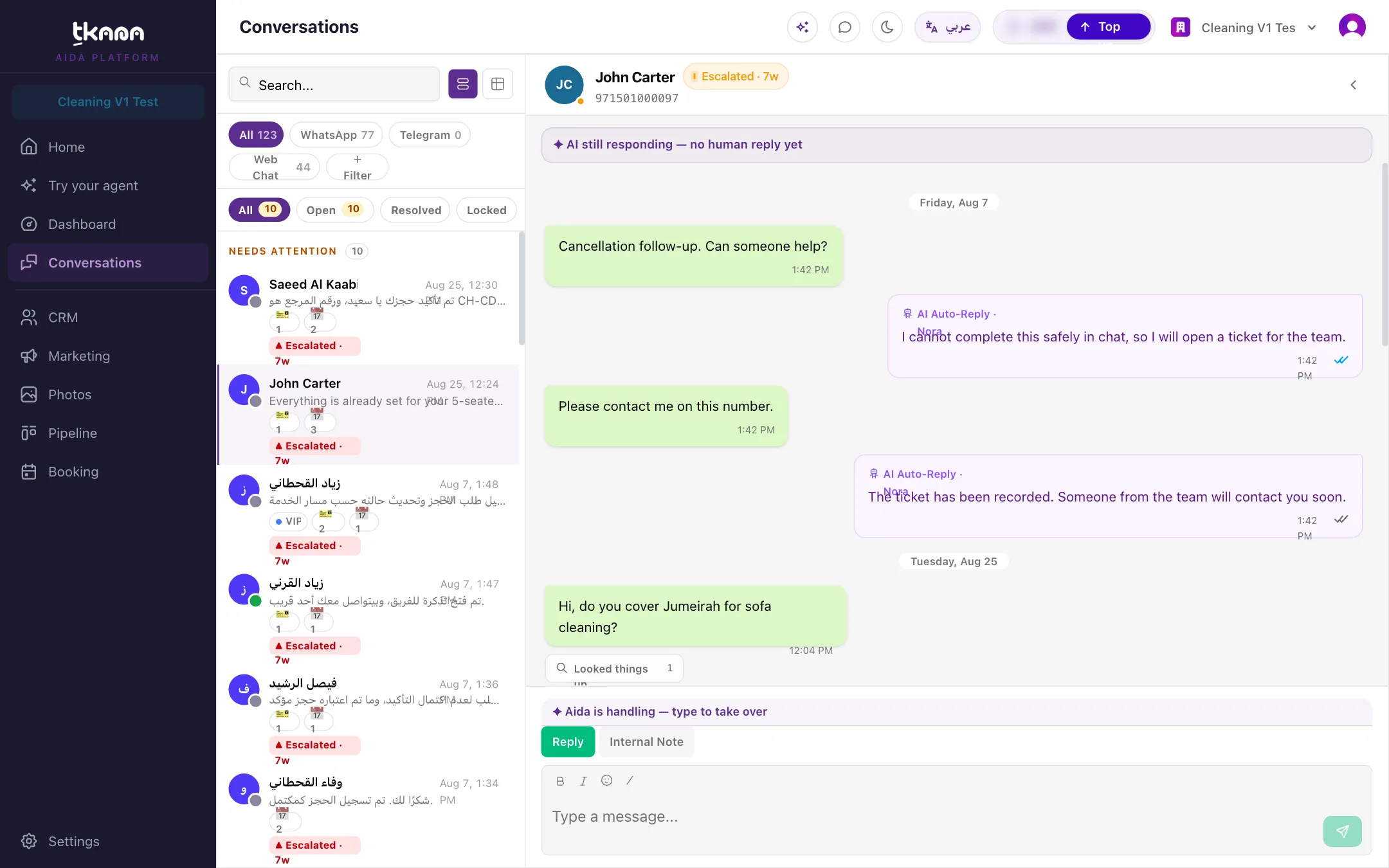
Section titled “Find the conversation”Open Conversations from the sidebar. Conversations that need a person, because they were escalated or someone on your team is already handling them, are pinned under Needs attention at the top of the list.
Use the search box or Filter (channel, status, assignee, sentiment, and more) to find a specific customer, then click the row to open the conversation. See Find your way around Conversations.
Take over the conversation
Section titled “Take over the conversation”Above the message box, a status bar tells you who is handling the conversation. While the AI is in charge, it says that Aida (or your agent’s name) is handling it and that you can type to take over. You can take over in either of two ways:
- Just reply. Type your message and send it. Once you or a teammate replies, the AI stays quiet on that conversation for a while so it does not talk over you.
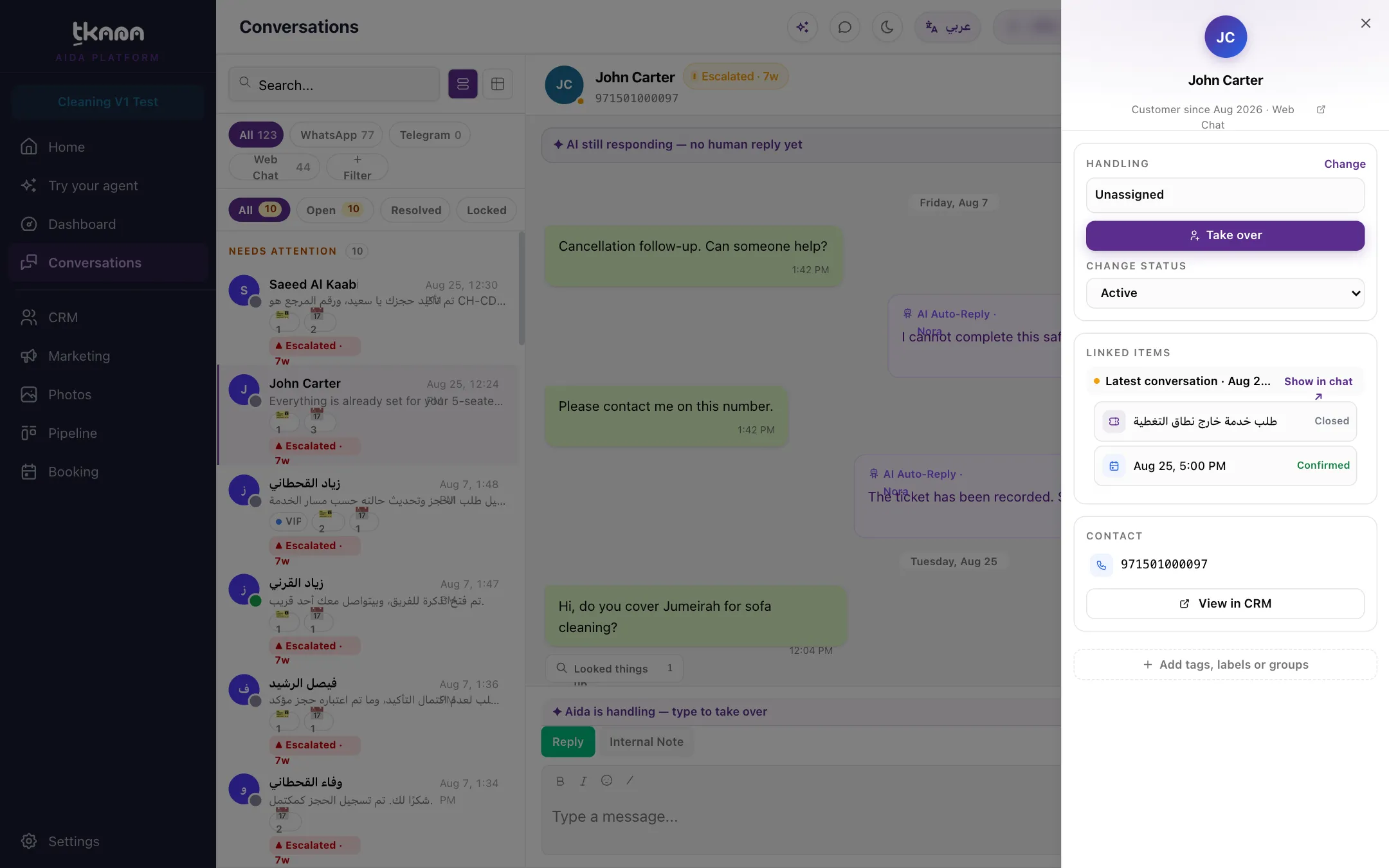
- Use Take over. Click Details (the arrow button in the conversation header) and, in the Handling card, click Take over. The conversation is assigned to you and the AI stops replying until you hand it back.
After you reply, the status bar changes to AI paused and shows the business name you are replying as.
Reply to the customer
Section titled “Reply to the customer”-
Make sure Reply is selected under the message box. (Internal Note is for your team only; the customer never sees it.)
-
Type your message in the box. You can use bold and italic formatting and emoji, and they show up correctly on WhatsApp.
-
Click the send button. Your reply goes to the customer on the same channel they wrote from.
Hand the conversation back to the AI
Section titled “Hand the conversation back to the AI”When you are done, give the conversation back to your agent so it can carry on:
- Resume AI now. While the AI is paused after your reply, the status bar above the message box shows a Resume AI now button. Click it and the AI takes the conversation back straight away.
- Assign it to your agent. In Details > Handling, click Change, then under Assign to AI pick your agent. Use this if you took over with Take over.
Pass it to a teammate
Section titled “Pass it to a teammate”To have someone else handle it, open Details > Handling, click Change, and choose Assign to team member. While a person is assigned, the AI does not reply.
Close the loop: change the status
Section titled “Close the loop: change the status”If the customer’s request is done, mark it so. In Details, use Change Status and choose Resolved or Closed. Choose Escalated if it still needs attention from someone on your team, or Active to reopen it. See Understand conversation statuses.
If the customer writes again shortly after a conversation was resolved, the same conversation reopens automatically, so you keep the full history in one place.
Was this article helpful?
Thanks for the feedback, it helps us improve these guides.