

Your first look at the tkana portal
The tkana portal is where you manage your AI agent and the conversations it has with your customers. This tour shows you what each part of the screen does so you always know where to go next.
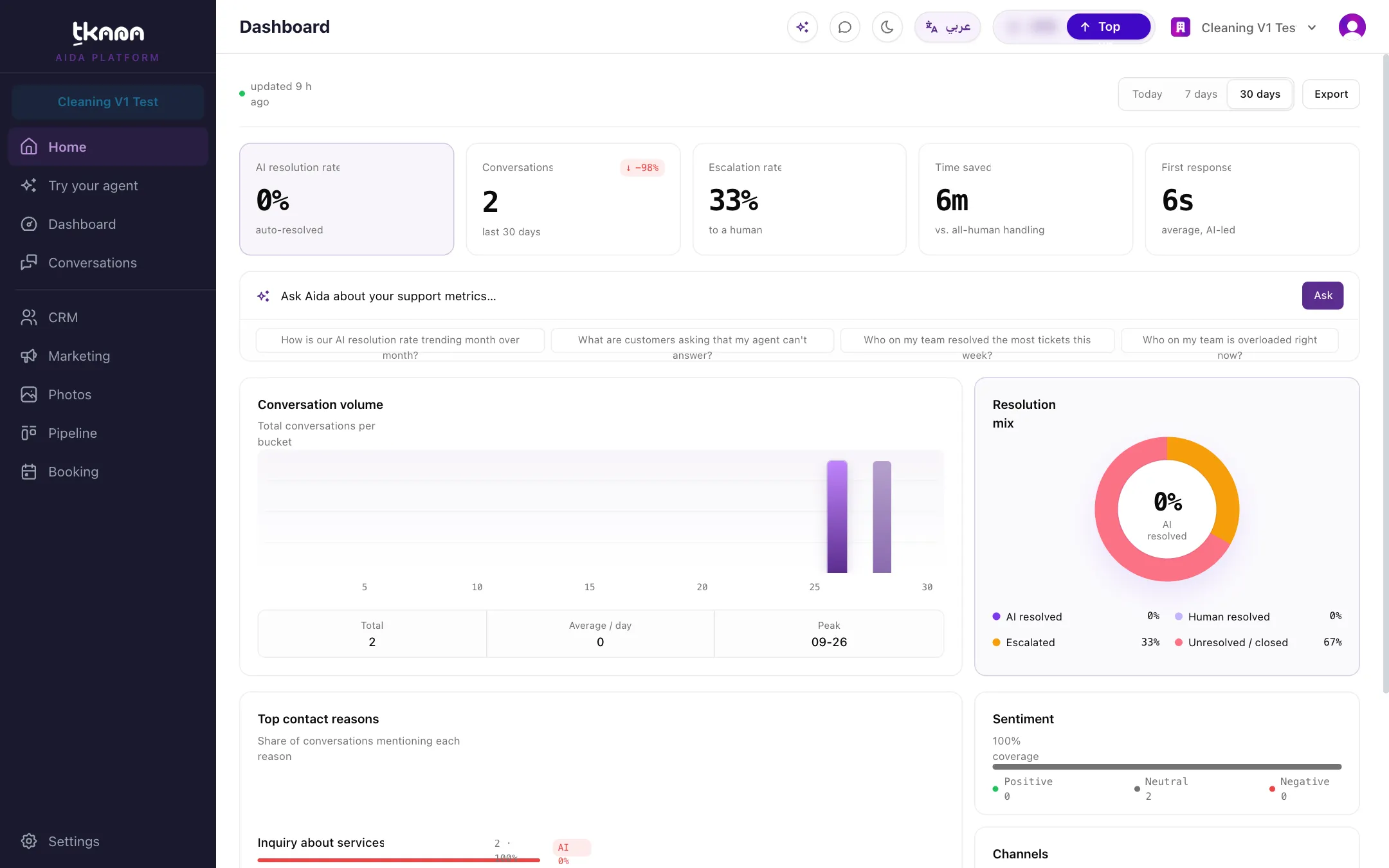
The sidebar
Section titled “The sidebar”The sidebar is your main way around the portal. From top to bottom:
| Item | What you do there |
|---|---|
| Home | Your starting point. While you are setting up, it shows the setup guide with your goals. |
| Try your agent | Chat with your own agent to test it. Nothing you do here reaches a real customer. |
| Dashboard | Support analytics: conversation volume, AI resolution rate, response times, and what customers contact you about. |
| Conversations | Every chat between your customers and your agent, on every channel. You can read along and step in at any time. |
| CRM | Your customers’ contact records, tags, and groups. |
| Marketing | WhatsApp templates and the campaigns you send to your customers. |
| Photos | Images your agent can send to customers in the chat. |
| Pipeline | Boards for your conversations, tickets, and bookings, each split into stages. |
| Booking | Your appointments calendar, services, and resources. |
Settings
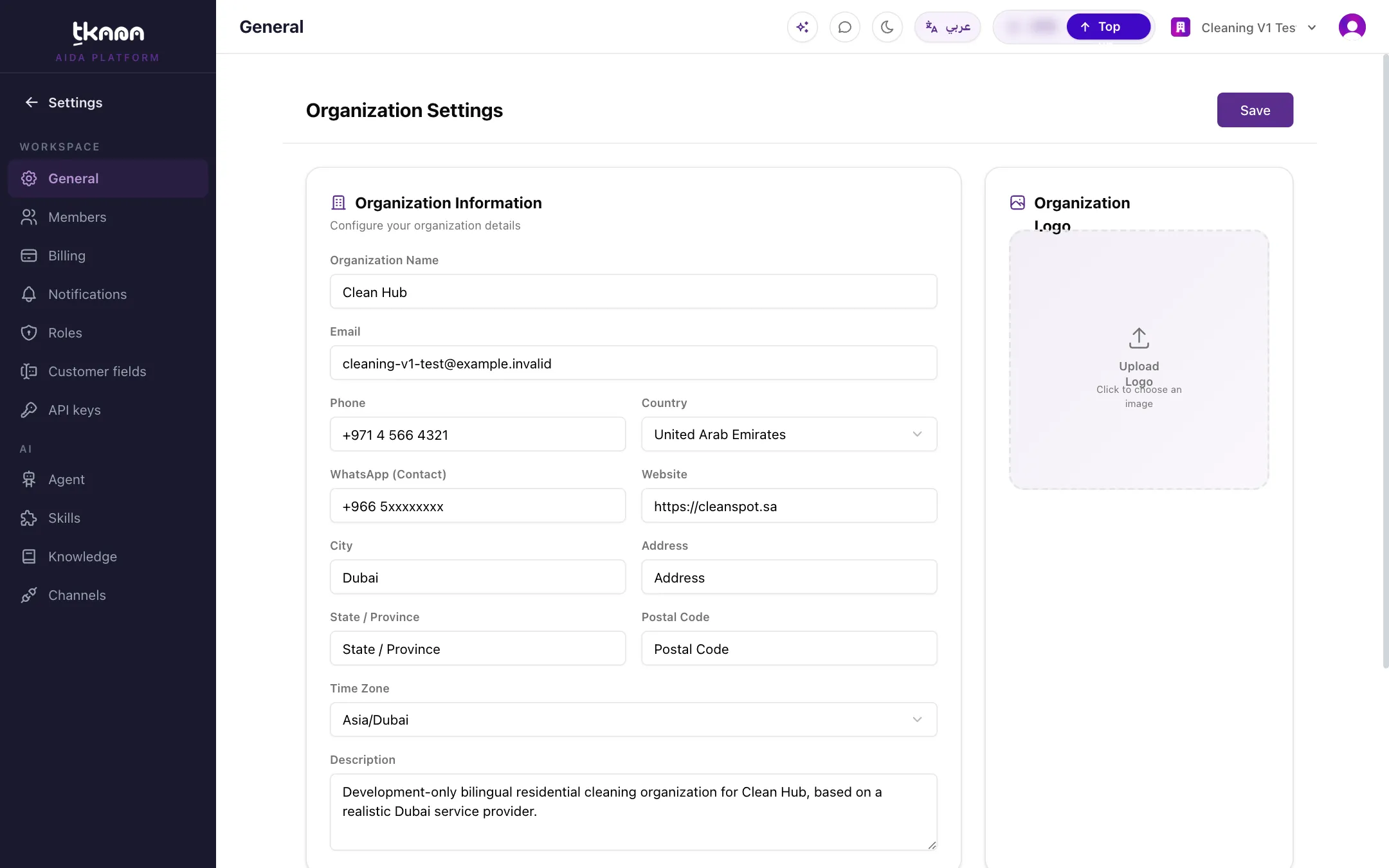
Section titled “Settings”Click Settings in the sidebar and the sidebar switches to the settings menu. Use the Settings row at the top to go back.
Workspace
- General: your organization’s details.
- Members: invite teammates and manage who has access.
- Billing: your wallet, usage, plan, and payment methods.
- Notifications: the messages tkana sends to your customers and team.
- Roles: what each role is allowed to see and do.
- Customer fields (account owner only): extra details you want to keep on every contact.
- API keys: keys for connecting your own systems to tkana.
AI
- Agent: your agent’s name, greeting, tone, working hours, and excluded customers.
- Skills: ready-made abilities you add to your agent, such as booking or ticketing.
- Knowledge: what your agent knows about your business: content, documents, FAQs, and additional guidelines.
- Channels: where your agent talks to customers, like WhatsApp and the chat widget on your website.
The top bar
Section titled “The top bar”Across the top of every page you will find:
- The page title, so you always know where you are.
- Aida (the sparkle button): your assistant inside the portal. Ask her about your conversations, tickets, bookings, customers, and knowledge. See Ask Aida about your business and all Aida articles.
- Chat: opens your live chat page in a new tab, so you can talk to your agent the way a customer would.
- Light and dark mode toggle.
- Language: switch between Arabic and English. You stay on the same page.
- Your credit balance, with a Top up button. It turns amber when you are running low.
- Organization switcher: to move between organizations if you belong to more than one.
- Your profile menu, where you manage your account and sign out.
Where to go next
Section titled “Where to go next”Was this article helpful?
Thanks for the feedback, it helps us improve these guides.
Need more help?