

Set up your organization profile, logo, and time zone
Your organization profile tells tkana who you are: your business name, logo, contact details, and where you operate. Some of these settings do more than decorate the portal. Your Time Zone decides how days and hours are counted, and your Country decides how local phone numbers are read.
Open your organization settings
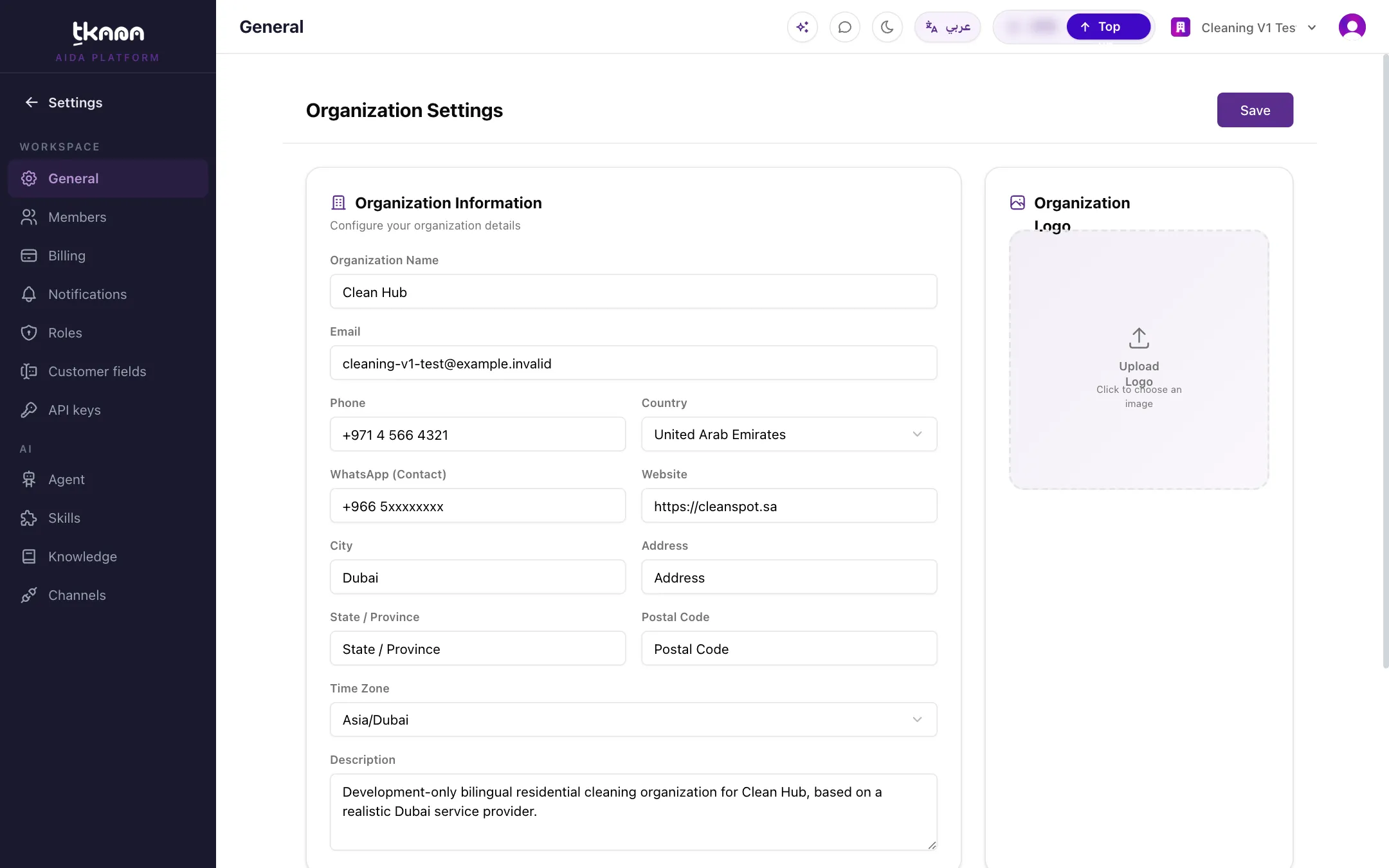
Section titled “Open your organization settings”In Settings, open General. The page is called Organization Settings and has three parts: Organization Information, Organization Logo, and Branding Colors.
-
Fill in or update the fields you need (each one is explained below).
-
Click Save at the top of the page. You see Settings saved when your changes are stored.
Your business name in Arabic and English
Section titled “Your business name in Arabic and English”The Organization Name field edits the name for the language the portal is showing right now. To set both names:
-
With the portal in English, type your English name and click Save.
-
Switch the portal to Arabic with the language button in the top bar.
-
Type your Arabic name in the same field and click Save again.
Contact details and address
Section titled “Contact details and address”- Email and Phone: your business’s main contact details.
- WhatsApp (Contact): the WhatsApp number you want to share as a contact. This is only a detail on your profile. It does not connect a WhatsApp channel. To connect your number, see Connect your WhatsApp Business number.
- Website: your website address.
- Country, City, Address, State / Province, and Postal Code: where your business is.
- Description: a short description of your business.
Why your country matters
Section titled “Why your country matters”Customers and your team often write phone numbers the local way, without the country code (for example a number starting with 05 in Saudi Arabia). tkana uses your Country to understand those numbers, for example when you add a contact by hand, import contacts, or search for a customer by phone. Pick the country where most of your customers are.
Why your time zone matters
Section titled “Why your time zone matters”Choose your Time Zone from the list. If you do not change it, it is set to Riyadh time. Your time zone is used to:
- Count days and hours on your dashboard. “Today”, “this week”, and busy-hour charts follow your local time, not a global clock. If you change the time zone, the dashboard updates right away.
- Show booking availability. Appointment times your agent offers and books are in your local time.
- Schedule campaigns. When you schedule a campaign for a date and time, it goes out at that time in your time zone.
Upload your logo
Section titled “Upload your logo”-
In the Organization Logo card, click Upload Logo and choose an image.
-
Wait for the Logo uploaded message, then click Save at the top of the page.
To replace the logo, hover over it and click Change. To remove it, click Remove logo, then Save.
Choose your brand colors
Section titled “Choose your brand colors”Under Branding Colors, set a Primary Color and a Secondary Color. These colors style the chat interface your customers see. Pick a color with the color swatch, or type its code (such as #5B2D8E) in the box next to it, then click Save.
Related
Section titled “Related”Was this article helpful?
Thanks for the feedback, it helps us improve these guides.