

Work conversations on the pipeline board
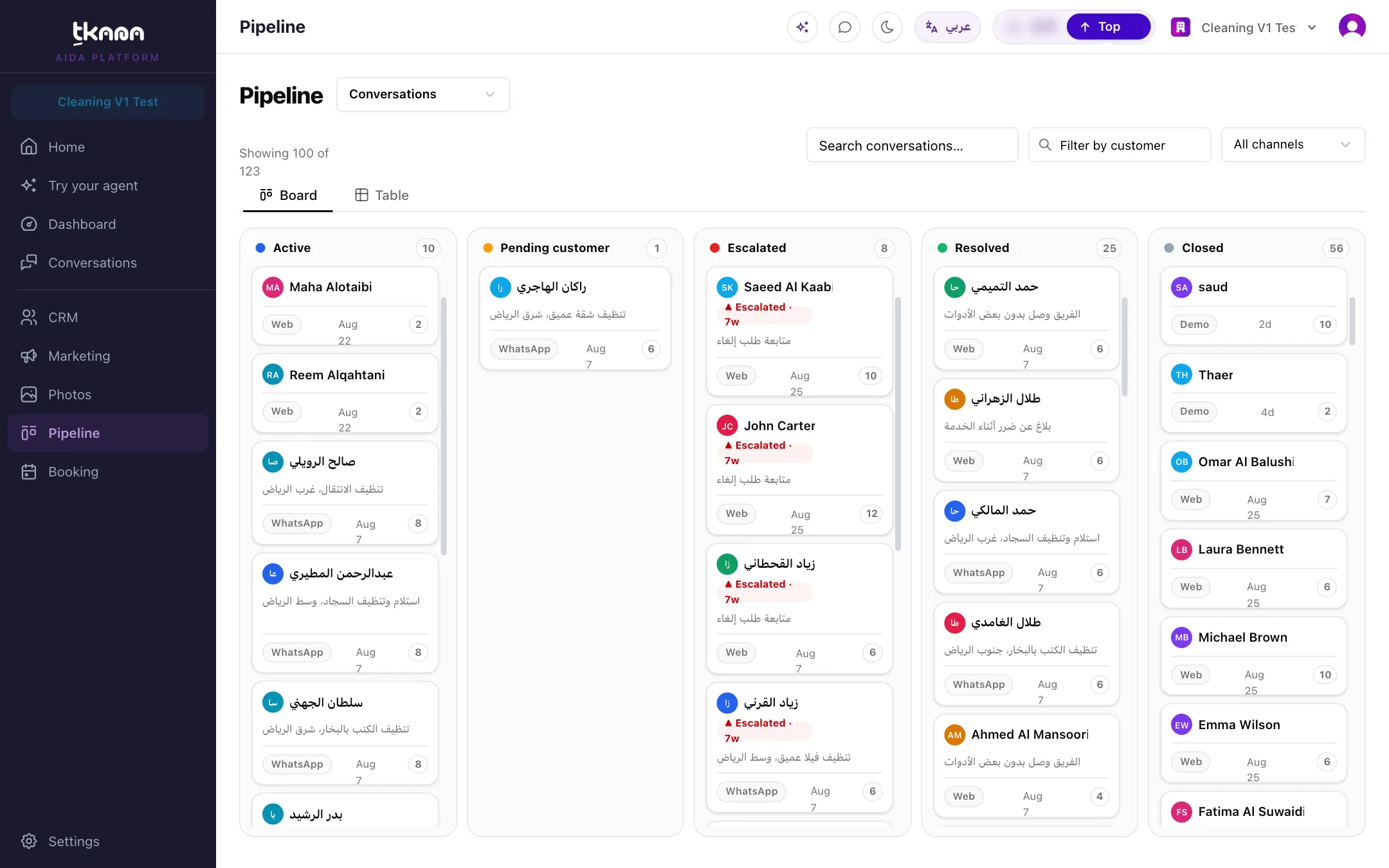
The Conversations page shows one customer at a time. When you want the big picture, such as how many conversations are escalated right now, or which ones are still active, use the conversations board on the Pipeline page. Every conversation is a card, and every column is a status.
Open the board
Section titled “Open the board”-
Open Pipeline from the sidebar.
-
In the list next to the Pipeline title, choose Conversations. (The same list switches to your Tickets or Bookings boards.)
The board has one column per status: Active, Pending customer, Escalated, Resolved, and Closed. The number of conversations shown appears above the board.
What a card shows
Section titled “What a card shows”- The customer’s name.
- For an escalated conversation, a red Escalated badge with how long ago it was escalated. Hover over it to see who escalated it and why.
- The conversation’s subject, when it has one.
- The channel, the time of the last message, and the number of messages.
Click a card to open the conversation.
Change a status by dragging
Section titled “Change a status by dragging”Drag a card to another column to change its status. For example, drag a conversation you have finished to Resolved.
- When you drag a card to Escalated, the Escalate conversation window opens. Your team is notified, and you can add a reason so it shows on the conversation. The reason is optional. Click Escalate to confirm, or Cancel to leave the card where it was.
- Some moves are not allowed, for example moving a card into Pending customer. If you try, you see a “Can’t move” message and the card goes back to its column.
Find conversations
Section titled “Find conversations”Use the toolbar above the board:
- Search conversations…: type at least 3 characters to search.
- Filter by customer: type a customer’s name or number and pick them to see only their conversations. Click the customer’s chip to clear the filter.
- Channel: show only one channel, or choose All channels.
Switch to the table
Section titled “Switch to the table”Click Table to see the same conversations as rows, and Board to go back.
The table shows Customer, Subject, Status, Channel, Messages, Started, and Last activity.
- Click the Started or Last activity column header to sort by it.
- In the table you can also filter by status.
- Use the controls at the bottom to move between pages and choose how many rows to show per page.
Related
Section titled “Related”Was this article helpful?
Thanks for the feedback, it helps us improve these guides.