

Add photos your agent can send
A picture often answers a question faster than text: what a product looks like, your price list, your location, or the result of a service. The Photos page is your agent’s photo library. When a customer asks for a photo, or when your agent presents a product or service, it picks a matching photo from this library and sends it with its reply.
Your agent can send photos on WhatsApp, the chat widget, the chat page, and Telegram.
Upload photos
Section titled “Upload photos”-
Open Photos from the sidebar.
-
Click Upload photos and choose one or more images. Each image can be up to 5 MB.
-
Wait for the Photos uploaded message. The new photos appear in the grid.
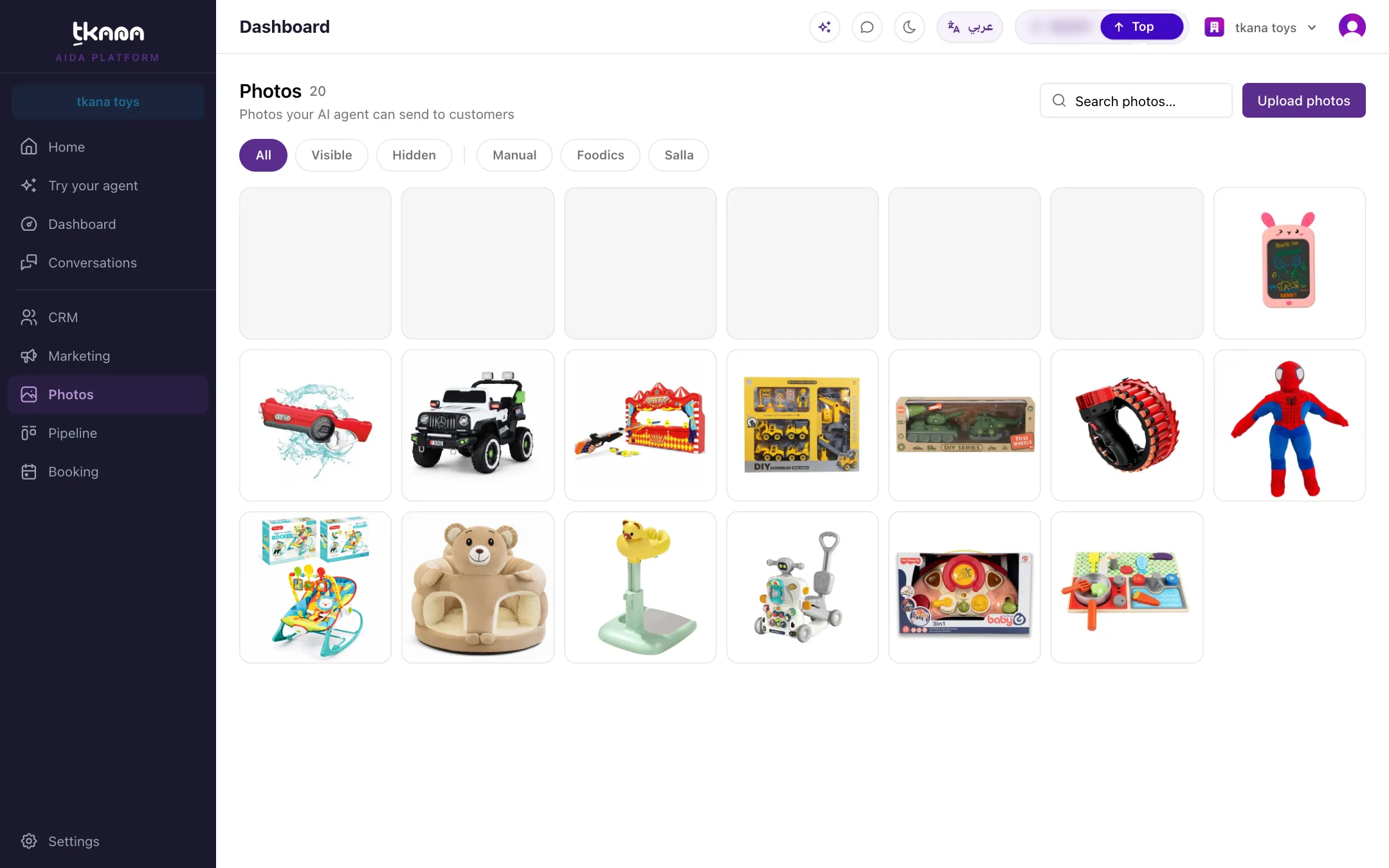
Describe each photo so your agent picks the right one
Section titled “Describe each photo so your agent picks the right one”Your agent chooses photos by what you write about them, so a clear description matters more than the file name.
-
Click a photo in the grid to open its details.
-
Click Edit.
-
Fill in the fields:
- Name: a short, clear title, such as “Deep cleaning, before and after”.
- Alt text: a short description of what the image shows.
- Tags (comma-separated): words customers might use, such as
sofa, cleaning, upholstery. - When to use: describe the question this photo answers, for example “When a customer asks what the sofa cleaning result looks like”.
-
Click Save.
Choose which photos your agent can send
Section titled “Choose which photos your agent can send”Every photo is either Visible or Hidden:
- Visible photos can be sent by your agent.
- Hidden photos stay in your library, but your agent never sends them. Hidden photos look dimmed in the grid.
To change it, click the photo, then click Hide or Show. Use the All, Visible, and Hidden filters at the top to see each set, and the search box to find a photo by name.
Photos from your store
Section titled “Photos from your store”If your store is connected to tkana, for example through Salla or Foodics, your product photos can appear here automatically. Use the source filters next to the status filters to see only the photos from one source.
- A synced photo’s name comes from your store and is replaced the next time it syncs.
- Synced photos cannot be deleted here. To stop your agent from sending one, Hide it instead.
Delete a photo
Section titled “Delete a photo”Click the photo, then click Delete. You see Photo deleted when it is removed.
Photos and the Marketing gallery are different libraries
Section titled “Photos and the Marketing gallery are different libraries”The Gallery tab on the Marketing page is a separate file library for your WhatsApp templates and campaigns. Uploading a file to the gallery does not add it to Photos, so your agent will not send it in conversations. To make an image available to your agent, upload it here. See Upload images and files for your templates.
Related
Section titled “Related”Was this article helpful?
Thanks for the feedback, it helps us improve these guides.