

Create a WhatsApp template
WhatsApp only lets a business start a conversation, or message a customer more than 24 hours after their last message, with a template that Meta approved in advance. You need an approved template for every campaign, and you can also send one from a conversation when the 24-hour window has closed.
The parts of a template
Section titled “The parts of a template”| Part | Required | What to put in it |
|---|---|---|
| Template Name | Yes | An internal name your customers never see, such as ramadan_offer_ar. English letters, numbers, and underscores (_) only. |
| Category | Yes | Marketing or Utility. See Marketing, Utility, and Authentication templates. |
| Language | Yes | Arabic or English. One template has one language. |
| Template Type | Yes | Text Only, or Image + Text to show a picture at the top. |
| Header (optional) | No | A short bold line above the message, such as “Weekend offer”. |
| Message Body | Yes | The message itself. It can include variables. |
| Buttons (optional) | No | Up to 3 buttons: Quick Reply, Visit Website, or Call Number. |
| Footer (optional) | No | A small grey line at the bottom, such as your business name. |
Create the template
Section titled “Create the template”-
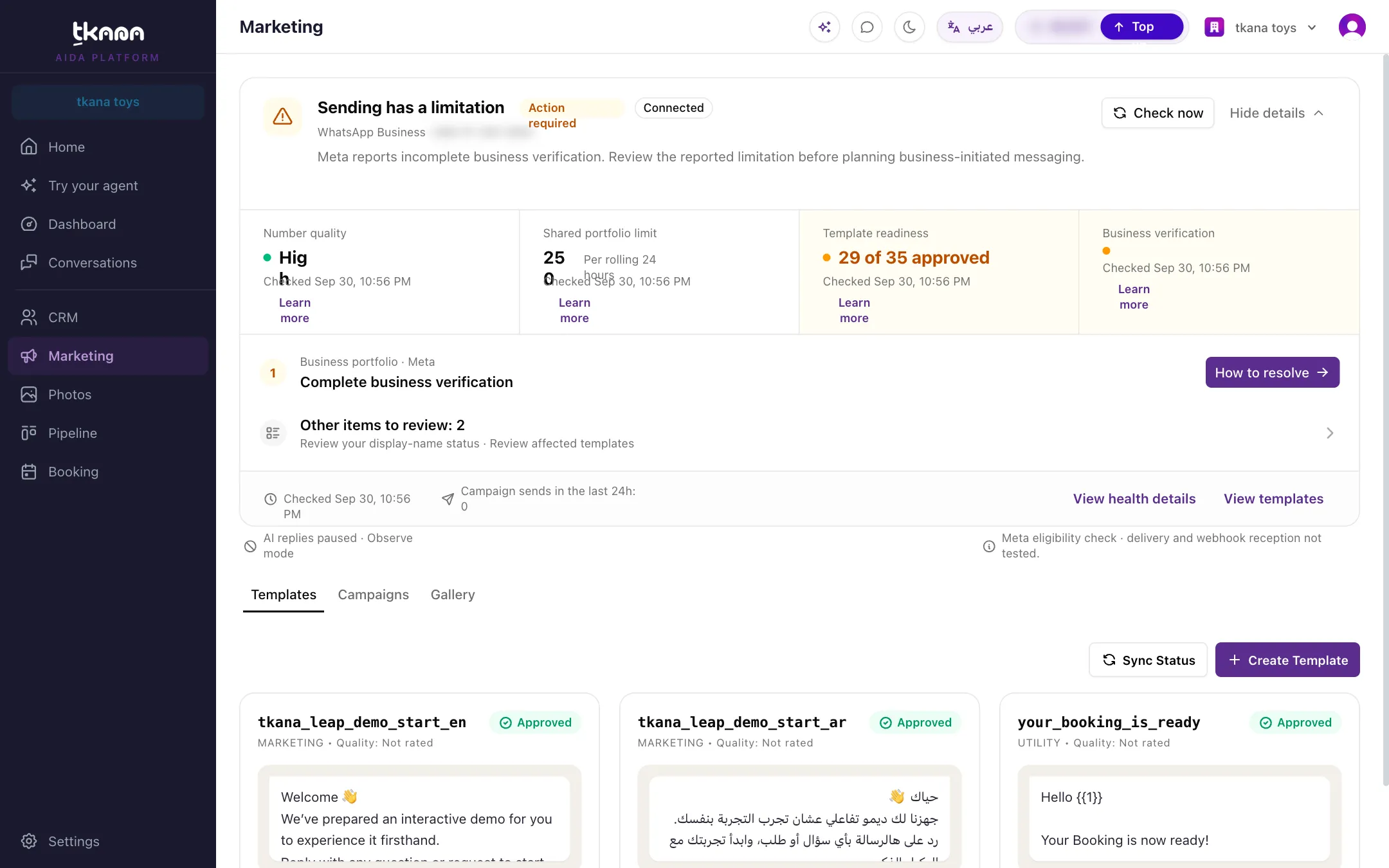
Open Marketing from the sidebar, then the Templates tab, and click Create Template.
-
Enter the Template Name. Pick a name that tells you what the template is for and in which language, like
new_branch_en. You cannot change the name after you submit. -
Choose the Category and the Language.
-
Choose the Template Type. For Image + Text, click Upload Image and pick a JPG or PNG picture. The image sits at the top of the message in place of a text header.
-
For a text-only template, you can add a Header (optional).
-
Write the Message Body. To personalize it, place the cursor where the value should go, then choose Name or Phone in Add Variable. A placeholder such as
{{name}}is added to the text. You decide what fills it when you send the campaign. See Personalize a campaign with customer details. -
Add buttons if you need them:
- Quick Reply: a tap sends the button’s text back to you, for example “I’m interested”. A good way to start a conversation your agent can take over.
- Visit Website: opens a link. Enter the full address, starting with
https://. - Call Number: calls a phone number. Enter it with the country code, such as
+966 5XX XXX XXXX.
-
Add a Footer (optional) if you want one.
-
Check the message in Template Preview on the right, then click Submit to Meta for Review.
Rules that avoid a rejection
Section titled “Rules that avoid a rejection”The form checks a few of WhatsApp’s rules before it lets you submit:
- The message cannot start or end with a variable. Write a full sentence around it, for example:
Hello {{name}}, our weekend offer runs until Saturday. - The message needs enough text for its variables. A body that is mostly variables is refused with Message is too short for the number of variables. Add more text.
- The name can only use English letters, numbers, and underscores.
For the other reasons Meta turns templates down, see Track Meta’s review and fix a rejected template.
Send in Arabic and English
Section titled “Send in Arabic and English”A template has a single language. To reach customers in both languages, create two templates, one Arabic and one English. The quickest way is to finish the first one, then click Clone on its card, change the language and the name (for example new_branch_ar), and translate the text. When you launch a campaign, pick the version that matches its audience.
What happens next
Section titled “What happens next”Meta usually reviews a template within minutes, and it can take up to 24 hours. The template card shows Pending Review until Meta decides, then Approved or Rejected. Click Sync Status to pull the latest decision. See Track Meta’s review and fix a rejected template.
Related
Section titled “Related”Was this article helpful?
Thanks for the feedback, it helps us improve these guides.