

Check and fix your WhatsApp account health
Meta, the company behind WhatsApp, keeps a record of every WhatsApp Business account: how customers react to its messages, how many customers it can message per day, and whether the business is verified. When something on that record goes wrong, your templates and campaigns can stop going out. The WhatsApp health card shows you this record in one place and walks you through the fix.
Find the health card
Section titled “Find the health card”Open Marketing from the sidebar. When a WhatsApp number is connected, the health card appears at the top of the page, above the Templates, Campaigns, and Gallery tabs.
The top of the card shows:
- The overall state of your account, such as Healthy, Needs attention, or Sending blocked. An Action required badge appears when there is something you should fix.
- The connection, such as Connected or Access unconfirmed.
- Your WhatsApp channel’s name and number.
Click Check now to ask Meta for the latest status. Use Hide details and Show details to fold the card.
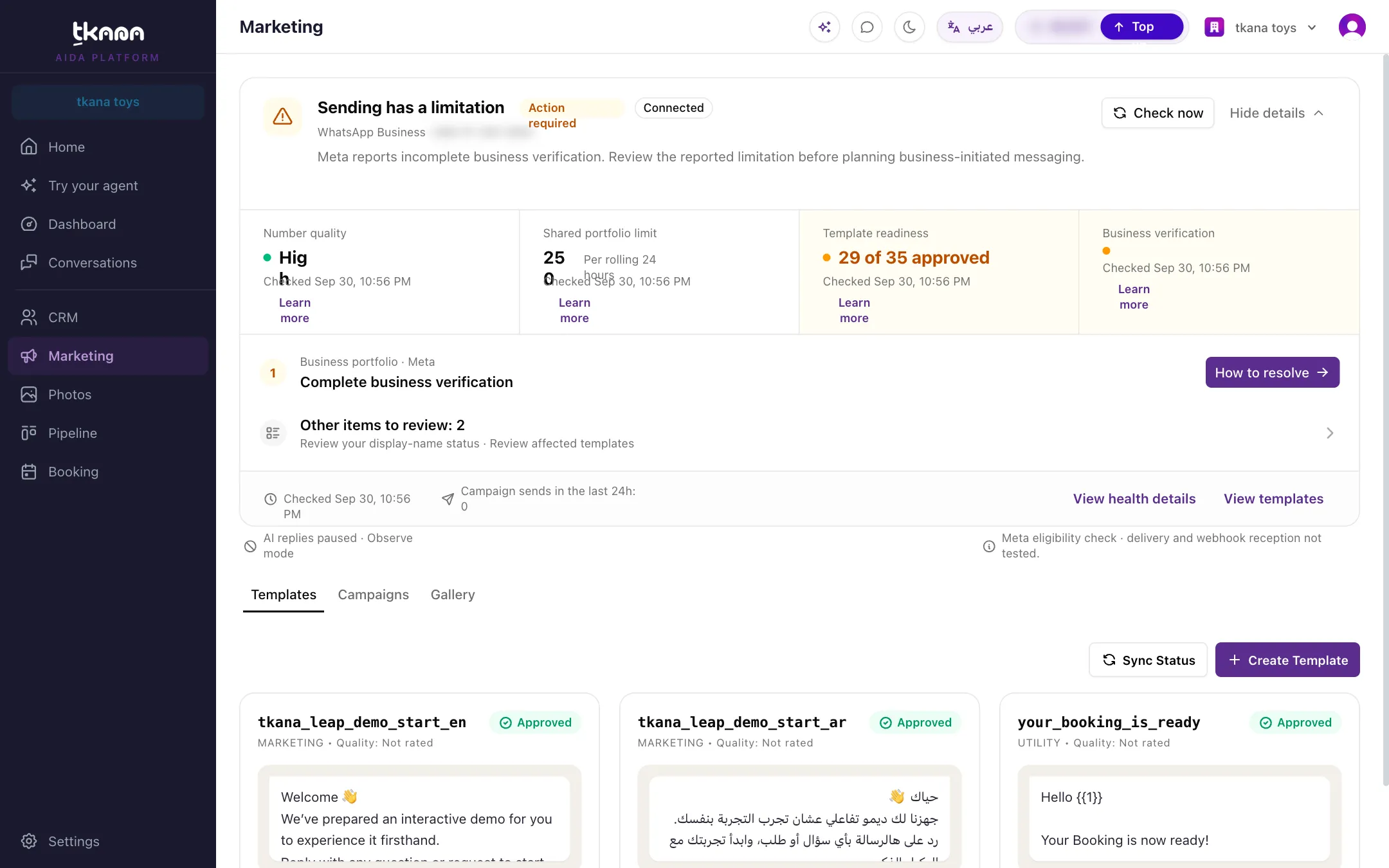
The four health checks
Section titled “The four health checks”| Check | What it tells you |
|---|---|
| Number quality | How customers have reacted to your recent messages: High, Medium, or Low. Not rated means Meta has not given a rating yet, not that quality is poor. |
| Shared portfolio limit | How many different customers your business can start conversations with in a rolling 24 hours, such as 250, 2K, or Unlimited. It is shared by all numbers in your Meta business portfolio, and it is not a count of messages you have left. |
| Template readiness | How many of your WhatsApp templates are approved, for example “3 of 4 approved”. |
| Business verification | Whether Meta has verified your business: Verified or Incomplete. |
Click Learn more under any check for a short explanation. Each value also shows when it was last checked.
Fix what Meta reports
Section titled “Fix what Meta reports”When Meta reports a problem, the card shows the most important one first, with an explanation of what it affects.
-
Click How to resolve next to the item.
-
Read the three sections in the panel that opens:
- What this affects: which messages are affected.
- Who can resolve it: who on your team or in your Meta account can fix it.
- What to do next: the steps to follow.
-
Most fixes happen in Meta’s own tools. Click Open WhatsApp Manager to go straight there, and follow the steps.
-
Come back to the card and click Check again. The item clears once Meta no longer reports it.
If there is more than one item, click Other items to review to see the rest.
Common items and what they mean
Section titled “Common items and what they mean”| Item | What to do |
|---|---|
| Review your WhatsApp payment method | Meta reports a payment problem that blocks messages your business starts, including campaigns. Update the payment method in your WhatsApp account’s billing settings with Meta. Adding tkana credits does not fix this, because Meta bills template messages to your own card. |
| Set the WhatsApp account timezone | Your WhatsApp account has no time zone set in Meta, which blocks sending. Set it in WhatsApp Manager. |
| Complete business verification | Meta has not finished verifying your business. Provide the requested business details through Meta. |
| Review your display-name status | Meta reports a limitation on your number’s display name. Check the status in WhatsApp Manager and follow Meta’s guidance. Do not disconnect a working number to fix this. |
| Review affected templates | Some templates are rejected, paused, disabled, or still pending. Open Templates and edit or review them. |
| Review number quality | Your quality rating dropped. Review who you message, whether they agreed to hear from you, and your recent message content. |
| Review access to this WhatsApp connection | tkana cannot confirm access to your WhatsApp account in Meta. Check access in Meta, and if you need to reconnect, reconnect the existing channel so you keep its history. |
| Review Meta’s account finding | Meta reported a finding on your account or number. Read Meta’s explanation and follow its steps. |
| Review the account alert | Meta sent an alert about your account. Read the alert and check your account in Meta. |
| Review upcoming template category changes | Meta will change the category of one or more templates. Check how this affects your messages before you use them. |
See every check at once
Section titled “See every check at once”At the bottom of the card, click View health details to open All health checks. It lists every finding, plus your Business verification, Account review, and Name status reported by Meta, and What Meta reported in full. Click View templates to jump to your templates.
The footer also shows when the account was last checked and Campaign sends in the last 24h. That number is your recent activity, not what you have left of your limit.
Check a single template
Section titled “Check a single template”Each template card on the Templates tab has a Check health button. It opens the template’s Status, Language, Quality, and Category as Meta sees them, so you can tell whether that template can be sent right now.
Related
Section titled “Related”Was this article helpful?
Thanks for the feedback, it helps us improve these guides.