

Upload your offers, inventory, or packages
Offers, inventory, and packages change often, and your agent needs them exactly right. For these three kinds of content, tkana gives you a template with fixed columns. Your agent learns each row as one item, so it can quote the right offer or package without mixing them up.
| Type | Use it for |
|---|---|
| Offers | Promotions and discounts, with the dates they are valid. |
| Inventory | The products or items you have, with their details. |
| Packages | Bundles and packages, such as a set of sessions or a service plan. |
Upload a file
Section titled “Upload a file”-
Go to Settings, then under AI click Knowledge, and open the Documents tab.
-
Click Add document.
-
Under Type of content, choose Offers, Inventory, or Packages.
-
The dialog lists the Expected columns: for that type. Required columns are shown in bold. Click Download template to get a spreadsheet with those columns already set up.
-
Fill in the template, one row per offer, item, or package, and save it.
-
Back in the dialog, give the document a Name (for example, “Summer offers 2026”), then click Drag a file or click to upload and choose your file. Excel, CSV, and PDF files are accepted.
-
Click Upload & index.
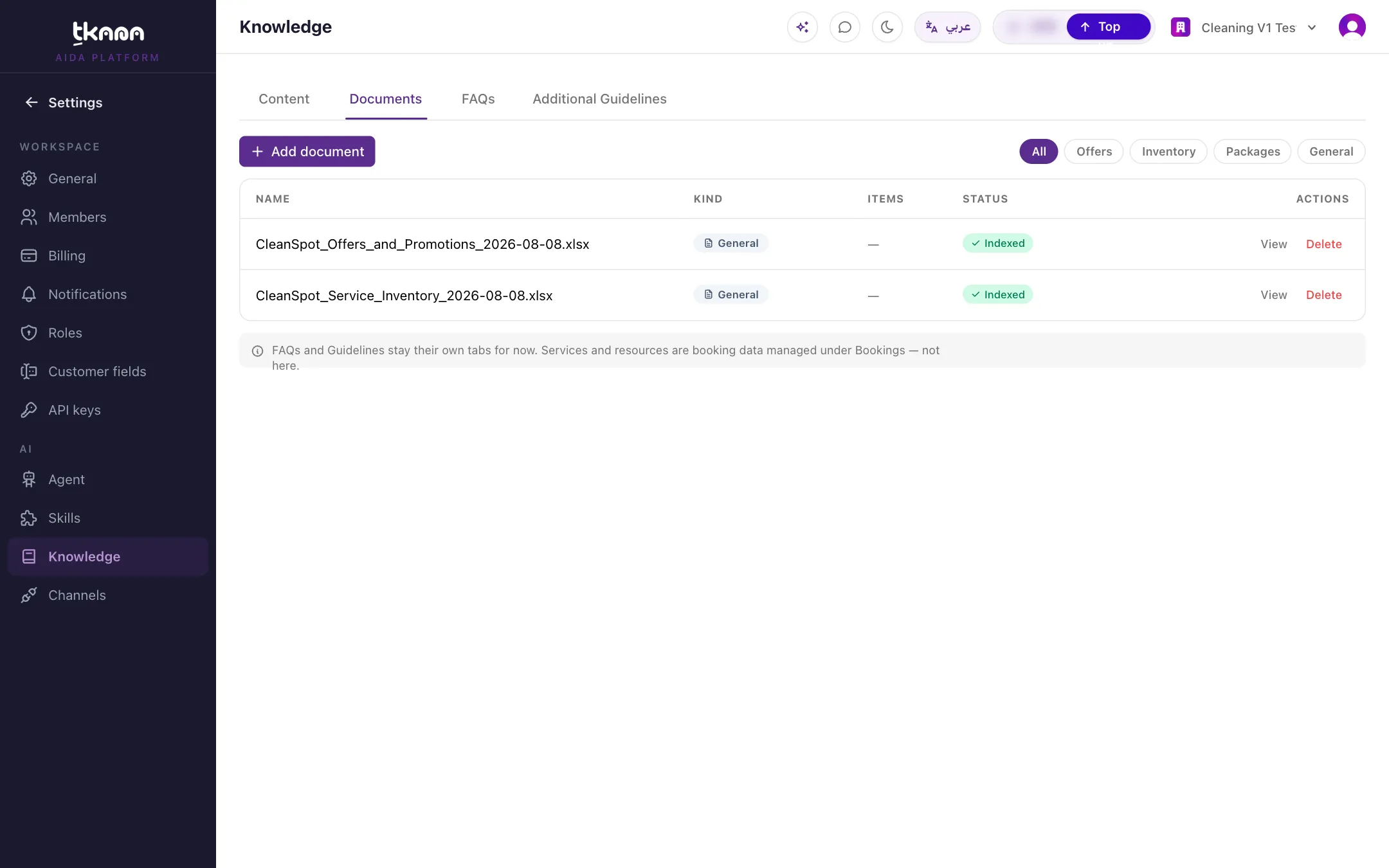
When the status shows Indexed, check the Items count. It should match the number of rows in your file.
Update your offers
Section titled “Update your offers”When your offers change, update the same file and upload it again. The new version replaces the old items, so your agent always quotes what is current. Offers whose end date has passed are left out automatically, based on your organization’s timezone.
Related
Section titled “Related”Was this article helpful?
Thanks for the feedback, it helps us improve these guides.