

Ask Aida about your business
Aida is your assistant inside the tkana portal. Instead of digging through pages, you ask her a question in Arabic or English and she answers from your own data. She replies in the language you write in.
Open Aida
Section titled “Open Aida”You can open Aida in two ways:
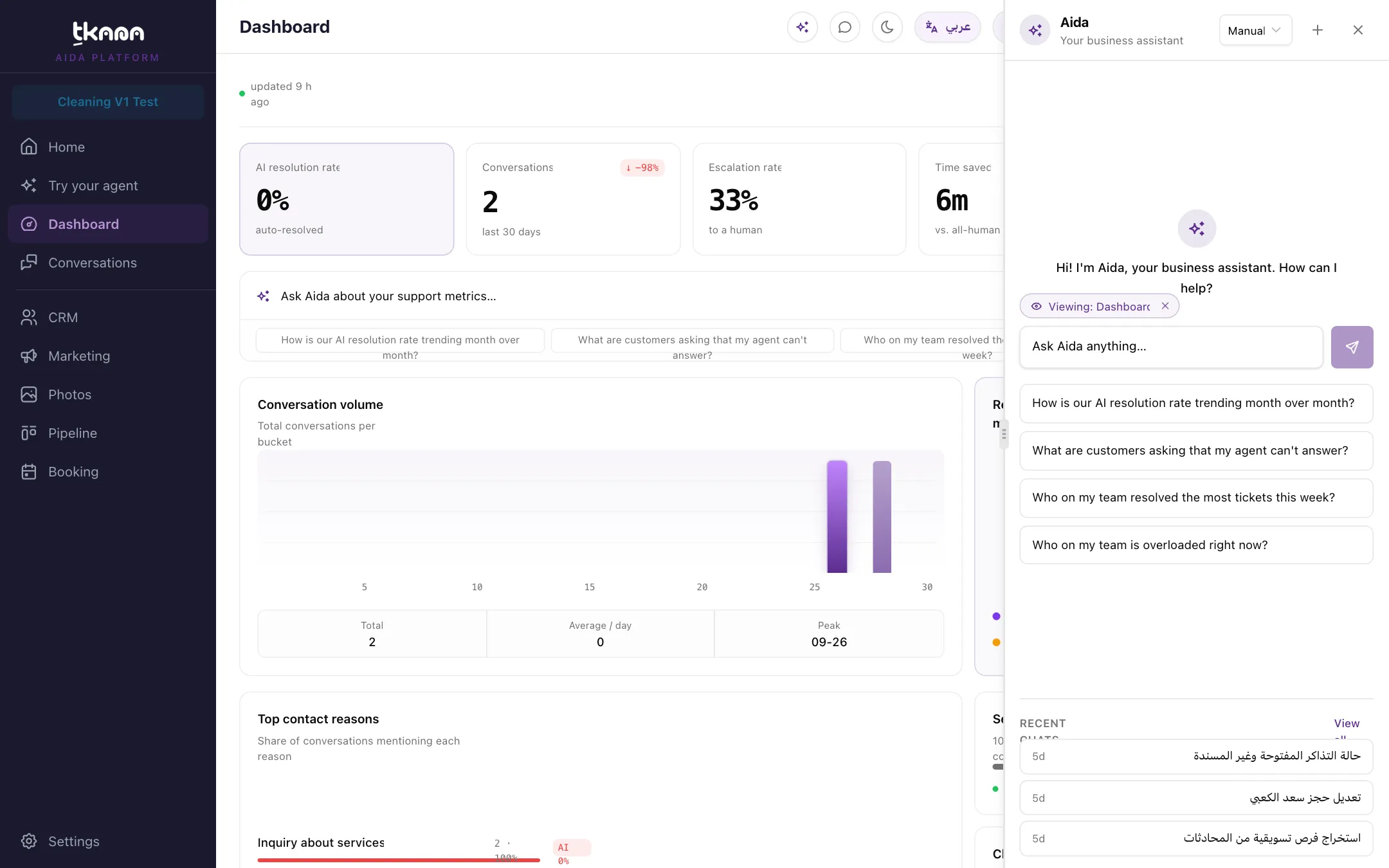
- From any page: click the sparkle button in the top bar, in the group of buttons across from the page title. Hover over it and it shows Aida.
- From the Dashboard: type your question in the Ask Aida about your support metrics… box and press Enter or click Ask, or click one of the suggestions under it. Aida opens with your question already sent.
Aida opens in a panel on the side of the screen, so you can keep working on the page behind it. Drag the panel’s edge to make it wider or narrower, and double-click the edge to reset it. Use the close button at the top of the panel to hide it.
Ask a question
Section titled “Ask a question”-
Type your question in the Ask Aida anything… box, or click one of the suggested questions.
-
Press Enter or click Send. While she works, Aida shows what she is doing, such as Reading… or Writing a reply…, and then answers.
-
Keep going. Ask a follow-up question in your own words, or click one of the follow-up suggestions that appear under her answer.
A few good first questions:
- “What can you do?”
- “What are customers asking about?”
- “Which open conversations need a human right now?”
- “How is our AI resolution rate trending month over month?”
Suggested questions change with the page
Section titled “Suggested questions change with the page”When you open Aida on a page she knows, she suggests questions that fit it. For example:
| Page | Example suggestions |
|---|---|
| Dashboard | How is our AI resolution rate trending month over month? and What are customers asking that my agent can’t answer? |
| A conversation | Why is this customer upset?, Was their issue resolved?, Create a ticket for this customer |
| A contact | Give me a 30-second brief on this customer, Add a note to this customer |
| Tickets board | Which tickets are about to breach their SLA?, Which open tickets has nobody picked up? |
| Booking calendar | What bookings do we have today?, Which slots are free tomorrow?, Book a customer in |
| Knowledge | What are customers asking that my knowledge base doesn’t answer?, Add an FAQ |
On other pages, or when you stop sharing the page, Aida shows three general suggestions: Check for knowledge gaps, What can you do?, and What are customers asking about?
You only see suggestions you can actually use. A question about your team, for example, only appears for the account owner, and “create a ticket” only appears if your role can create tickets.
Aida knows which page you are on
Section titled “Aida knows which page you are on”Above the message box, on every page of the portal, a Viewing chip such as Viewing: Dashboard or Viewing: Conversation with followed by the customer’s name shows which page Aida is looking at with you. On pages with tabs, the chip names the open tab too, for example Viewing: Marketing › Campaigns or Viewing: Settings › Billing › Wallet. That is why you can ask “Was their issue resolved?” while a conversation is open, without naming the customer.
To ask without sharing the page, remove the chip. It comes back when you open another page or start a new chat.
Aida does not see your screen. She only knows which page you have open and, on a conversation or contact page, which customer it is. She then reads what she needs through her own tools.
Pick up where you left off
Section titled “Pick up where you left off”- If you come back within 24 hours, Aida reopens your last chat.
- Click the + button at the top of the panel (New chat) to start fresh. Your earlier chats are kept.
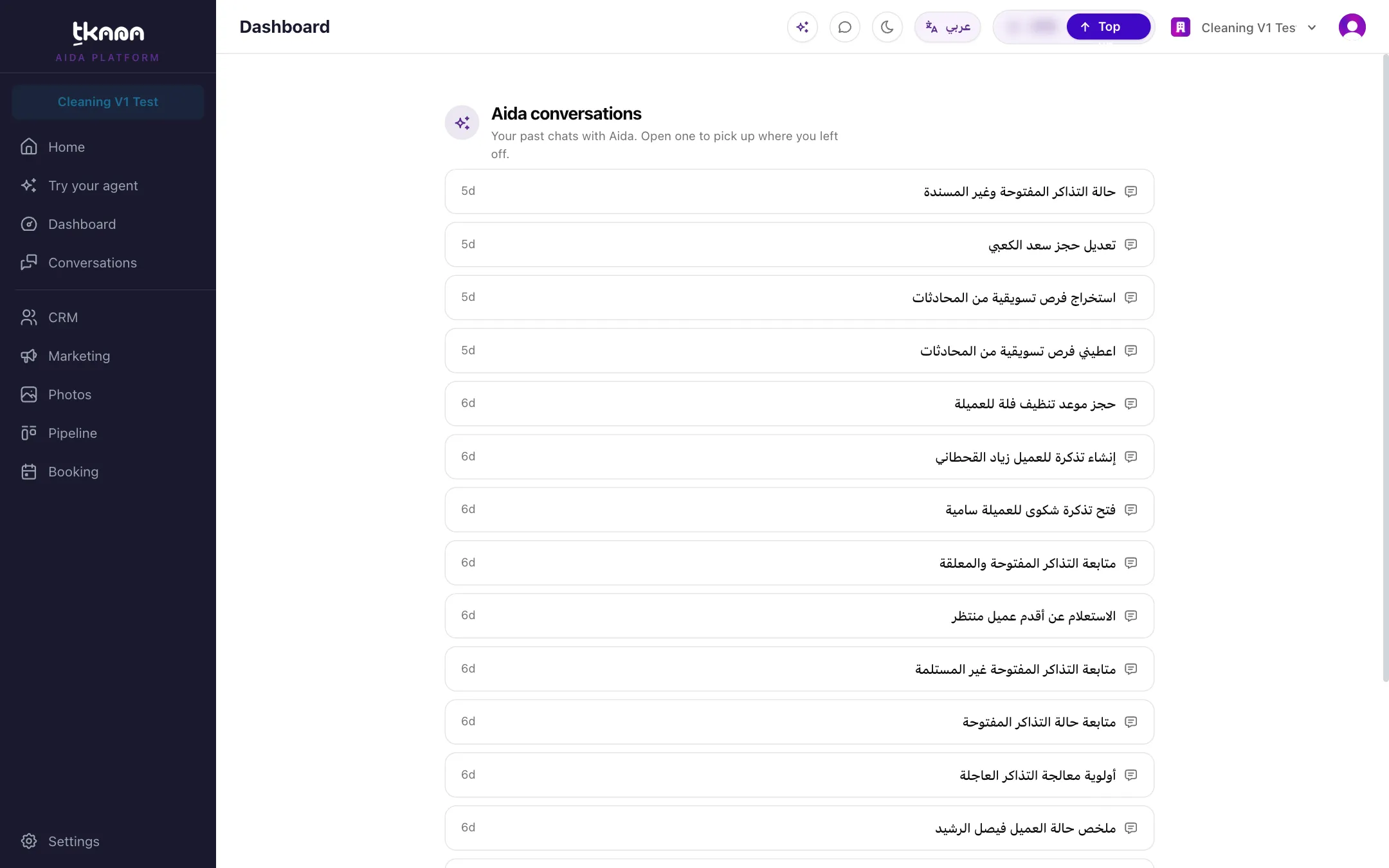
- When a chat is empty, Aida lists your Recent chats. Click View all to open the Aida conversations page, where you can browse all your past chats with Newer and Older and open any of them to continue.
Your chats with Aida are private to you. Other members of your team cannot see them.
Next steps
Section titled “Next steps”Was this article helpful?
Thanks for the feedback, it helps us improve these guides.