

Organize customers with tags and groups
Tags and groups turn your contact list into something you can act on. A tag is a colored label on a customer, such as “VIP” or “Hot lead”. A group is a named set of customers, which you can use as the audience for a WhatsApp campaign.
Tags can be added by your team, by an import, or by your agent through skills. For example, the Escalation skill tags escalated customers, and Lead Qualification tags each lead with its stage.
Create and manage tags
Section titled “Create and manage tags”- Open CRM and go to the Tags tab.
- Click New Tag, type the tag name, and create it. You can rename a tag, change its color, and assign it to customers later.
- To tidy up, merge duplicates (for example “vip” and “VIP”) into the one tag you want to keep. Customers with the removed tag get the kept one.
Before you delete a tag, tkana shows how many contacts use it.
Groups
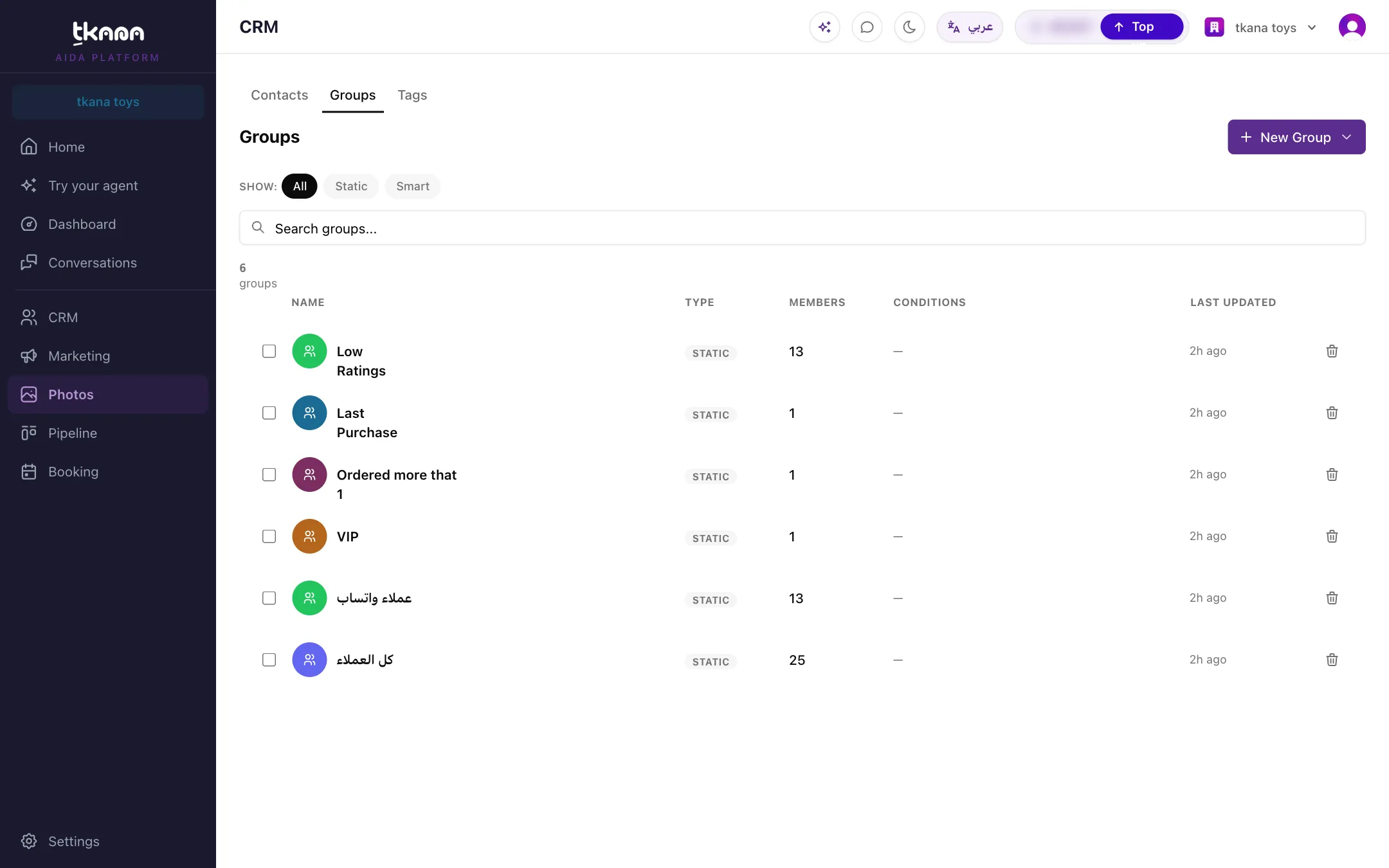
Section titled “Groups”Open CRM and go to the Groups tab, then click New Group and choose the kind of group. There are two kinds:
| Group | How members are chosen | Good for |
|---|---|---|
| Static group | You pick the members, by hand or by tag. Members stay until you remove them. | A fixed list, such as attendees of an event or an imported list. |
| Smart group | You set conditions, and every contact who matches is a member. | Audiences based on behavior, such as “active in the last 30 days” or “tagged VIP”. |
Build a smart group
Section titled “Build a smart group”A smart group uses conditions such as: has a tag, last active, number of conversations, channel, member of another group, and signup date. You can also use:
- Customer fields: each of your customer fields is its own condition in the menu, with the same conditions as the contacts filter. If the field or option a condition relies on is deleted, the condition matches nobody, so your audience never grows by accident. Use the All / Any switch to choose whether every condition must be true (All) or at least one (Any). The window shows how many contacts match before you save.
You can also build a smart group straight from the contacts list: filter the list, then click Save as Smart Group.
You cannot add or remove members of a smart group by hand, because its conditions decide who is in it. For a list you pick yourself, use a static group.
Use a group as an audience
Section titled “Use a group as an audience”On the Marketing page, choose your audience by group to send an approved WhatsApp template to every member. Contacts who reached you only on Telegram have no phone number, so they cannot receive WhatsApp campaigns.
Related
Section titled “Related”Was this article helpful?
Thanks for the feedback, it helps us improve these guides.