

Control when your agent replies on a channel
Each channel has its own settings for whether your agent replies to customers there, and when it steps back to let your team handle things. You find them on the channel’s own page.
Open the channel page
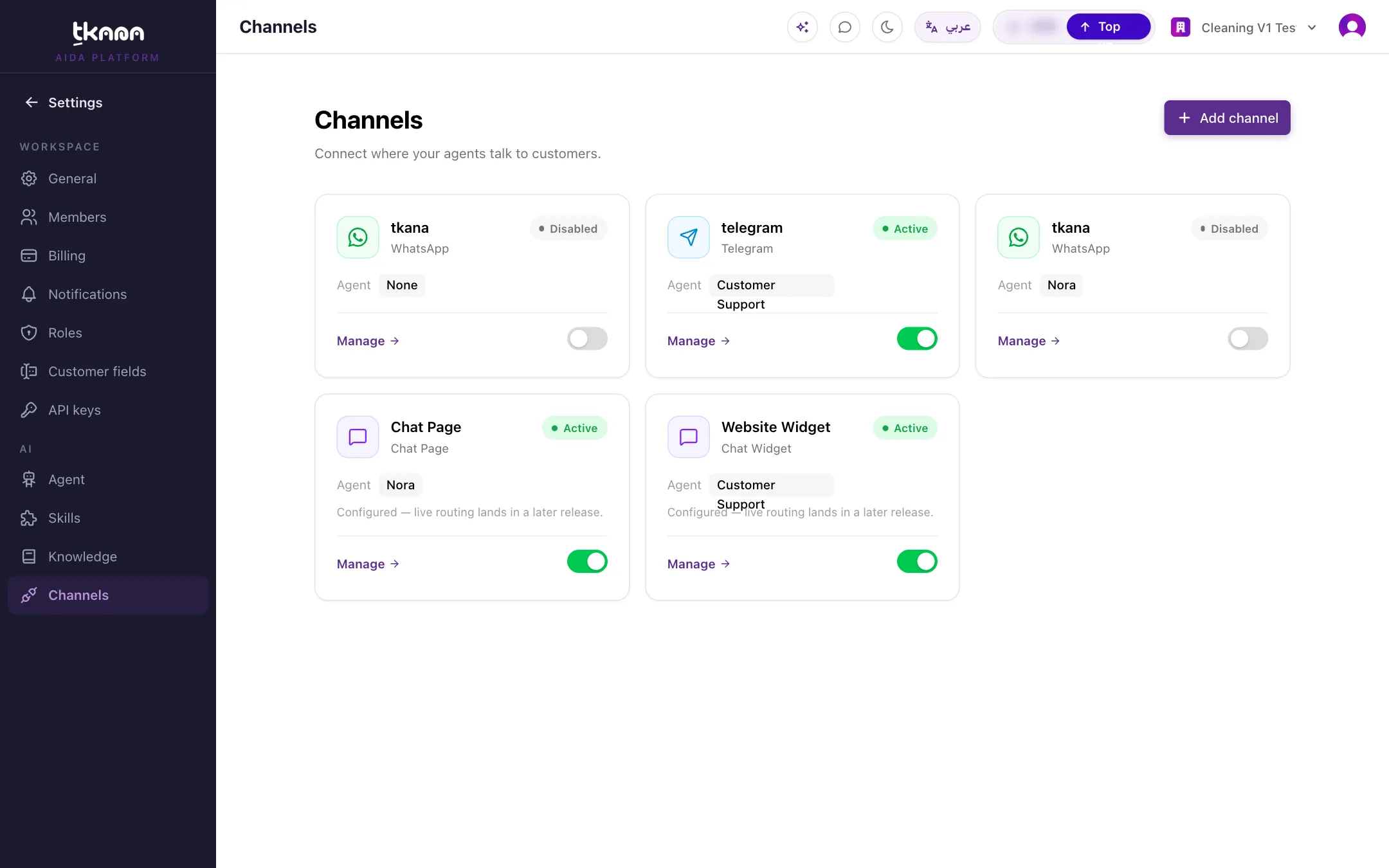
Section titled “Open the channel page”In Settings, open Channels under the AI section. Your channels are listed as cards, each showing the channel’s status, the agent linked to it, and a switch to turn it on or off. Click Manage on a card to open that channel’s page.
Choose whether the agent replies
Section titled “Choose whether the agent replies”In the Agent status section, pick one of two modes from the Agent replies list, Active or Observe:
| Mode | What happens |
|---|---|
| Active | Your agent replies to every incoming message on this channel. |
| Observe | Messages reach Conversations and are summarized and categorized, but your agent never replies. |
Then click Save changes.
Set how long the agent pauses after your team steps in
Section titled “Set how long the agent pauses after your team steps in”When you or a teammate replies to a customer, the agent stops replying on that conversation for a while so it does not talk over you. Set this in Human hold window (hours), then click Save changes.
- The default is 24 hours and the maximum is 168 hours (one week).
- The pause applies to that one conversation only. The agent keeps working on all the others.
- You can hand a conversation back to the agent before the window ends from the conversation itself. See Reply to a customer and hand the conversation back to the AI.
Rename the channel or change its agent
Section titled “Rename the channel or change its agent”At the top of the channel page, edit the Name or pick a different agent from the Agent list, then click Save changes.
Turn a channel on or off, or delete it
Section titled “Turn a channel on or off, or delete it”At the bottom of the channel page (you can also use the switch on the channel’s card for a quick on or off):
- Deactivate: stops the channel without deleting it. Bring it back later with Activate.
- Test: checks the channel’s connection (shown on WhatsApp and Telegram channels).
- Delete: removes the channel for good.
Channel statuses
Section titled “Channel statuses”| Status | What it means |
|---|---|
| Active | The channel is working and receiving messages. |
| Pending | The channel is not in use right now, for example a second WhatsApp number after you activated another one. |
| Configuring or Testing | The connection is not finished yet. |
| Error | The channel could not connect. Open it and click Test to see why. |
| Disabled | You turned the channel off with Deactivate. |
Was this article helpful?
Thanks for the feedback, it helps us improve these guides.