

Booking notifications and reminders
When you install the Book appointments skill, tkana sets up a set of booking notifications for you. Every time a booking is created or changes, the right people hear about it automatically.
What gets sent
Section titled “What gets sent”| When | Your customer receives | Your team receives |
|---|---|---|
| A booking is created | An email | |
| A booking is confirmed | An email and a WhatsApp message | |
| A booking is rescheduled | An email and a WhatsApp message | |
| A booking is cancelled | An email and a WhatsApp message | An email |
| A pending booking is rejected | An email | |
| Before the appointment (2 hours by default) | A WhatsApp reminder |
A booking that is confirmed straight away (because the service does not need manual confirmation) sends the confirmation to the customer immediately. Team emails go to the address you entered when you installed the skill.
Edit or switch off a message
Section titled “Edit or switch off a message”-
Go to Settings > Notifications. You can also get there from the Booking page with the Notification settings link.
-
Find the Booking section. Each message shows who it goes to, the channel, and its status, for example Active, In review, or Off.
-
Use the switch on a row to turn that message on or off.
-
To change the text, click Edit message, update the Arabic and English versions, and save.
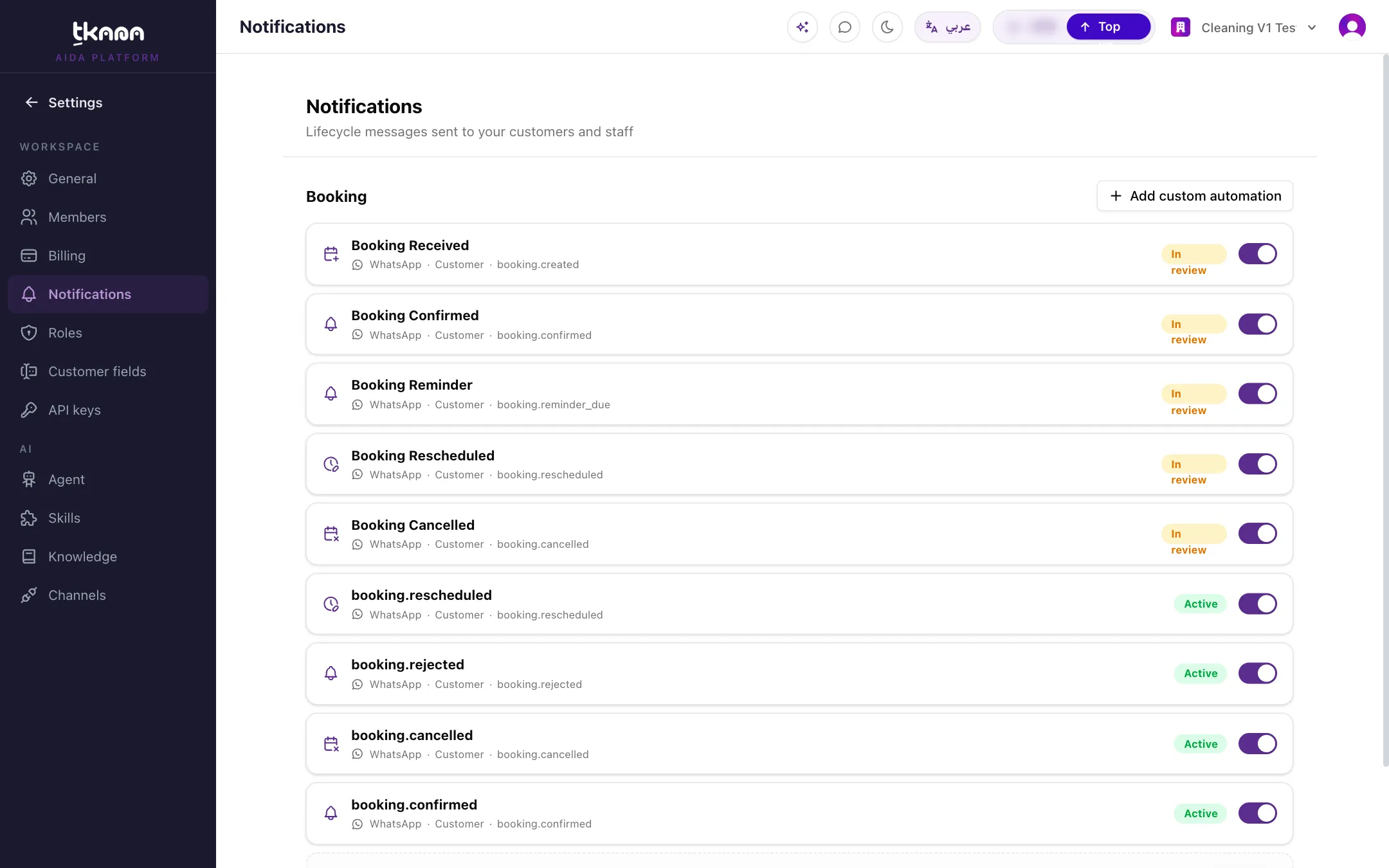
If a team message shows Not set up, click Set up or Set recipient and enter the email address it should go to.
You can also add your own message for a booking event with Add custom automation.
How reminders work
Section titled “How reminders work”- A reminder is scheduled when a booking is created, confirmed, or rescheduled. If the booking moves, the reminder moves with it.
- Cancelling a booking cancels its reminder. A reminder is also skipped if the booking is no longer pending or confirmed when it is due.
- If the reminder time has already passed, it is not sent. With the default timing, a booking made one hour ahead gets no reminder.
Change the reminder timing
Section titled “Change the reminder timing”The reminder goes out 2 hours before the appointment by default. The timing can be changed, for example to a day before, or a second reminder can be added, such as one a day before and another 2 hours before. Contact support and tell us the timing that suits you, and we will set it up for you.
Was this article helpful?
Thanks for the feedback, it helps us improve these guides.