

Manage, update, or remove a skill
Once a skill is installed, you manage it from its own page. Go to Settings, then under AI click Skills, and click the skill in the list.
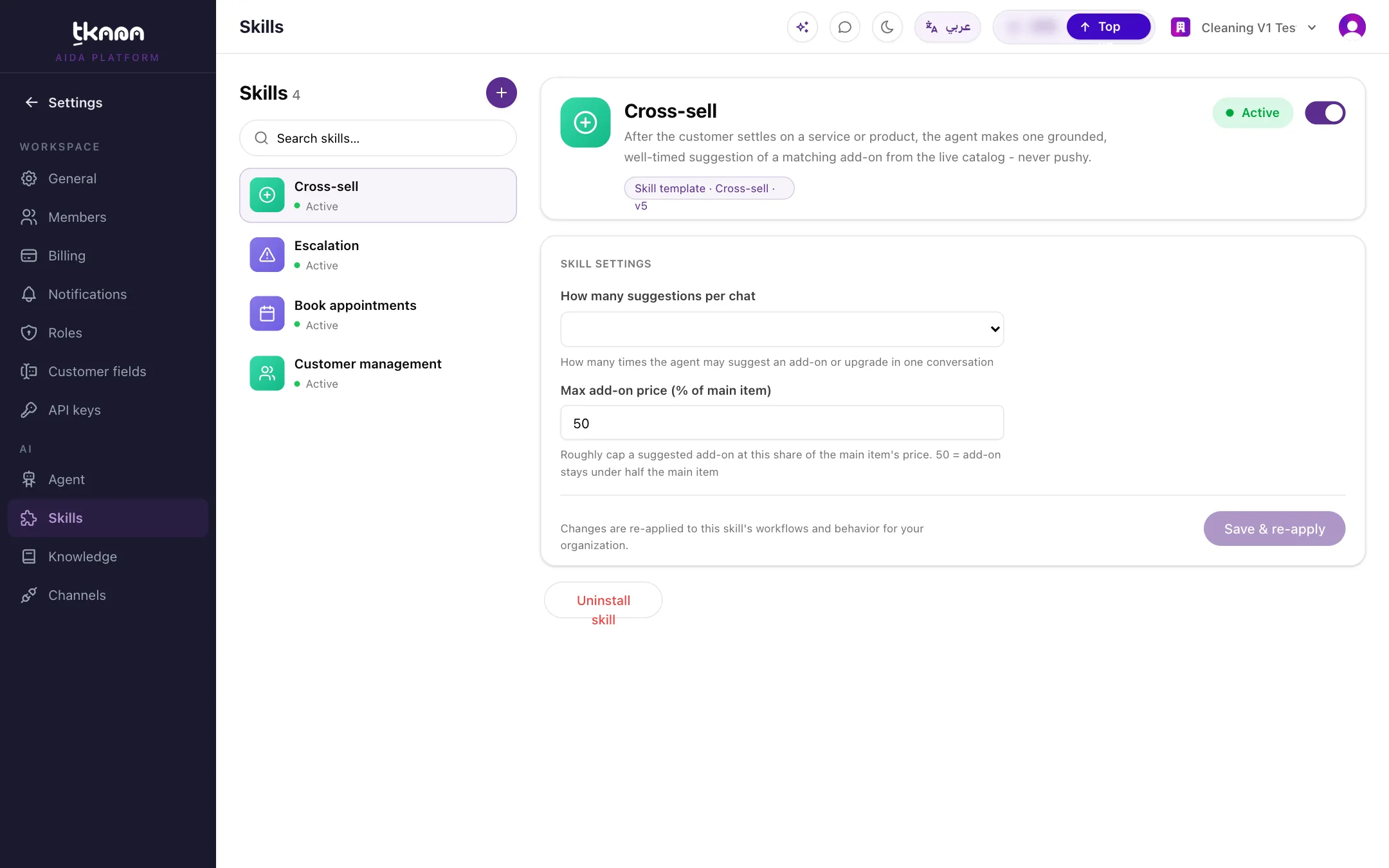
Turn a skill on or off
Section titled “Turn a skill on or off”Use the status switch on the skill’s page to set it to Active or Inactive. An inactive skill stays installed with its settings, but your agent does not use it until you turn it back on. This is handy for a seasonal skill, or while you prepare what the skill needs.
Change a skill’s settings
Section titled “Change a skill’s settings”- On the skill’s page, find Skill settings.
- Change the fields you need, such as an alert email or a tag name.
- Click Save & re-apply. The new settings are applied to the skill’s behavior and to any automatic messages it sends.
Install a newer version
Section titled “Install a newer version”When tkana releases an improved version of a skill you use, the skill shows Update available. Updates are never installed automatically, so your agent does not change without you knowing.
- Open the skill and click Update.
- Check the skill’s settings afterwards, in case the new version added a field.
- Test your agent in Try your agent.
Uninstall a skill
Section titled “Uninstall a skill”On the skill’s page, click Uninstall skill and confirm. Your agent stops using the skill, and any automatic messages the skill set up are removed. Your conversations, tickets, and bookings stay as they are. You can install the skill again from the gallery at any time.
Custom skills
Section titled “Custom skills”A skill that tkana built especially for your account works a little differently:
- Its instructions appear under Prompt, and you can edit them. Click Save changes when you are done.
- It has Delete skill instead of Uninstall skill.
Deleting a custom skill cannot be undone from the portal, so contact tkana support first if you are unsure.
Was this article helpful?
Thanks for the feedback, it helps us improve these guides.