

Use tkana from Claude and other AI assistants (MCP)
MCP (Model Context Protocol) is an open standard that lets an AI assistant, such as Claude, use tools in other systems. tkana offers an MCP server for your account: once you connect your assistant to it, you can ask the assistant in your own words to look up conversations, find a customer, open a ticket, or book an appointment, and it does the work in tkana for you. You do not need to open the portal for everyday questions.
What you can ask your assistant
Section titled “What you can ask your assistant”Your assistant only sees what tkana allows it to, and only for your own account. Here are examples of what you can ask:
Conversations
- “How many conversations came in today, and which ones need a reply from the team?”
- “Show me the messages in the last conversation with this customer.”
- “Is this conversation still open?”
Customers
- “Find the customer with this phone number and summarize their history with us.”
- “What open tickets and upcoming bookings does this customer have?”
- “Tag this customer as VIP and add a note that they prefer morning calls.”
Tickets
- “List the open tickets from this week.”
- “Open a ticket for this customer about a delayed delivery.”
- “Change the status of ticket T-102345 now that the customer has replied.”
Bookings
- “What bookings do we have tomorrow?”
- “Is there an open slot for a haircut on Thursday afternoon?”
- “Book this customer for Thursday at 4 pm, then send me the booking details.”
- “Reschedule this booking to next Sunday,” or “Cancel this booking.”
With broader permissions, your assistant can also help you manage your agent, its knowledge, and your workflows, or read your team’s workload and analytics. See Permissions below.
Before you start
Section titled “Before you start”You need:
- An API key for your account. You create it in the portal, and it is what connects your assistant to tkana. Creating keys is available to the account owner, or anyone whose role has permissions on Settings.
- An AI assistant that can connect to a remote MCP server with an API key, such as Claude Code or Cursor.
Step 1: Create a key for your assistant
Section titled “Step 1: Create a key for your assistant”-
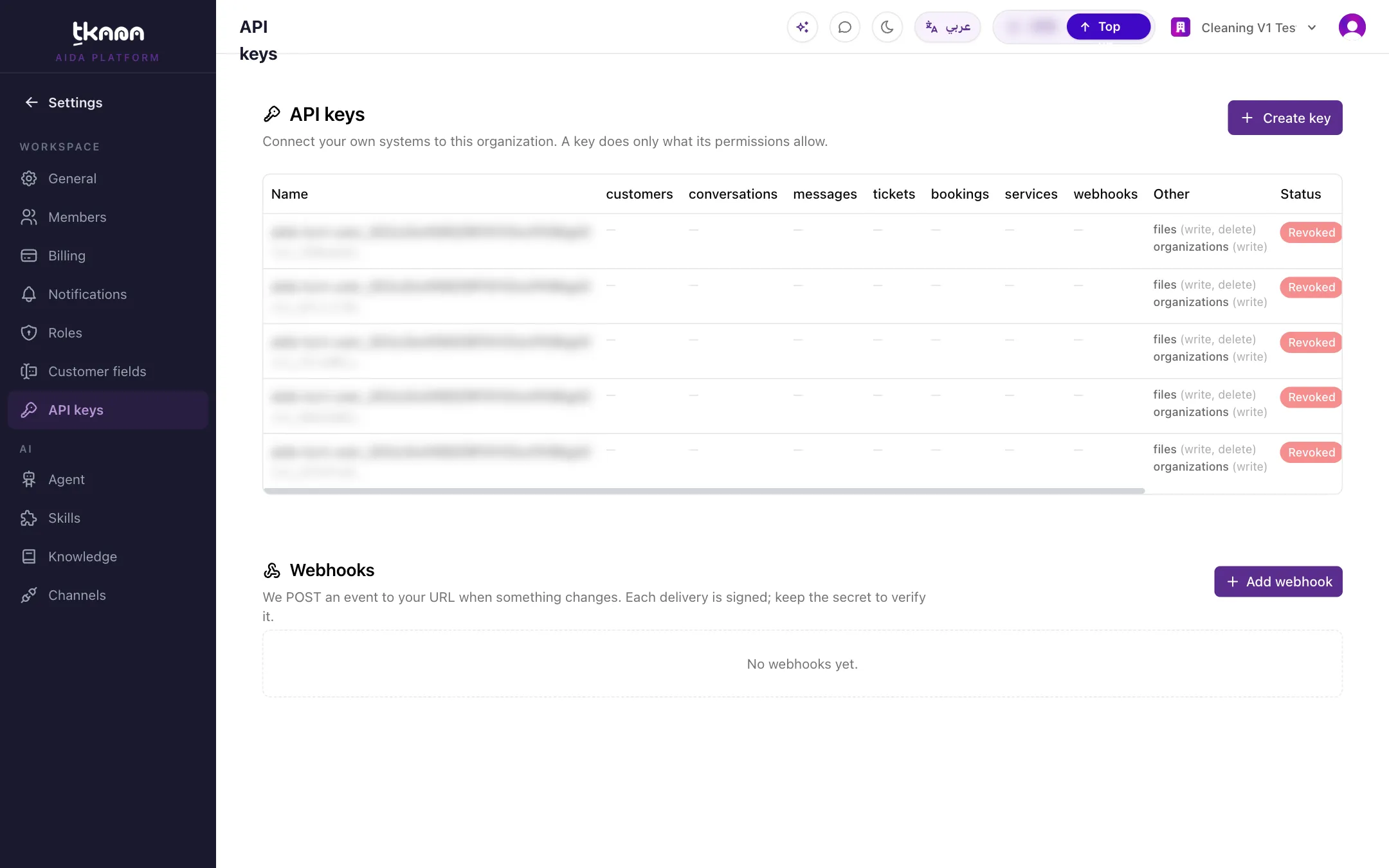
In the portal, open Settings > API keys.
-
Click Create key and give it a name that says who uses it, for example “Sara’s Claude”.
-
Under Permissions, choose what the assistant may do. For example, Read on conversations and customers to ask questions only, or Write on tickets and bookings to let it open tickets and book appointments.
-
Set Expiry (optional) if you only need the assistant for a limited time.
-
Confirm, then copy the key right away. It is shown only once.
For the full details of creating and managing keys, see Connect your systems with the tkana API.
Step 2: Connect Claude Code
Section titled “Step 2: Connect Claude Code”Claude Code is Claude’s command-line assistant. In a terminal, run the following command, replacing YOUR_API_KEY with the key you copied:
claude mcp add --transport http tkana https://mcp.tkana.sa/api/mcp/org/mcp --header "Authorization: Bearer YOUR_API_KEY"Then start Claude Code and ask it something, such as “Which conversations need a reply from the team today?”. The first time it uses tkana, Claude asks you to allow the tool.
Connect another assistant
Section titled “Connect another assistant”Any assistant that supports remote MCP servers with custom headers can connect. In its MCP settings, add a server with these details:
| Setting | Value |
|---|---|
| Type | HTTP (Streamable HTTP) |
| Address | https://mcp.tkana.sa/api/mcp/org/mcp |
| Header name | Authorization |
| Header value | Bearer YOUR_API_KEY |
Many assistants, such as Cursor, use a settings file in this shape:
{ "mcpServers": { "tkana": { "url": "https://mcp.tkana.sa/api/mcp/org/mcp", "headers": { "Authorization": "Bearer YOUR_API_KEY" } } }}The exact place to add it differs between assistants. Check your assistant’s help for “MCP servers”.
Permissions and what your assistant can reach
Section titled “Permissions and what your assistant can reach”- Only your account. The key is tied to your tkana account. Your assistant cannot see or change any other account, whatever it is asked.
- Only what the key allows. Your assistant can do exactly what the key’s Permissions allow. If you ask for something outside them, the assistant receives a permission error and tells you.
- Some actions need more than the portal offers. The permissions you can choose in the portal cover customers, conversations (read), messages, tickets, bookings, and services. Closing or resolving conversations, managing your agent, its knowledge, and workflows, and reading analytics need extra permissions. Contact tkana support if you want to add them to a key. Permissions added by tkana appear on the key under Also granted (managed by tkana).
- No permanent deletes. Your assistant cannot permanently delete records in your account.
Stop an assistant’s access
Section titled “Stop an assistant’s access”In Settings > API keys, find the key you created for the assistant:
- Edit permissions to narrow what it can do without reconnecting.
- Revoke key to cut off access immediately. This cannot be undone, so to reconnect later, create a new key.
The Last used column shows when each key was last used, which helps you spot a key that is no longer needed.
Tips for using it safely
Section titled “Tips for using it safely”- Your assistant works on real data. Booking, cancelling, updating tickets, and tagging customers change your live account, and some changes, such as a new or cancelled booking, can reach your customers. Read what the assistant plans to do and confirm only when it is right.
- Keep your assistant’s approval prompts on. Most assistants ask before they use a tool. Review each request rather than allowing everything automatically.
- One key per person and assistant. If a team member leaves or a device is lost, you can revoke just that key.
- Grant the least you need. Start with read-only permissions, and add write permissions when you need them.
- Treat the key like a password. It is stored in your assistant’s settings. Never paste it into a shared chat or document. If you think it has leaked, revoke it and create a new one.
- Double-check answers that matter. Assistants can make mistakes. For important decisions, confirm the details in the portal.
Was this article helpful?
Thanks for the feedback, it helps us improve these guides.