

Understand escalation
Escalation is how your agent brings in a person. When a customer needs someone from your team, the agent marks the conversation as escalated, records why, lets your team know, and keeps the customer company until a person steps in.
Escalation comes from the Escalation skill, which every new account has by default.
When your agent escalates
Section titled “When your agent escalates”Your agent always escalates when:
- The customer asks for a person, a manager, or how to make a complaint.
- The message is a complaint about your staff, a legal threat, or a safety concern.
- The request needs a decision your agent cannot make, such as an account change, a billing question, or a refund.
You can add more cases of your own and choose whether the agent should also escalate after failing to help several times. See Set your escalation rules.
What happens next
Section titled “What happens next”- The conversation’s status becomes Escalated, and your agent records a short reason, such as “customer requested human”.
- Your agent tells the customer that a teammate has been notified. It does not promise a response time.
- Your team gets an email with the customer’s name and phone number, the reason, and who escalated.
- The customer gets the tag you chose for escalations (Escalated by default), so you can find them in CRM.
- The conversation moves to Needs attention at the top of the Conversations list.
A conversation is escalated once. If the agent tries to escalate it again, nothing new happens.
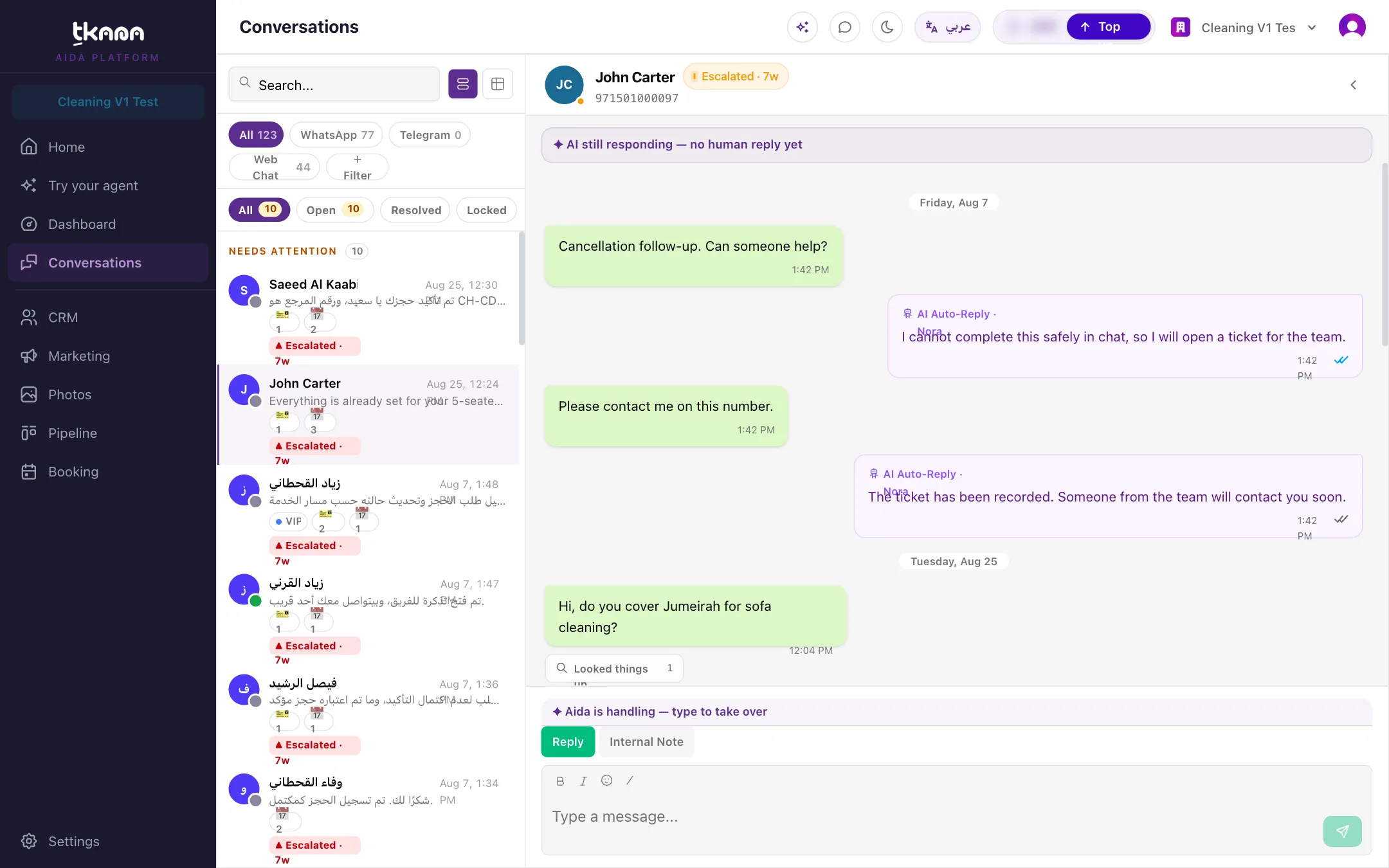
What your team sees in the conversation
Section titled “What your team sees in the conversation”Open the conversation. Under the header, a strip shows:
- What the AI is doing right now: still responding, paused because a teammate replied, or paused because the conversation is assigned to someone.
- Who escalated it, Escalated by the AI agent or Escalated by a teammate, and the reason.
The status also shows how long ago it was escalated, such as “2h”.
Escalating does not silence your agent
Section titled “Escalating does not silence your agent”After escalating, your agent keeps helping the customer until a person steps in. It stops replying when:
- someone on your team replies (the AI pauses for the channel’s hold window, 24 hours by default), or
- someone clicks Take over, or assigns the conversation to a teammate.
To let your agent carry on, click Resume AI now or assign the conversation back to AI. See Reply to a customer and hand the conversation back.
An escalated conversation stays Escalated, even if the customer writes again, until someone on your team resolves it, closes it, or sets it back to Active. It is never resolved automatically.
Escalate a conversation yourself
Section titled “Escalate a conversation yourself”If a teammate should look at a conversation, escalate it by hand:
- Open the conversation, then open Details and use Change Status, and choose Escalated. Or, on Pipeline > Conversations, drag the card into the Escalated column.
- In Escalate conversation, add a reason if you like. It shows on the thread so the next person knows why. The reason is optional.
- Click Escalate.
Was this article helpful?
Thanks for the feedback, it helps us improve these guides.