

Add a document to your knowledge base
Your agent answers customers from what is in your knowledge base. Adding your price list, service menu, policies, or product sheets is the quickest way to make its answers accurate and specific to your business.
Where to find it
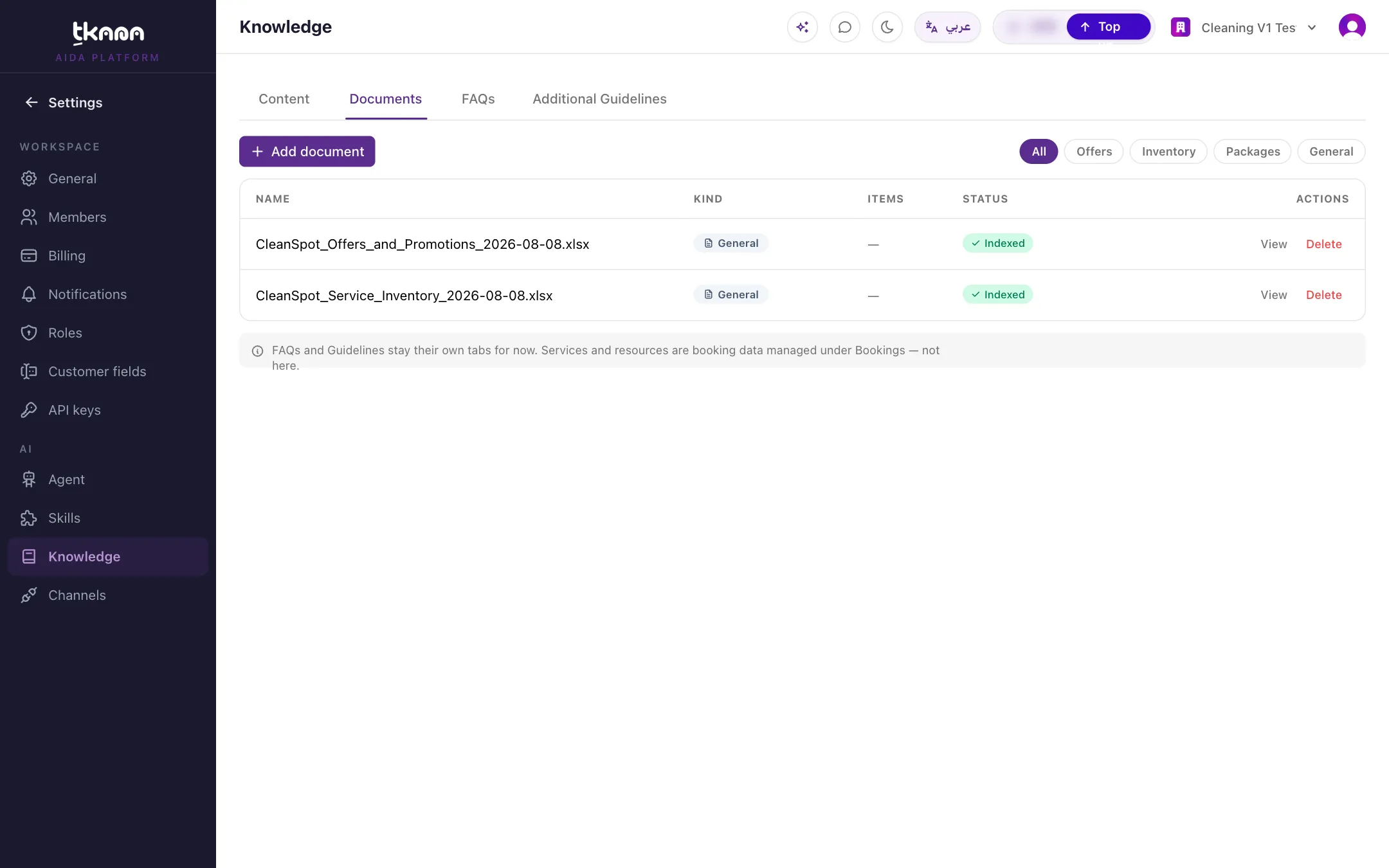
Section titled “Where to find it”Go to Settings, then under AI click Knowledge, and open the Documents tab. The table lists every document with its Kind, how many Items your agent learned from it, and its Status. Use the chips at the top (All, Offers, Inventory, Packages, General) to filter the list.
Add a general document
Section titled “Add a general document”Use a general document for price lists, service menus, policies, product sheets, and any other reference material.
-
On the Documents tab, click Add document. If you have no documents yet, click Add document in the middle of the page.
-
Under Type of content, choose General.
-
Choose how to add it:
- File to upload PDFs, spreadsheets, text files, or images.
- Text to write a document directly in the portal.
-
For a File, click Click to choose files and pick one or more files. Each file becomes its own document, named after the file. You can remove a file from the selection before uploading.
For Text, fill in a Name and the Content. Both are required.
-
Click Upload & index.
Supported file types: PDF (.pdf), text (.txt, .md), spreadsheets (.xlsx, .xls, .csv, .tsv, .ods), and images. Each file can be up to 20 MB.
Wait for it to be ready
Section titled “Wait for it to be ready”After you add a document, its status moves through:
| Status | What it means |
|---|---|
| Uploading… | The file is on its way. |
| Processing | Your agent is reading the document and breaking it into items it can search. |
| Indexed | Done. Your agent can use it now. |
| Error | The document could not be processed. Hover over the status to see why, fix the file, and upload it again. |
The list refreshes by itself, so you do not need to reload the page.
Check what your agent learned
Section titled “Check what your agent learned”Click View on a document to preview it:
- Text documents and PDFs open in a reading view.
- Spreadsheets show the topics your agent picked up and how many items it learned. Click a topic to see exactly what it understood.
You cannot edit a document after it is added. If something is missing or wrong, fix the file and upload it again: your agent relearns it automatically. Then delete the old version.
Delete a document
Section titled “Delete a document”Click Delete on the document’s row, then confirm with Delete. Your agent stops using it to answer questions.
Was this article helpful?
Thanks for the feedback, it helps us improve these guides.