

How your agent opens tickets
Some requests cannot be finished inside the chat: a complaint that needs follow-up, a payment problem, or a service request that needs one of your staff. In those cases your agent turns the request into a ticket with all the details, so your team can follow up from the portal, and the customer hears when the request is received and when it is resolved.
When the agent opens a ticket
Section titled “When the agent opens a ticket”Your agent opens a ticket when:
- The customer asks to speak with someone from your team.
- The message is a complaint, a payment or billing problem, or a service request that needs your team.
- The agent cannot answer from the knowledge base or solve the request itself.
Before opening the ticket, the agent reassures the customer, asks for a phone number or email if one is missing, and checks there is no open ticket for the same request. It then gives the customer their request number and promises that your team will reach out during business hours, without committing to a specific time.
What a ticket contains
Section titled “What a ticket contains”| Field | Who fills it in |
|---|---|
| Subject and Description | The agent, summarizing what the customer needs. |
| Category | The agent, or set automatically (see below). |
| Priority | The agent: Urgent, High, Medium, or Low. |
| Request # | Generated automatically in a format starting with T-. This is the number the agent gives the customer. |
| Channel and the linked conversation | Copied automatically from the conversation. |
| Attachments | The files the customer sent on WhatsApp with their request, attached automatically (see below). |
New tickets land in the New column, and their history shows that your agent created them, marked with ✨.
Available categories: General inquiry, Complaint, Service request, Payment problem, Execution delay, Incorrect data, Ticket follow-up, Data modification, Other.
The customer’s files come with the ticket
Section titled “The customer’s files come with the ticket”If the customer sends a photo or a file on WhatsApp with the message that made the agent open a ticket, such as a photo of a damaged product or a payment receipt, tkana attaches that file to the ticket on its own. Your team sees it under Attachments in the ticket details, without searching the conversation for it. If the customer adds a new request to an open ticket, their files are added to its attachments.
See Work tickets on the board and table.
Automatic categorizing
Section titled “Automatic categorizing”If a ticket’s category is still General inquiry, AI reads its subject and description and sets a fitting category and priority, and records the change in the ticket’s activity. AI never overrides a category someone on your team chose.
One ticket per conversation
Section titled “One ticket per conversation”Each conversation holds one active ticket. If the customer asks for something new in the same conversation before the ticket is closed, it joins the existing ticket instead of opening a second one. If the customer comes back after the conversation has ended, a new conversation starts and gets its own ticket when needed.
Turn on the email alert for your team
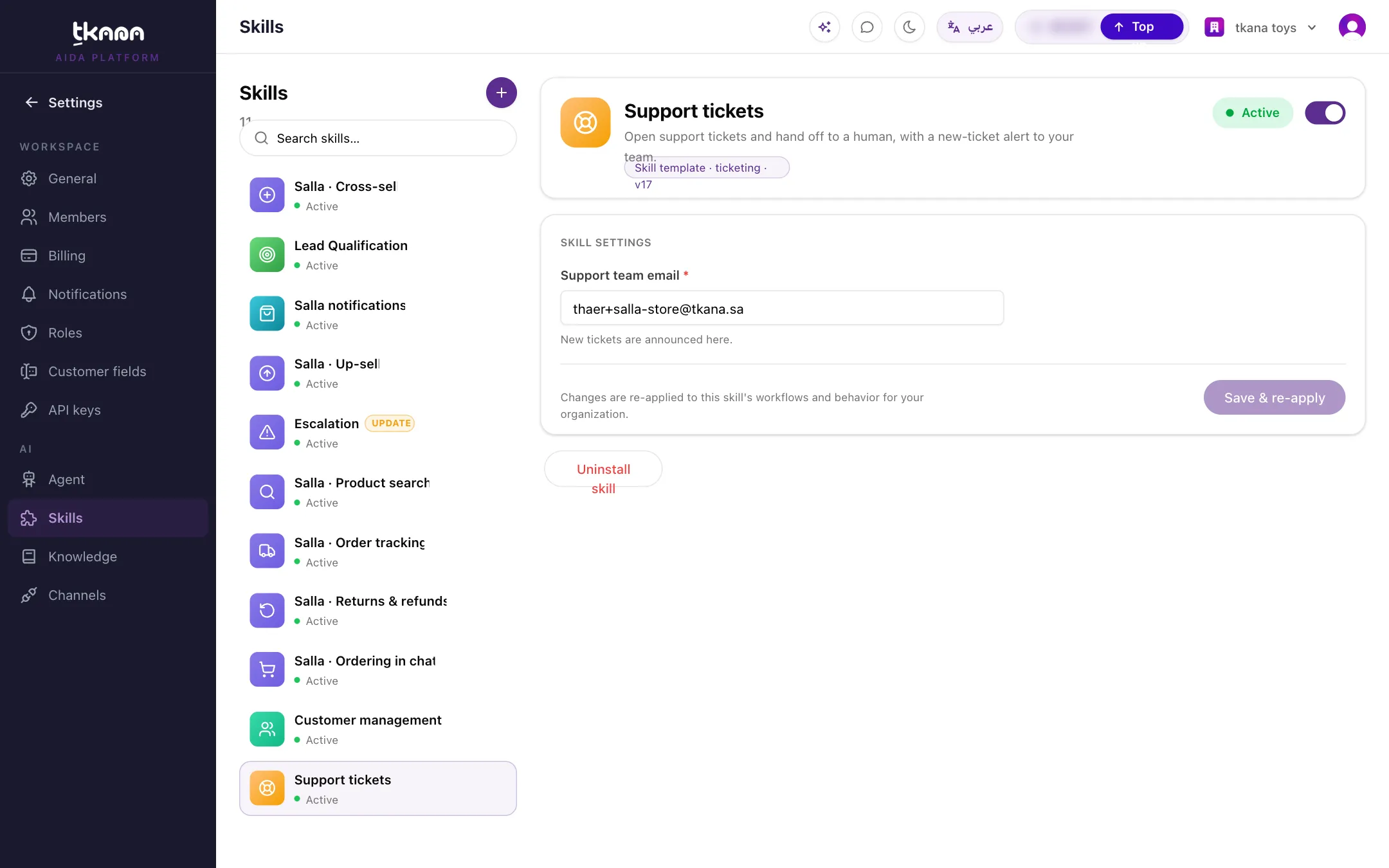
Section titled “Turn on the email alert for your team”To have your team emailed about every new ticket, add the address in the ticketing skill’s settings:
-
In Settings, open Skills under the AI section.
-
Open the Support tickets skill. If it is not installed, install it from the Skill gallery.
-
Under Skill settings, enter the address in Support team email.
-
Click Save & re-apply.
Next steps
Section titled “Next steps”Was this article helpful?
Thanks for the feedback, it helps us improve these guides.