

Connect your WhatsApp Business number
You can connect the WhatsApp number you use today in the WhatsApp Business app to tkana without changing your number or giving up the app. The app keeps working on your phone as usual, and your AI agent and the portal inbox work on the same number. Meta calls this “coexistence”.
Before you start
Section titled “Before you start”- Your number must be registered in the WhatsApp Business app (not regular WhatsApp).
- You need a Facebook account that manages the business the number belongs to.
- Keep your phone nearby. The WhatsApp Business app may ask you to confirm the connection and to share your chat history.
No Meta Business account yet? Create one from your Facebook account first, as shown in this video:
Connect the number
Section titled “Connect the number”-
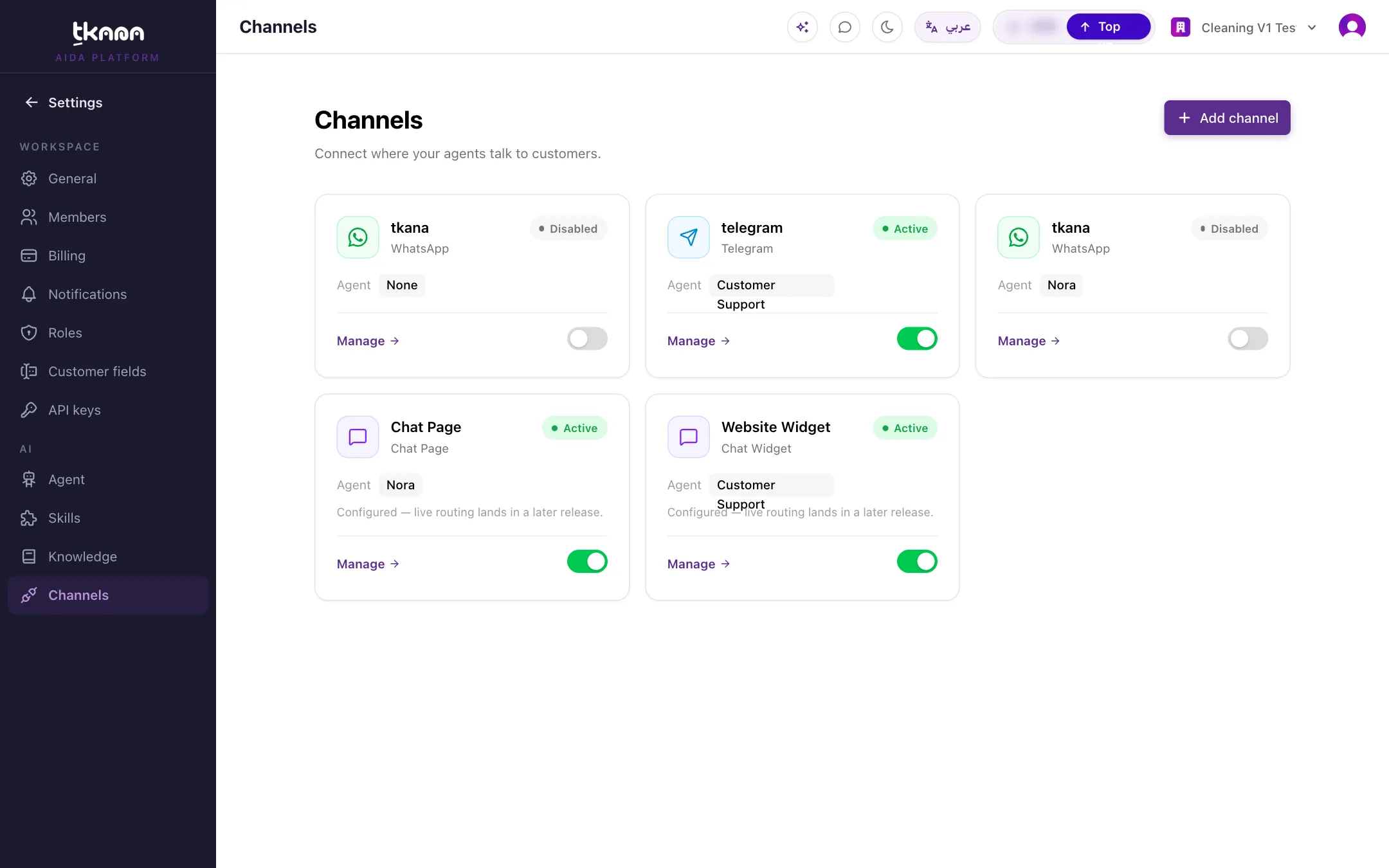
In Settings, open Channels under the AI section.
-
Click Add channel, then choose the WhatsApp card.
-
Click Connect WhatsApp. A Meta window opens.
-
Log in with Facebook, choose your business, pick the number you use in the WhatsApp Business app, and follow the steps to the end.
-
When the app on your phone asks whether to share your chat history, accept if you want your past conversations imported.
Once the window closes, a WhatsApp channel is created and linked to your agent automatically. There is no extra form to fill in.
What happens after you connect
Section titled “What happens after you connect”Your contacts are imported. Contacts from the WhatsApp Business app become customers in the portal with their names, and later changes keep syncing.
Your chat history is imported. If you agreed to share it, tkana imports roughly the last 180 days of chats. The channel page shows Importing chat history… with a percentage, then Chat history imported. when it is done. Imported chats appear in Conversations as resolved, and your agent reads the latest messages of each one so it understands the context.
The channel starts in Observe mode. Every customer message and every reply you send from the app reaches the portal, but your agent does not reply to anyone. This gives you time to review conversations and test your agent before it goes live. When you are ready, follow Control when your agent replies on a channel.
Working alongside the WhatsApp Business app
Section titled “Working alongside the WhatsApp Business app”- Replies from the app show up in the portal. When you answer a customer from your phone, your reply appears in the same conversation in the portal, so your team sees the full picture.
- Your reply pauses the agent. Any reply from you, in the app or in the portal, pauses your agent on that conversation for the channel’s hold window so it does not talk over you.
- What the agent understands. Your agent handles text messages, voice notes, shared locations, and button taps.
One active WhatsApp number at a time
Section titled “One active WhatsApp number at a time”Your account can have one active WhatsApp number. If you activate a second one, the first moves to Pending. This does not affect the website chat widget, the chat page, or Telegram.
If your number disconnects from tkana
Section titled “If your number disconnects from tkana”If the number is removed from tkana on Meta’s side, or you move WhatsApp Business to a new phone, a notice appears at the top of the channel page:
- This number is disconnected from tkana: your agent no longer receives messages on this number. Click Connect WhatsApp in the notice and reconnect the same number. The channel keeps its full conversation history.
- This number is reconnecting after a device change: Meta paused the number while it finishes registering on the new phone. It comes back on its own once Meta confirms. If it stays paused, reconnect from the same notice.
Next steps
Section titled “Next steps”Was this article helpful?
Thanks for the feedback, it helps us improve these guides.