

Manage your contacts
All your customers are in CRM. The Contacts tab lists everyone who has written to you or whom you added, and each contact has its own page with their full history.
Find a contact
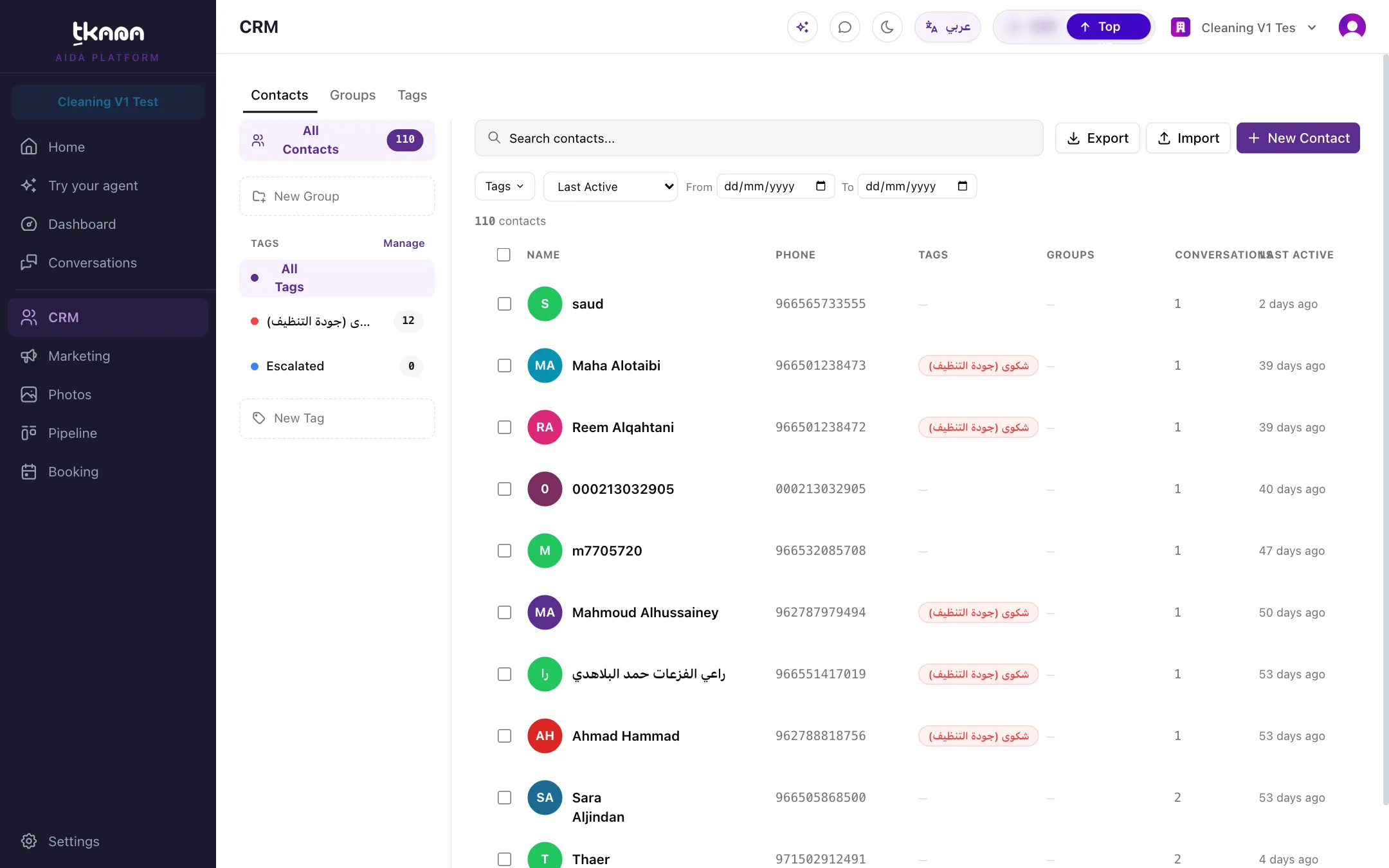
Section titled “Find a contact”Open CRM from the sidebar. The contacts list shows each contact’s name, phone number, tags, number of conversations, and when they were last active.
- Use Search contacts… to find someone by name or phone number.
- Use the tags and groups on the side to show only contacts with a certain tag or in a certain group.
- Filter by Last Active (for example, the last 7 days, or inactive for 30+ days) or by Signup date.
- Click Field filter to list contacts by the value of one of your customer fields. See Add custom fields to your customer records.
Act on several contacts at once
Section titled “Act on several contacts at once”Tick the contacts you want, then use the bulk actions to Assign Tags, Add to Group, Remove from Group, or Delete Selected.
Add a contact by hand
Section titled “Add a contact by hand”Click New Contact, fill in the name and phone number (the phone number is required and must be unique), and save. To add many contacts at once, import a file instead. See Import and export contacts.
Open a contact
Section titled “Open a contact”Click a contact to open their page. From there you can:
- Edit their name, phone, and email.
- Add or remove their Groups and Tags.
- Read their history in the Conversations, Bookings, Tickets, and Activity tabs.
- Open WhatsApp, call, or email them from their contact details.
- Fill in your own details in the Customer fields card. See Add custom fields to your customer records.
Add a note
Section titled “Add a note”Notes are for your team only. Your agent and the customer never see them.
- Open the contact and click the Notes tab.
- Type in Write a note…, for example “Prefers morning appointments”.
- Click Add Note.
Delete a contact
Section titled “Delete a contact”Open the contact, click the More menu, and choose Delete contact.
- If the contact still has bookings or open tickets, tkana asks you to handle those first.
- If you choose to delete anyway, the contact’s conversations and messages are permanently deleted too, along with what your agent remembers about them. This cannot be undone.
Was this article helpful?
Thanks for the feedback, it helps us improve these guides.