

Campaigns, templates, and automated messages explained
There are three ways a message from your business reaches a customer on WhatsApp through tkana. Knowing the difference saves you from messages that never arrive and from paying for messages you did not need.
The 24-hour window
Section titled “The 24-hour window”WhatsApp gives every business a 24-hour window that starts each time a customer sends you a message. Inside that window, your AI agent and your team can reply with any text, image, or file. Once 24 hours pass without a new message from the customer, the window closes, and WhatsApp only accepts a template: a message Meta approved in advance. The same rule applies when your business writes first, for example to announce an offer.
When the customer replies to a template, a new 24-hour window opens and the conversation continues normally.
Three ways to message customers
Section titled “Three ways to message customers”| Normal reply | Campaign | Automated message | |
|---|---|---|---|
| Who sends it | Your AI agent or a teammate | You, from the Marketing page | tkana, when something happens (a booking, a ticket, an order) |
| Who receives it | One customer, in a conversation | Many customers at once | One customer or your team, per event |
| When it works | Inside the 24-hour window | Any time | Any time |
| What it needs | Nothing extra | An approved template and an audience | A skill that includes the message, and a connected WhatsApp number |
| Who pays | Your agent’s replies use tkana credits | Meta, on your Meta account | Meta, on your Meta account (WhatsApp) |
Use a normal reply when
Section titled “Use a normal reply when”A customer has written to you in the last 24 hours. Your agent answers on its own, and a teammate can step in from Conversations. If the window has closed on one customer, you can send a single approved template from the conversation. See Send templates, files, and internal notes.
Use a campaign when
Section titled “Use a campaign when”You want to reach a group of customers with the same message: a seasonal offer, a new branch opening, a reminder to renew. You write a template once, Meta approves it, and you send it to a group or a list of customers. See Send a WhatsApp campaign.
Use an automated message when
Section titled “Use an automated message when”The message belongs to an event that happens again and again: a booking is confirmed, a ticket is resolved, an order ships. These messages come ready-made with skills and go out on their own. See Understand automated messages.
What you need before you start
Section titled “What you need before you start”- A connected WhatsApp number. Templates, campaigns, and WhatsApp automated messages all go out from your own WhatsApp Business number. See Connect your WhatsApp Business number.
- A payment method on your Meta account. Meta bills template messages directly. See Who pays for WhatsApp template messages.
- Customers with a WhatsApp number. Anonymous chat widget visitors and Telegram customers cannot receive WhatsApp templates.
Where to find everything
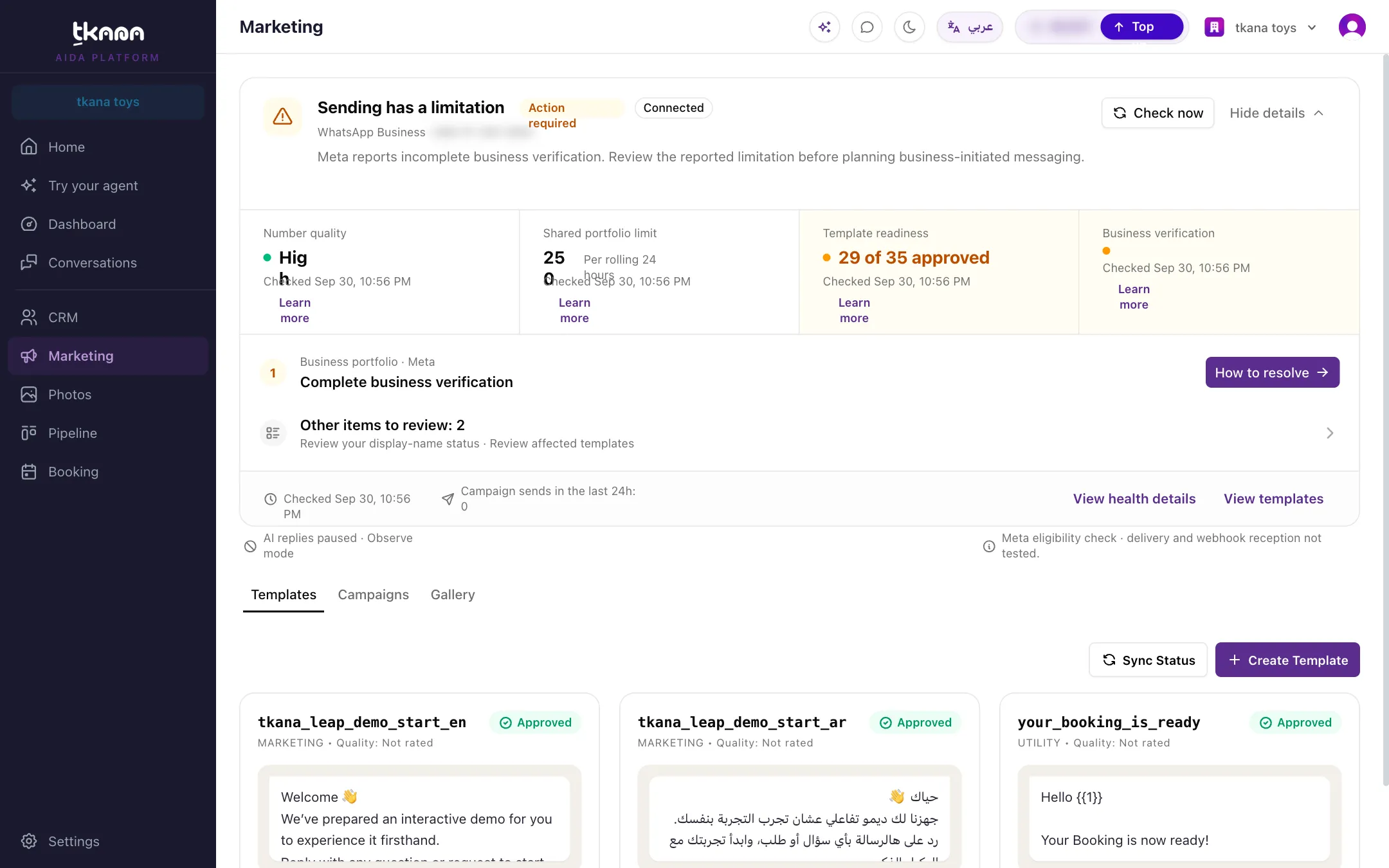
Section titled “Where to find everything”- Marketing in the sidebar has four tabs: Templates (create and track your templates), Campaigns (launch and follow campaigns), Click to WhatsApp Ads (follow the conversations your Facebook and Instagram ads start, see Track your Click-to-WhatsApp ads), and Gallery (your image library for template headers). The WhatsApp Health card at the top shows your number’s quality and how many templates are approved.
- Settings > Notifications holds the automated booking and ticket messages.
- CRM > Groups is where you build the audiences for your campaigns.
Suggested reading order
Section titled “Suggested reading order”Was this article helpful?
Thanks for the feedback, it helps us improve these guides.