

Choose when your agent replies
By default your agent replies at any time. If your team prefers to answer customers themselves during the day, you can have the agent cover only the evenings and weekends, or the other way around.
Pick a working hours mode
Section titled “Pick a working hours mode”-
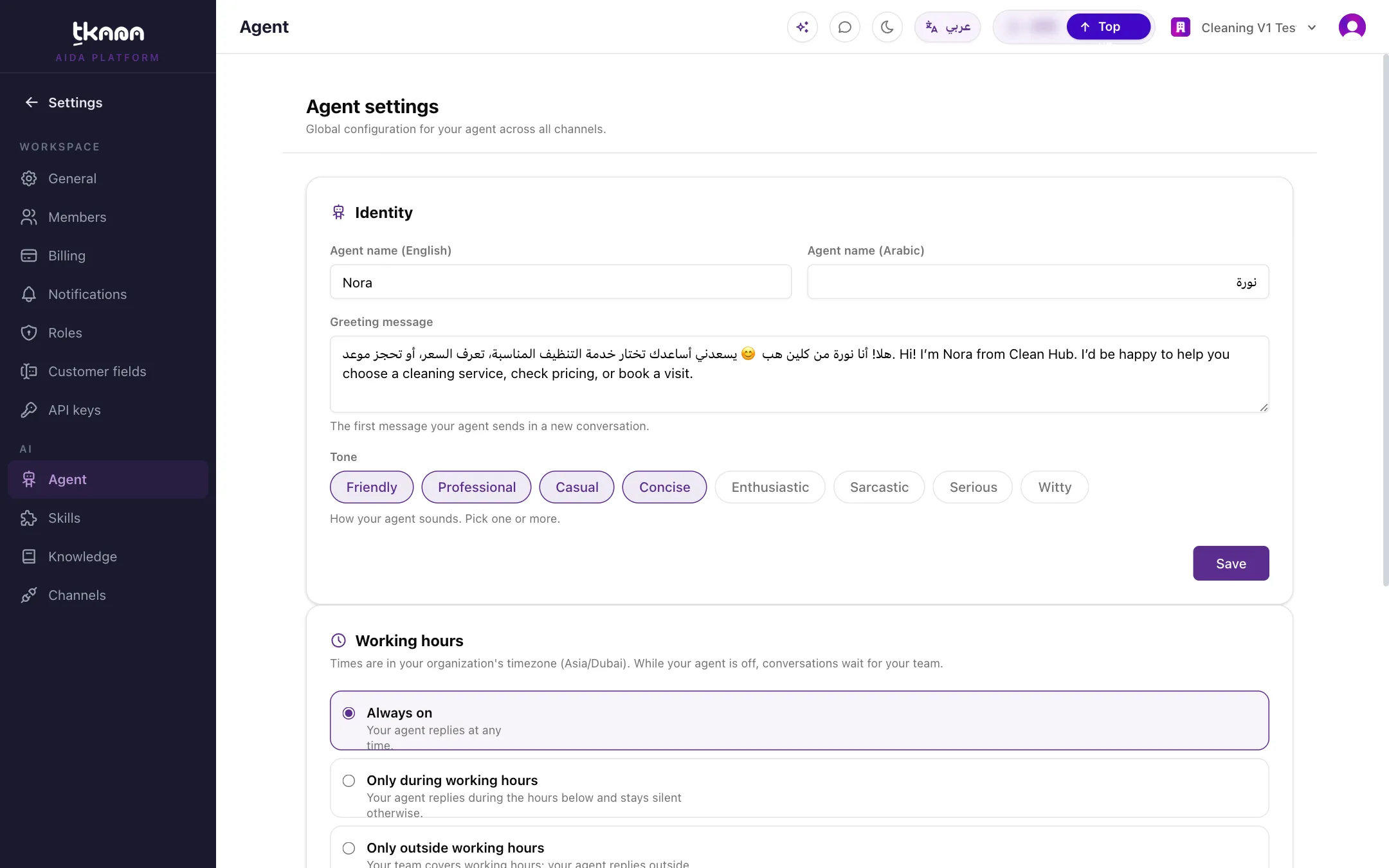
Go to Settings, then under AI click Agent.
-
In the Working hours card, choose one option:
- Always on: your agent replies at any time.
- Only during working hours: your agent replies during the hours you set and stays silent otherwise.
- Only outside working hours: your team covers working hours, and your agent replies outside them.
-
If you chose one of the working-hours options, set your weekly schedule (see below).
-
Click Save.
Set your weekly schedule
Section titled “Set your weekly schedule”- Turn on each day you work and enter its start and end time.
- Use Add hours to add a second window on the same day, for example a split shift.
- Mark a day as Day off when you are closed.
- Set up one day, then use Copy to other days and Apply to reuse it.
An end time earlier than the start time runs overnight, for example 8:00 PM to 2:00 AM. Each window needs different start and end times, and at least one day must be on. If you do not want a schedule, choose Always on.
What happens while your agent is off
Section titled “What happens while your agent is off”Customers can still write to you. Their conversations arrive on the Conversations page and wait there for your team. Your agent does not reply to them until its hours begin again.
Related
Section titled “Related”Was this article helpful?
Thanks for the feedback, it helps us improve these guides.