

Invite your team to tkana
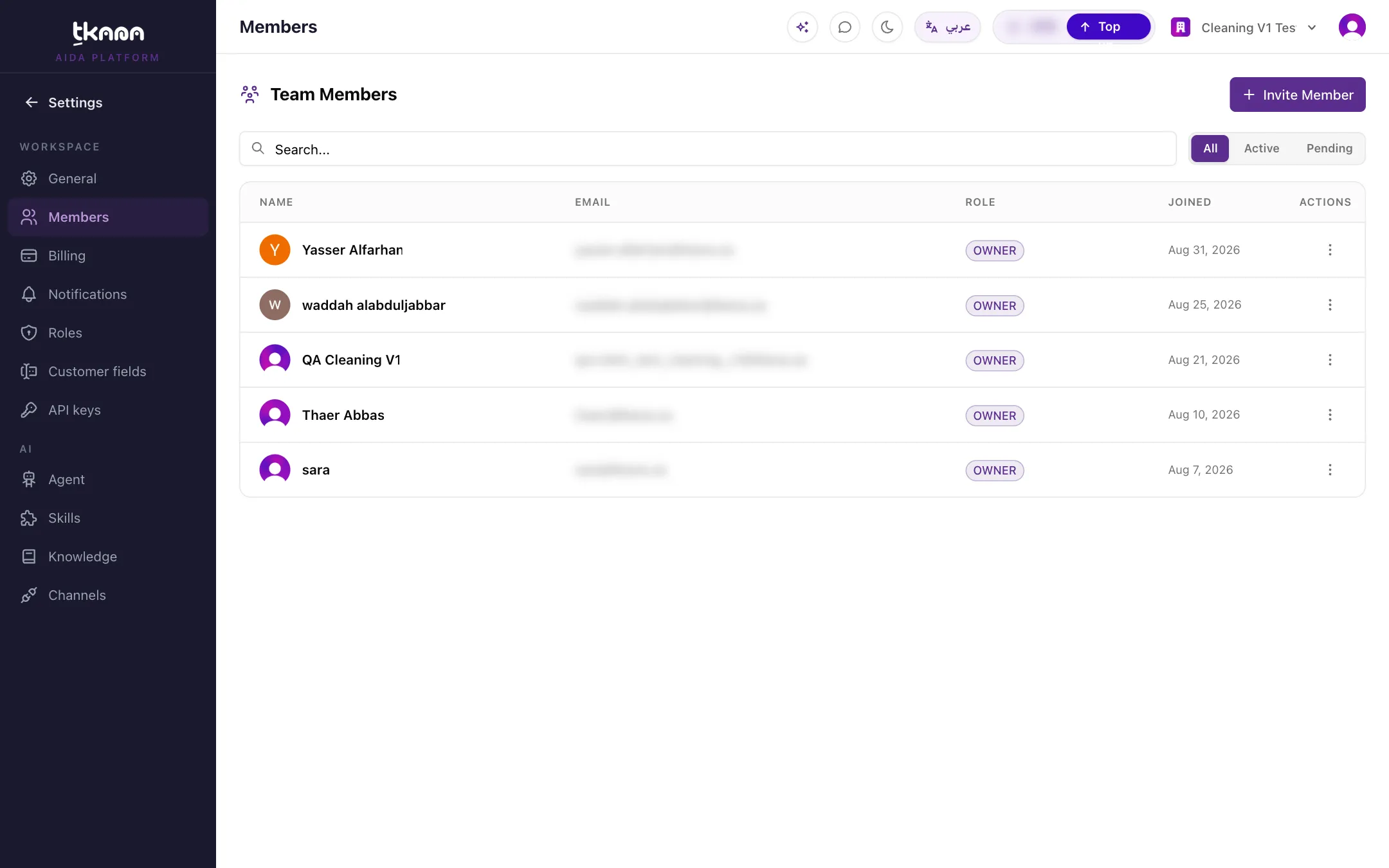
You can bring your whole team into tkana to work conversations, tickets, and bookings with you. Each member has their own login and a role that decides which pages they see and what they can change.
Invite a new member
Section titled “Invite a new member”-
In Settings, open Members.
-
Click Invite Member.
-
Enter your colleague’s email and choose their role from Select role. The default role is Member.
-
Click Send Invitation.
Your colleague receives an email with an invitation link. When they open it, they sign in if they already have a tkana account, or create one, and join your workspace right away with the role you chose.
Track pending invitations
Section titled “Track pending invitations”Invitations that have not been accepted yet appear in the members list as Pending, with the date they were sent. To cancel an invitation before it is accepted, click Revoke invitation and confirm.
Change a member’s role or remove them
Section titled “Change a member’s role or remove them”From the members list:
- Edit role: pick a new role for the member and save. What they see in the portal changes immediately.
- Remove member: ends the member’s access to your workspace.
Members in more than one workspace
Section titled “Members in more than one workspace”The same person can be a member of more than one business on tkana. With one workspace they go straight in; with several, they choose a workspace when they sign in. Owners also get an organization switcher in the top bar to move between them.
Next steps
Section titled “Next steps”- Control what your team can do with roles
- Share the work with your team and stay alerted
- Join a team you were invited to (share this with the people you invite)
Was this article helpful?
Thanks for the feedback, it helps us improve these guides.