

Upload images and files for your templates
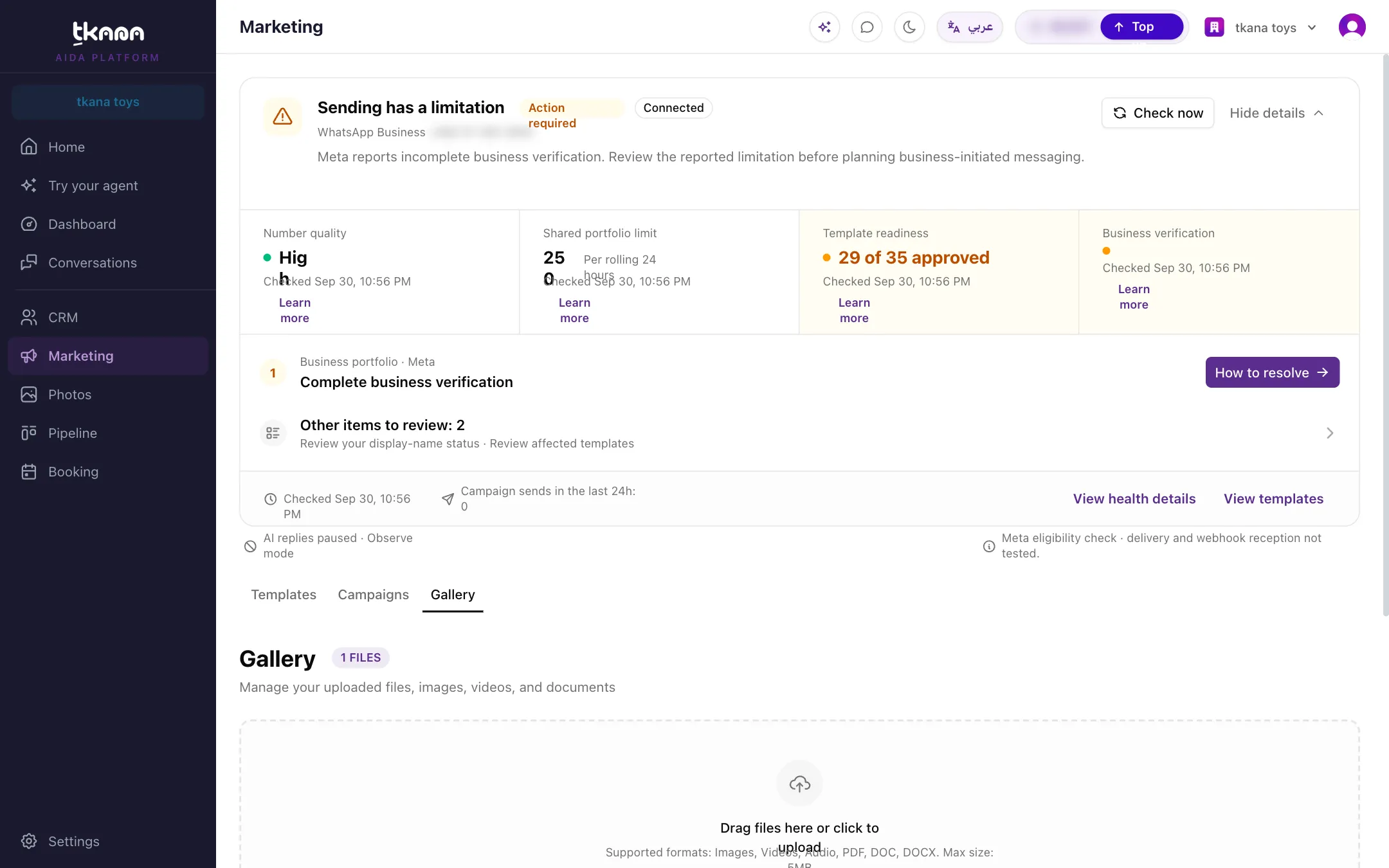
The Gallery tab on the Marketing page is where you keep the images and files you use with your WhatsApp templates. Upload an image once, then pick it from the library whenever you send an Image + Text template, instead of uploading it again each time.
Upload files to the gallery
Section titled “Upload files to the gallery”-
Open Marketing from the sidebar, then the Gallery tab.
-
Drag files onto the upload area, or click it to choose files.
-
Wait for the upload to finish. The new files appear in the list, and the counter at the top shows how many files you have.
- You can upload images, videos, audio, PDF, DOC, and DOCX files.
- Each file can be up to 5 MB, and you can upload up to 10 files at a time.
Find, download, or delete a file
Section titled “Find, download, or delete a file”- Type in the search box to find a file by name.
- Use All, Images, Videos, Audio, and Documents to show one type of file.
- Each file shows its size and upload date, with buttons to download it or delete it.
Use a gallery image in a campaign
Section titled “Use a gallery image in a campaign”When you launch a campaign with an Image + Text template, the message preview has an image area:
- Click Upload to use a new image from your computer, or
- Click Library and pick an image from Choose from Media Library. Only images from your gallery are listed here.
Use a gallery image in a conversation
Section titled “Use a gallery image in a conversation”When you send an approved image template to a customer from a conversation, you can choose between uploading a new image and picking one from Media Library, which lists your gallery images. See Send templates, files, and internal notes.
Related
Section titled “Related”Was this article helpful?
Thanks for the feedback, it helps us improve these guides.