

Understand conversation statuses
Every conversation has a status that tells your team where it stands. Your agent and your team both update it, and much of it happens automatically.
The statuses
Section titled “The statuses”| Status | Meaning |
|---|---|
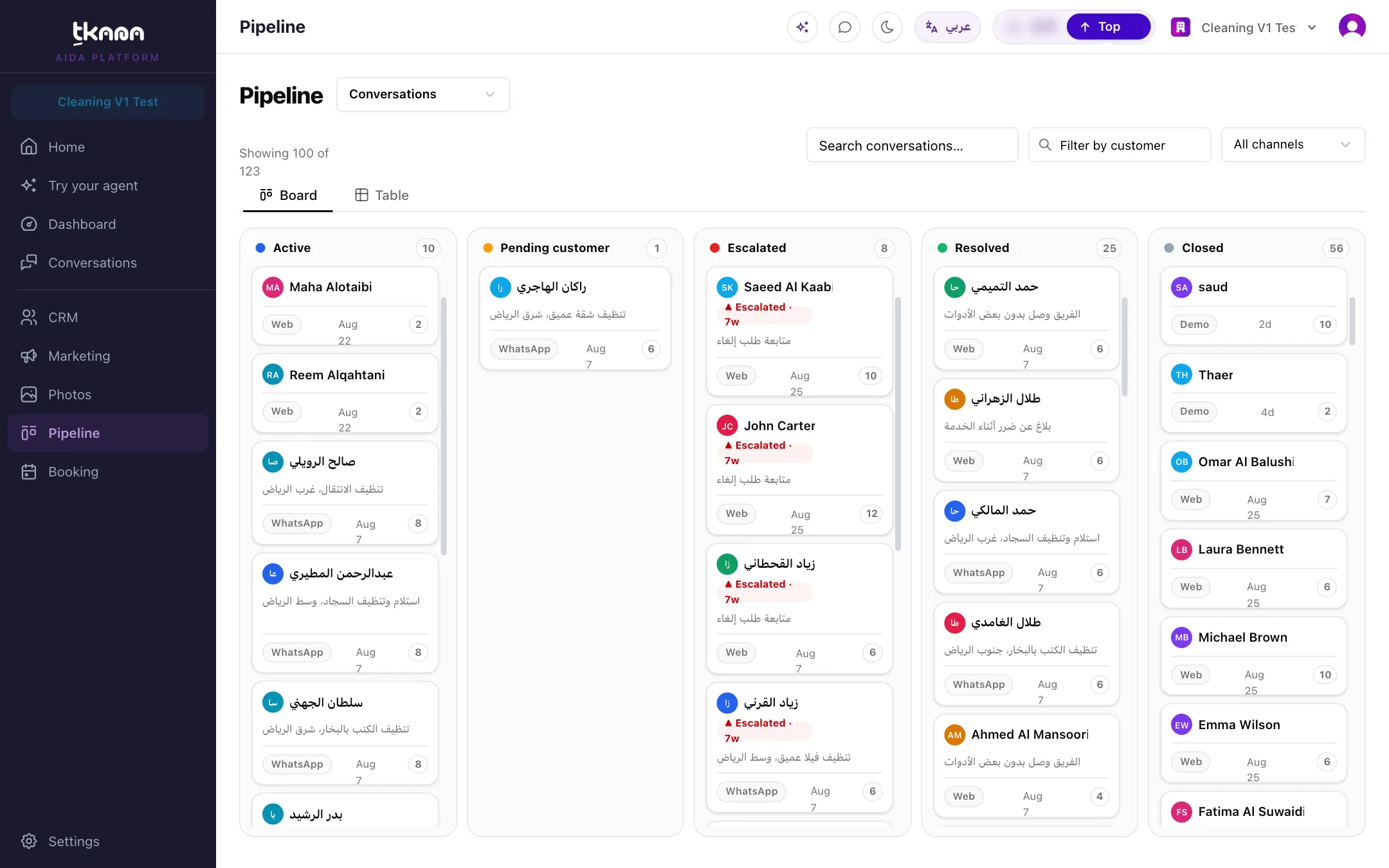
| Active | The conversation is open. Your agent or your team is talking with the customer. |
| Pending customer | Waiting for the customer to reply. |
| Escalated | Handed to your team because it needs a person. See Understand escalation. |
| Resolved | The customer’s request was handled. |
| Closed | Finished and closed, for example spam or a duplicate. |
Change a status yourself
Section titled “Change a status yourself”- In the conversation: open Details and use Change Status.
- On the board: open Pipeline, choose Conversations, and drag the card to another column.
When you resolve or close a conversation, you can pick a reason, such as Resolved, Spam, Transferred, Abandoned, Duplicate, No response, or Customer requested. Reasons show on the thread and help your reporting.
Conversations resolve on their own
Section titled “Conversations resolve on their own”You do not have to close every conversation by hand. When a conversation has been quiet for a while (about 30 minutes with no message from either side), tkana reviews it. If it is clear the conversation has ended, it is resolved automatically with a reason, such as Resolved, Abandoned, or No response, and a short AI summary of what the customer wanted and how it ended.
Escalated conversations and conversations a person is handling are never resolved automatically. Those stay open until someone on your team resolves them.
When a customer writes again
Section titled “When a customer writes again”- Shortly after the conversation was resolved (within about 30 minutes), the same conversation reopens, so the context stays together.
- Later than that, a new conversation starts. It still appears in the same customer’s thread, below the earlier one, so you see the whole history in one place.
Summaries
Section titled “Summaries”Each resolved conversation gets a short AI summary: the issue, how it ended, the customer’s sentiment, and the reasons they got in touch. You see it on the divider between conversations in the thread, and it feeds the Dashboard, including the top contact reasons and customer pain points. Search also matches words in summaries.
Was this article helpful?
Thanks for the feedback, it helps us improve these guides.