

Why a campaign message wasn't delivered
After you send a campaign, not every customer in the audience gets the message. Some were left out on purpose, some messages are still on their way, and some were refused by WhatsApp. The campaign’s details show you what happened to each recipient, so you can tell the difference and decide what to do next.
Open a campaign’s delivery details
Section titled “Open a campaign’s delivery details”-
Open Marketing from the sidebar, then the Campaigns tab.
-
On the campaign’s row, click Details.
The Campaign Analytics panel opens. At the top, counters show Recipients, Accepted (messages WhatsApp accepted for delivery), Not sent yet, Skipped, Delivered, Read, and Failed. Below them is the list of recipients, each with their status.
Click a status above the list to show only those recipients, for example only Failed.
What each recipient status means
Section titled “What each recipient status means”| Status | What it means |
|---|---|
| Not sent yet | The message is waiting in line to go out. This is normal while a campaign is still sending. |
| Sent | WhatsApp received the message, but it has not reached the customer’s phone yet. |
| Delivered | The message reached the customer’s phone. |
| Read | The customer opened the message. |
| Skipped | tkana deliberately did not send it. The reason appears under the customer’s name. |
| Failed | WhatsApp refused or could not deliver the message. The reason appears under the customer’s name. |
Why a message was skipped
Section titled “Why a message was skipped”- Opted out of marketing: the customer asked WhatsApp to stop marketing messages from your business, so no Marketing template reaches them. Opt-outs are checked again at the moment of sending, so a customer who opts out after you scheduled a campaign is still skipped. See How customers opt out of marketing messages.
- A missing customer detail: if the template uses a customer detail with no fallback, customers who do not have that detail can be skipped. Set a fallback to reach them too. See Personalize a campaign with customer details.
Why a message failed
Section titled “Why a message failed”When a message fails, the reason WhatsApp gave is shown under the customer’s name. Common causes are:
- The number is not on WhatsApp, or it is written incorrectly on the customer’s profile.
- WhatsApp limits marketing messages. WhatsApp caps how many marketing messages one person receives from businesses, and may hold back yours even when everything on your side is correct.
- Your Meta account has a payment problem. Meta bills template messages to the payment method on your Meta account. If that payment fails, messages fail too. Adding tkana credits does not fix this. See Who pays for WhatsApp template messages.
- The template or your account is restricted, for example a paused template, or a limit Meta placed on your number.
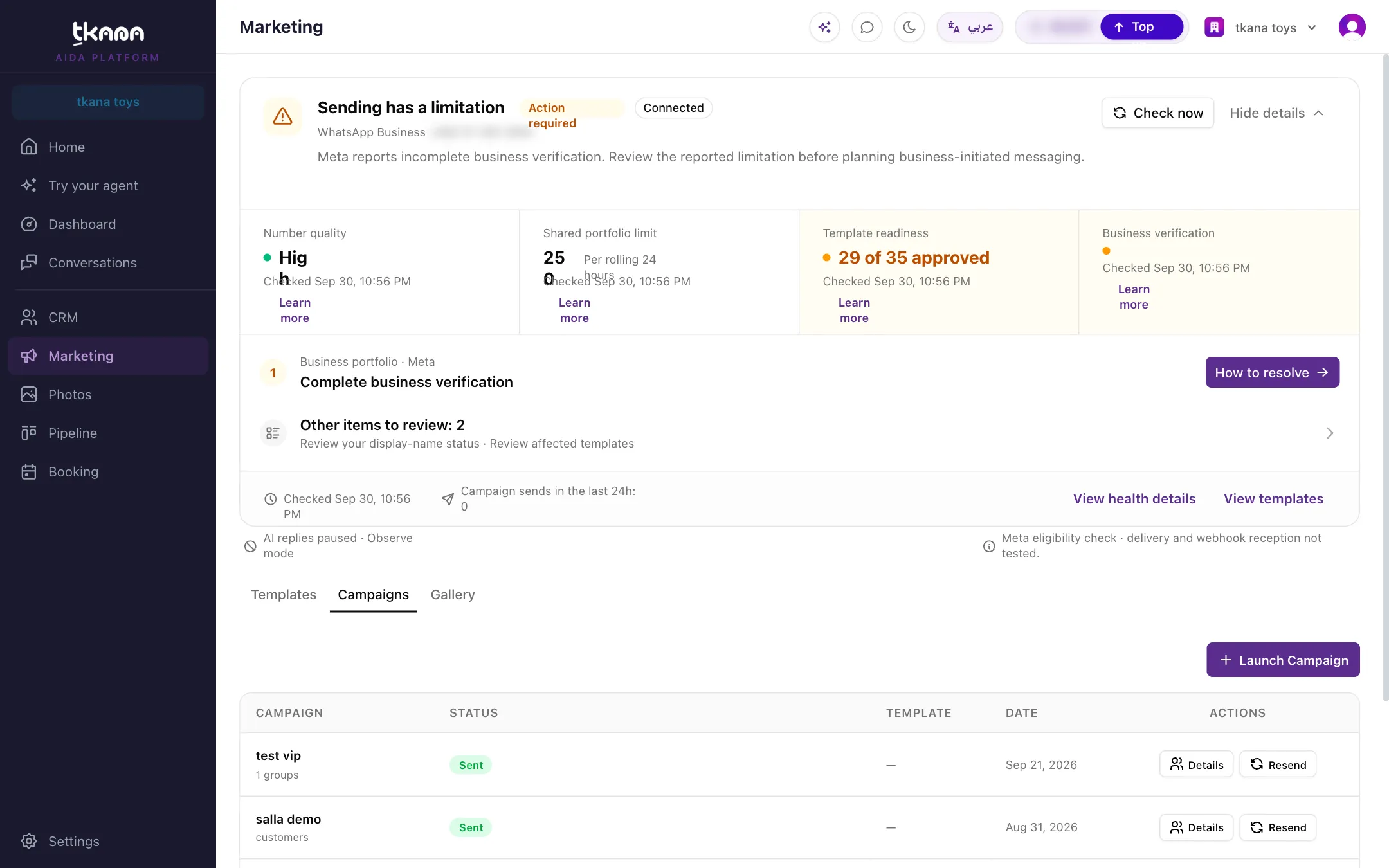
If many messages fail at once, check the WhatsApp health card at the top of the Marketing page first. It shows payment, template, and account problems, with steps to fix them. See Check and fix your WhatsApp account health.
Customers a campaign can never reach
Section titled “Customers a campaign can never reach”Some customers are left out before sending even starts, and never appear in the recipient list:
- Anonymous chat widget and chat page visitors. A visitor who chats on your website without giving a phone number has no WhatsApp number to send to.
- Telegram customers, who have no phone number on their profile.
- Customers who already opted out of marketing, when you send a Marketing template. When you launch a campaign, tkana shows how many customers are Selected, Eligible, and Excluded before you confirm.
Campaigns and the 24-hour window
Section titled “Campaigns and the 24-hour window”WhatsApp only lets a business send free text within 24 hours of the customer’s last message. Campaigns always use an approved template, and templates can be sent at any time, so the 24-hour window does not stop a campaign. The window matters for replying in a conversation and for custom automated messages, which are free text.
Follow up on failed or skipped recipients
Section titled “Follow up on failed or skipped recipients”-
In the campaign’s details, click Failed to show only those recipients.
-
Fix what you can, such as correcting phone numbers or solving a payment or template problem.
-
Click Create Group to save these recipients as a group, then send them a new campaign later.
You can also click Export to download the recipient list with each status and reason.
Related
Section titled “Related”Was this article helpful?
Thanks for the feedback, it helps us improve these guides.