


Make tkana your default WhatsApp notifications app
Choose tkana for WhatsApp notifications in Salla's app settings, so they go out from your connected number.
Order, shipping, and abandoned-cart notifications reach customers from your store’s number, and your mate answers their replies.
Before you start: Install tkana from the Salla app store and Connect your WhatsApp number.
Choose tkana as the default app
Section titled “Choose tkana as the default app”-
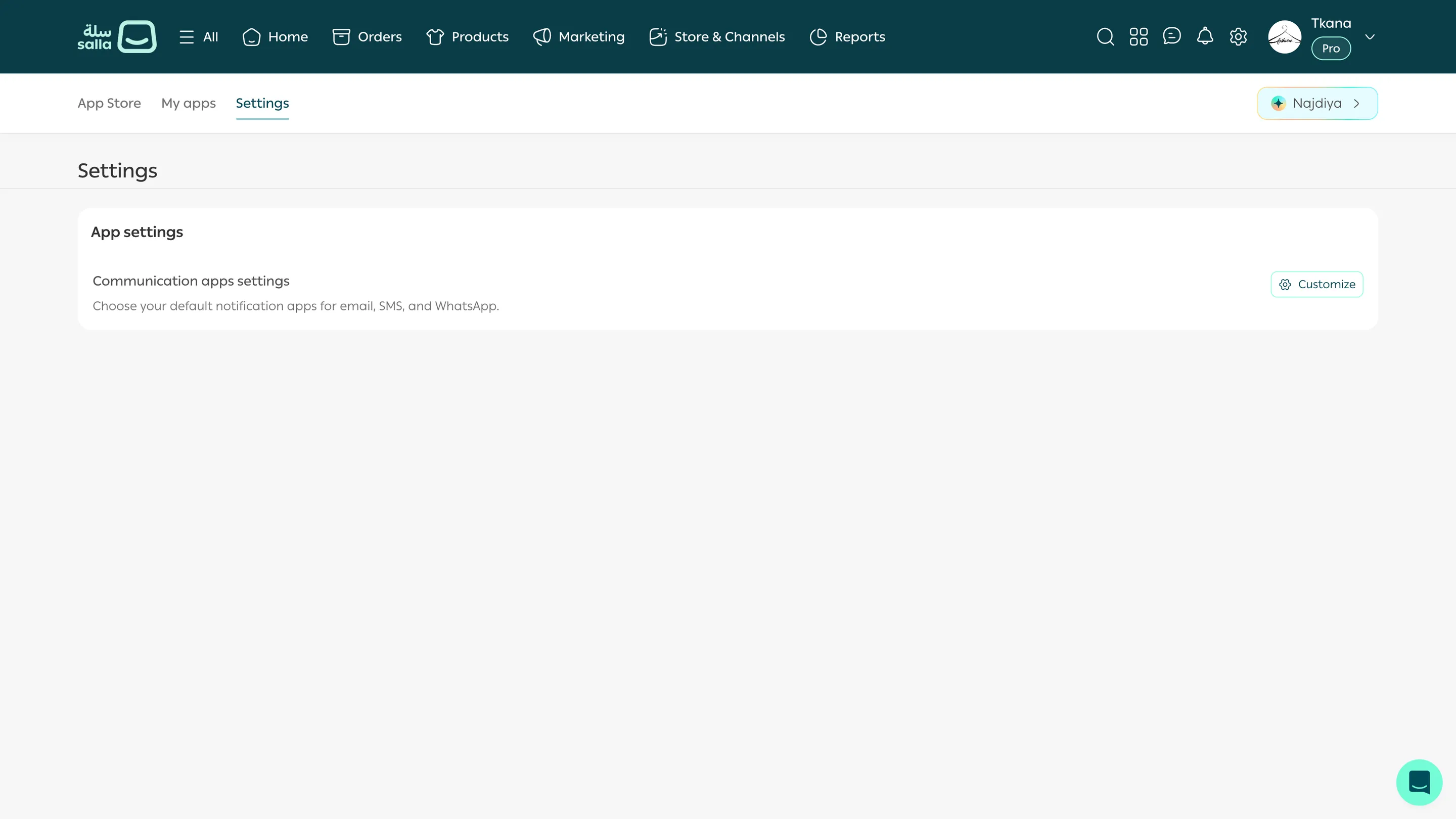
In your Salla dashboard, open Apps, then the Settings tab.
-
In the Communication apps settings row of the App Settings card, click Customize.
-
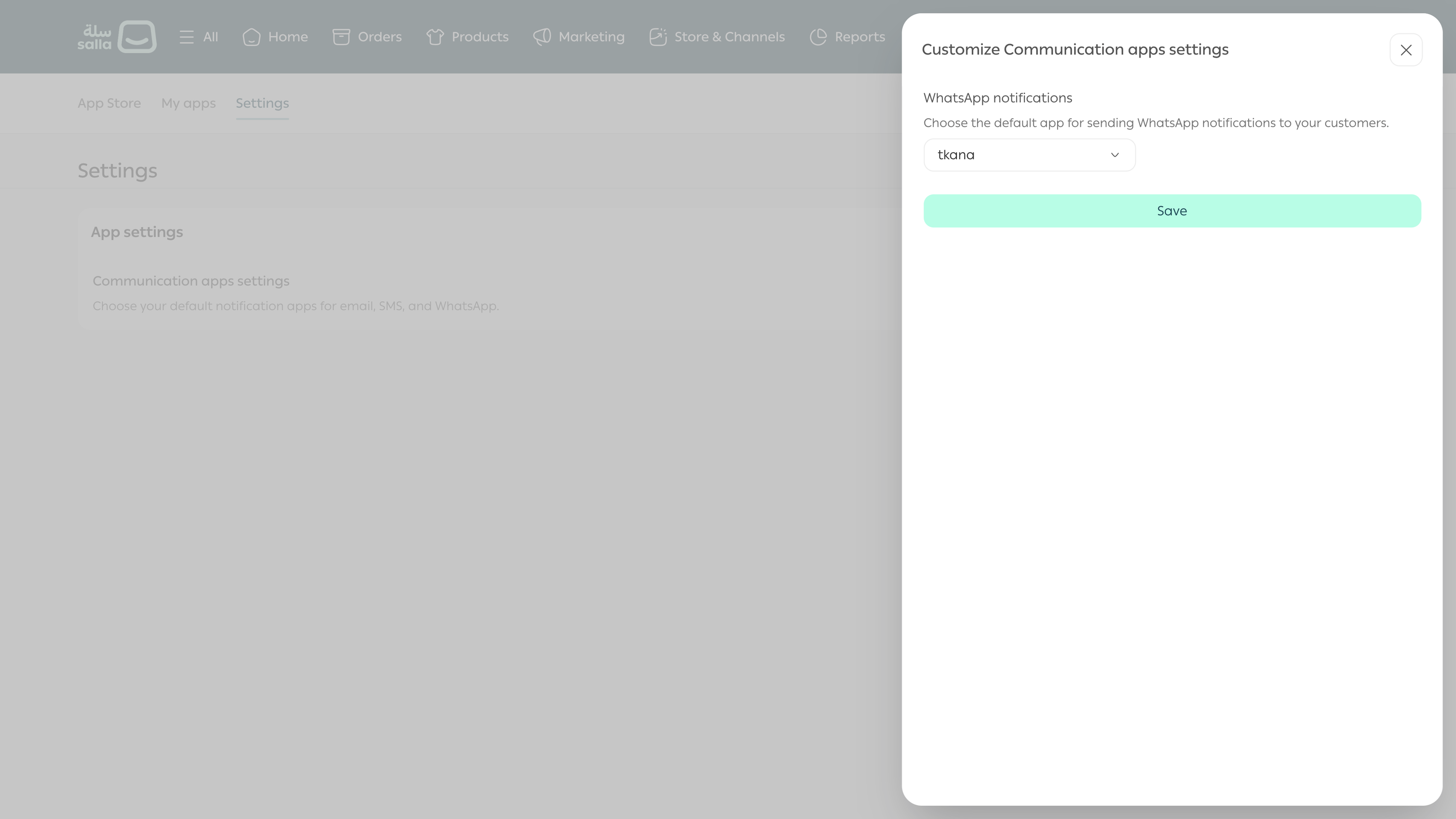
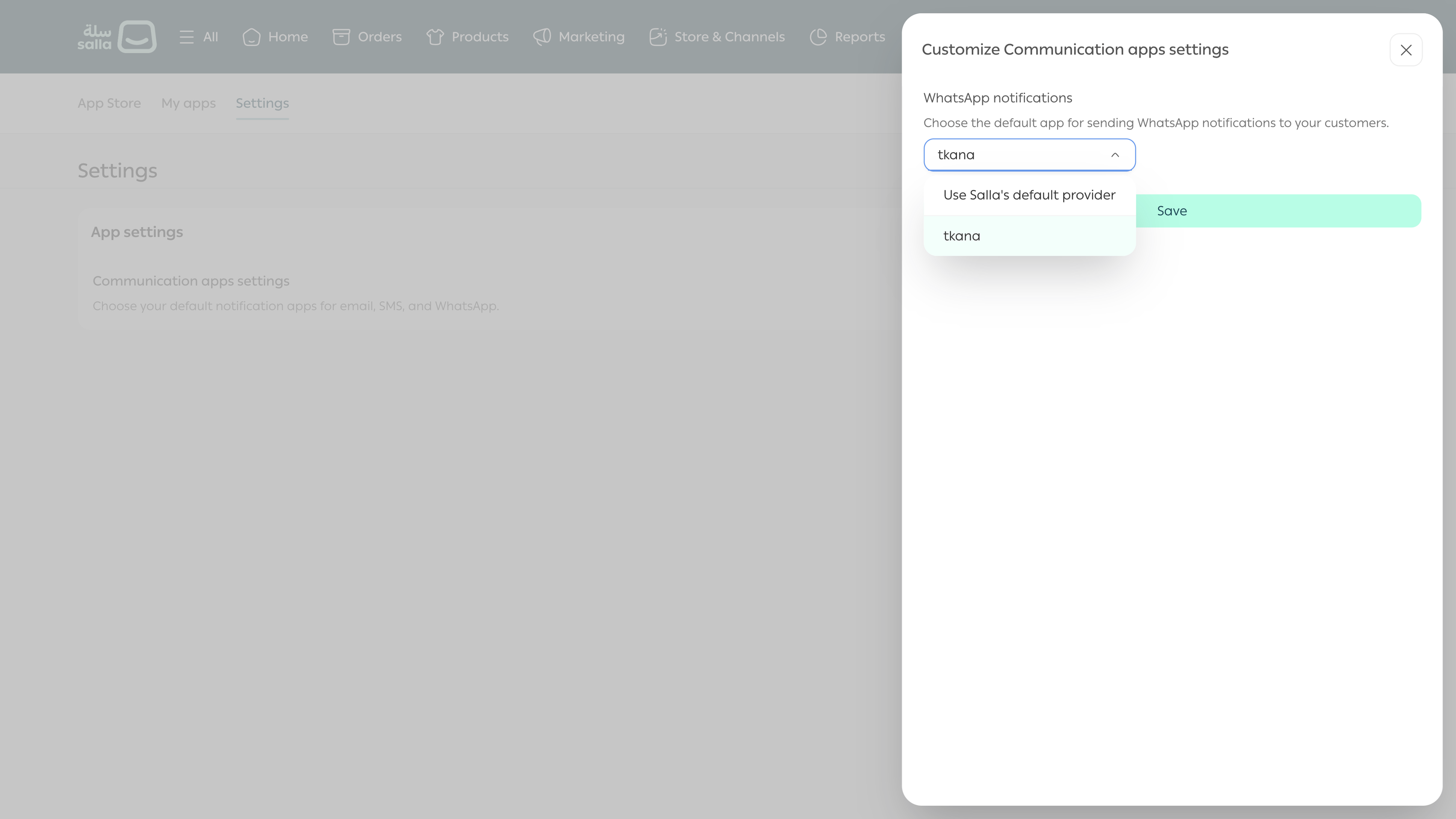
In the Customize Communication apps settings panel, open the The default application for WhatsApp notifications dropdown.
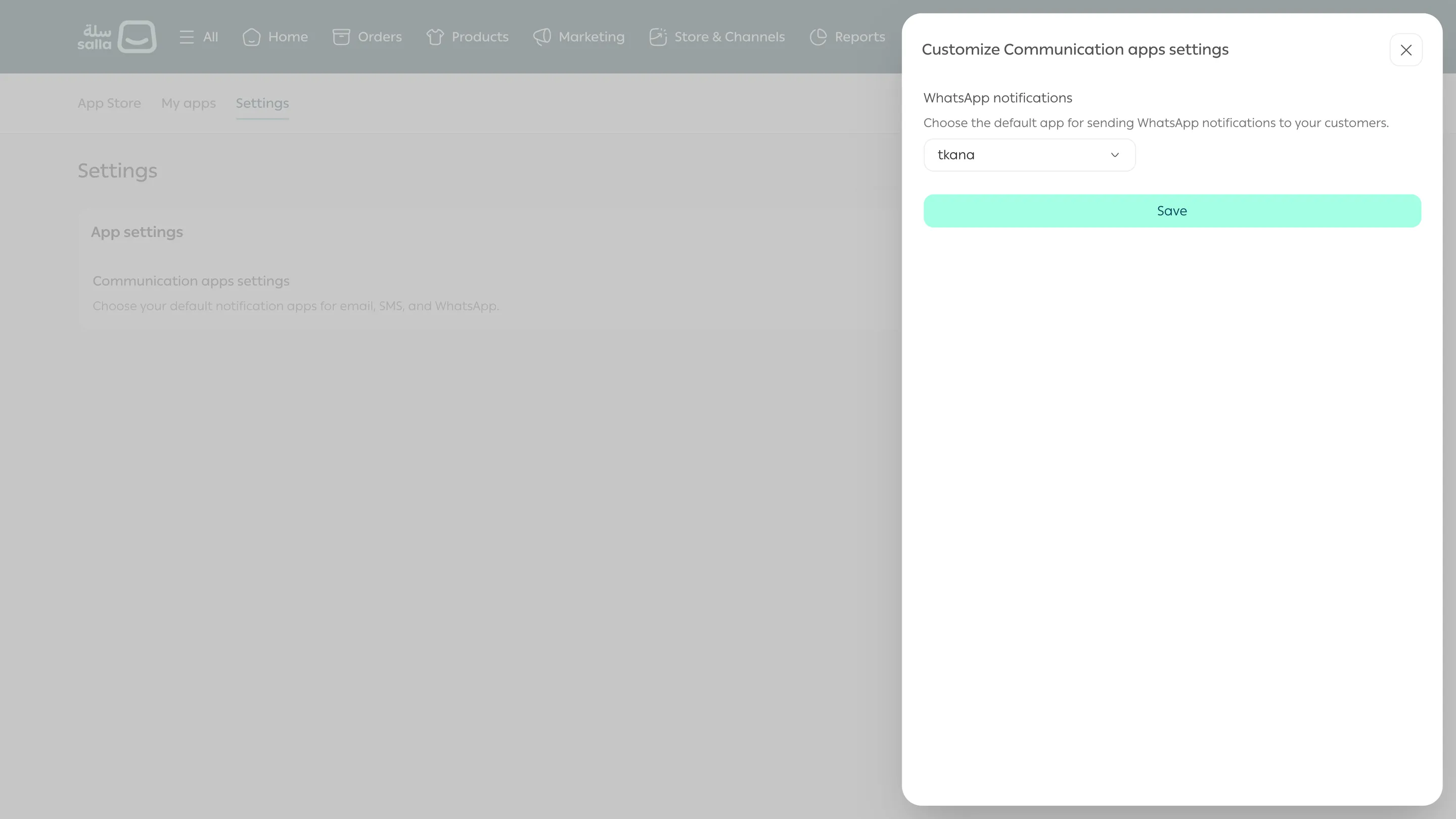
This demo store has another option selected; you'll choose tkana. -
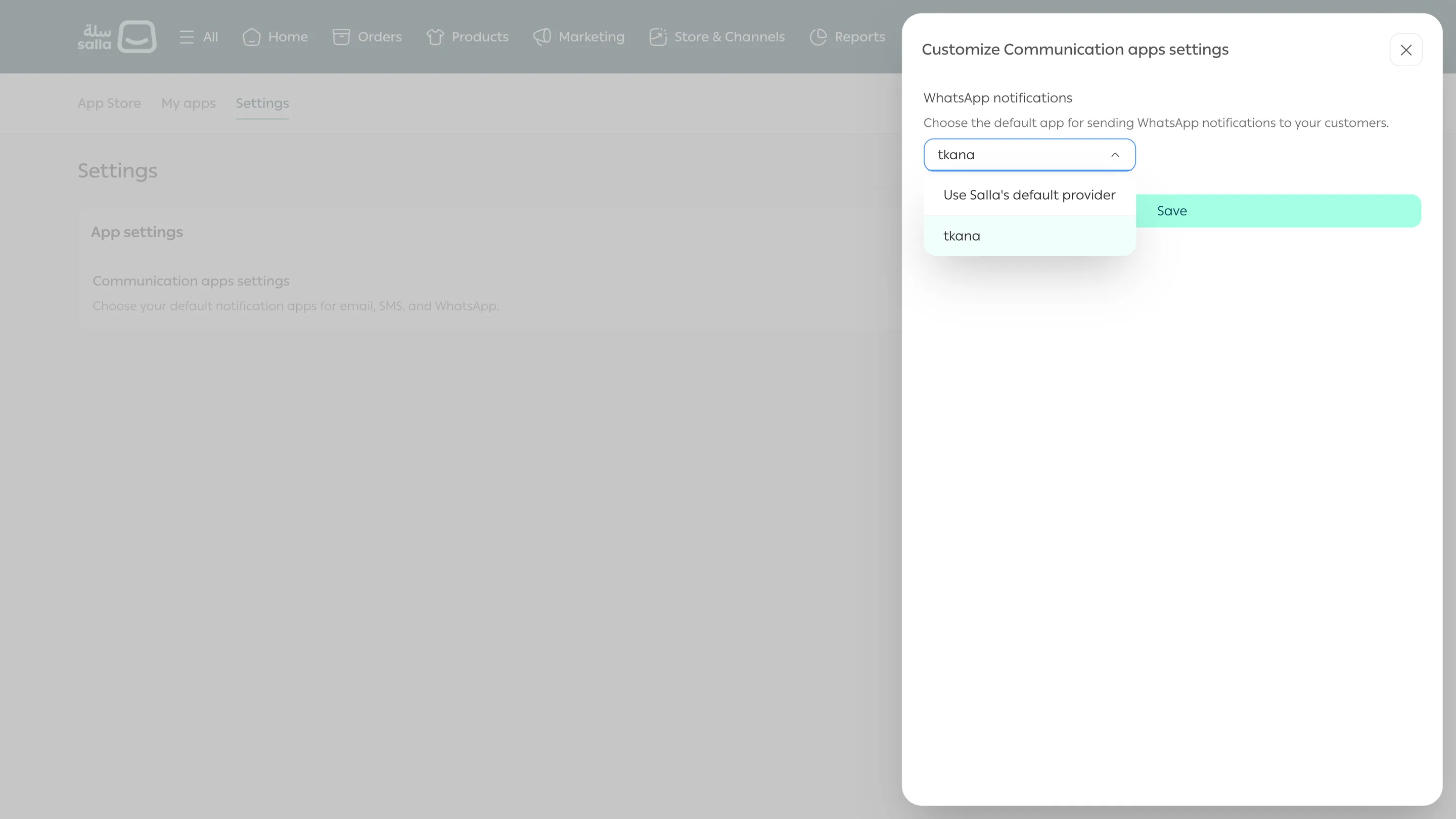
Choose tkana (options: Use Salla’s default provider and tkana).
-
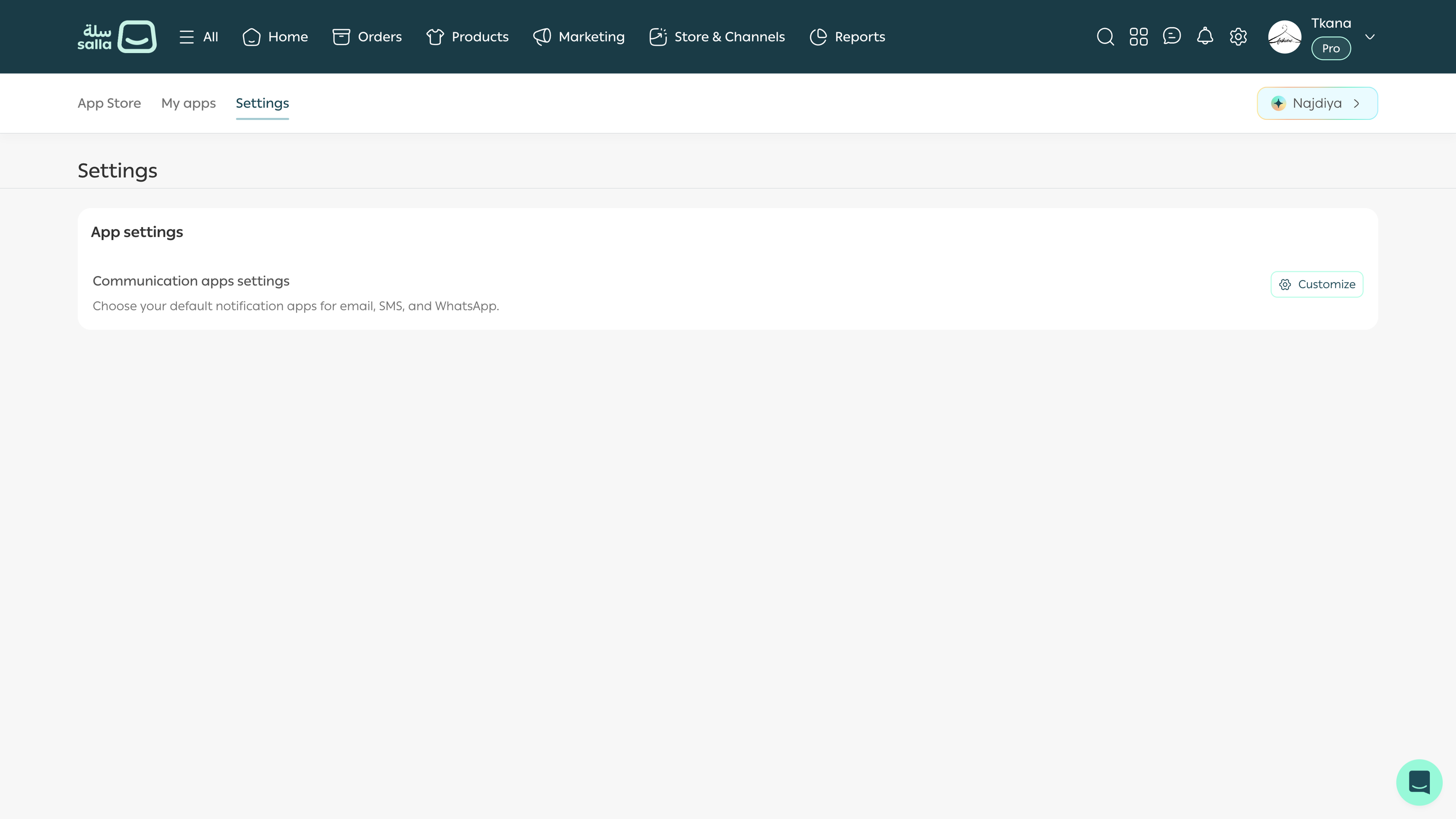
Click Save.
If tkana isn’t in the list
Section titled “If tkana isn’t in the list”The list shows only installed and enabled apps. Make sure tkana is installed and enabled under Apps, then My apps, then refresh and click Customize again.
Check that it works
Section titled “Check that it works”- Click Customize again and confirm tkana shows in the field, then close without changes.
- On tkana’s WhatsApp tab, make sure the notifications you want are on and Approved. See Store notifications on WhatsApp.
- Place a test order with your own mobile number; the confirmation should arrive from your store’s number.
Switch back to Salla’s provider
Section titled “Switch back to Salla’s provider”In the same field, choose Use Salla’s default provider, then Save. tkana’s notifications then stop going to customers; your mate’s conversations and campaigns keep working from your number.
Did you like this article?
Your answer helps us improve these guides.Thanks for the feedback, it helps us improve these guides.
© 2026 tkana. All rights reserved.