

Create a marketing template and submit it for review
A campaign sends a WhatsApp template in the Marketing category. You write the template once, Meta reviews it, usually within minutes to hours, and then you can use it in as many campaigns as you like.
Open the template form
Section titled “Open the template form”-
Open the Campaigns tab.
-
On the readiness card, click the Templates link. The Marketing templates page opens.
-
Click New template.
Fill in the template
Section titled “Fill in the template”-
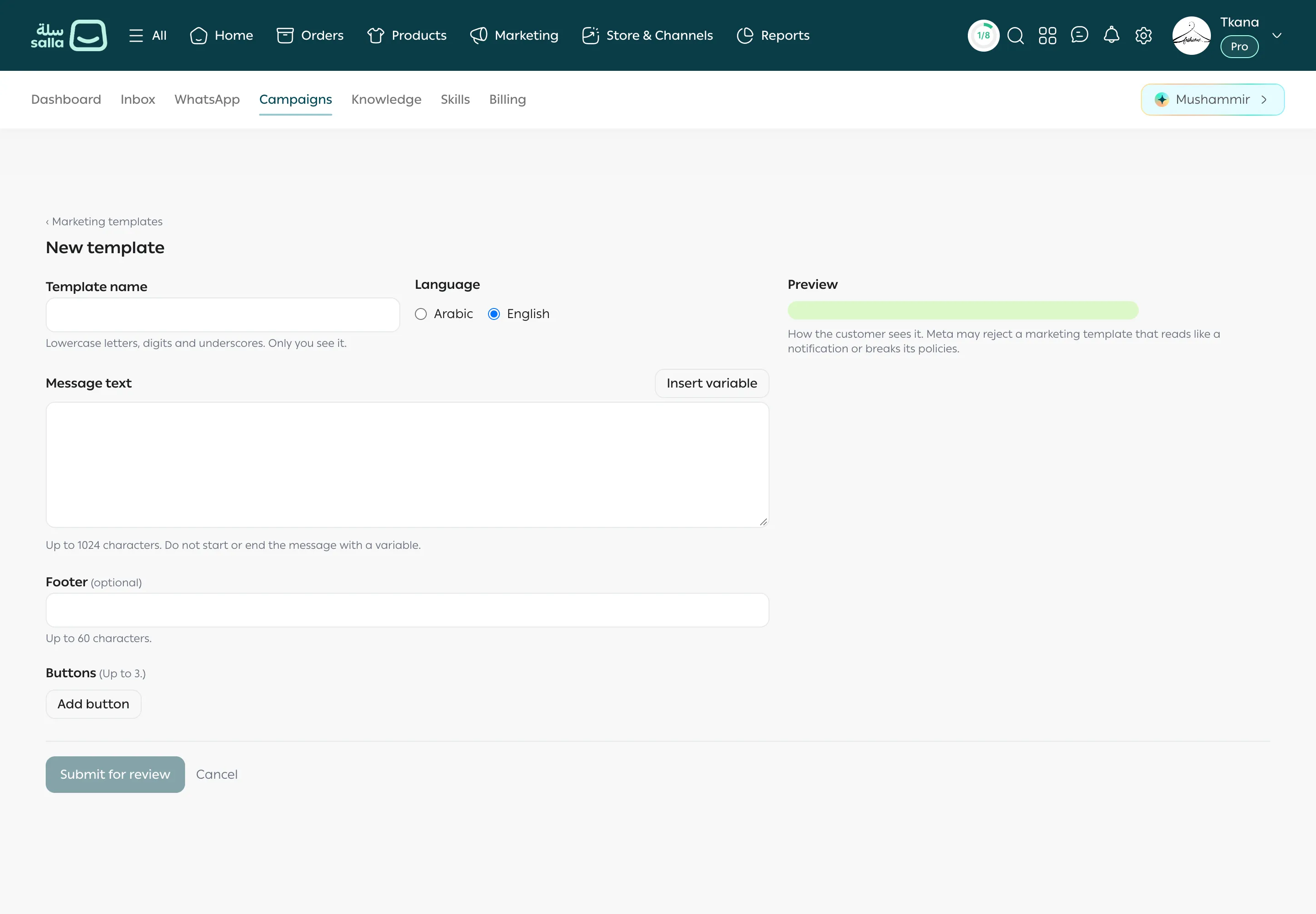
Template name: use lowercase letters, digits, and underscores, such as
summer_sale. Customers never see this name. Below the box you see the name it will be saved as. -
Language: choose Arabic or English. To send in both languages, create one template per language.
-
Message text: write your message, up to 1024 characters.
-
To personalize it, place the cursor where you want and click Insert variable. A numbered variable such as
{{1}}is added, then{{2}}for the next one. -
Variable examples: give an example for each variable, such as “Ahmed” for the customer’s name. Meta needs an example for each variable to review the template.
-
Footer (optional): a short line under the message, up to 60 characters, such as your store name.
-
Buttons (optional, up to 3): click Add button and choose the Button type:
- Quick reply: a button the customer taps to send you a reply.
- Link: opens a page. Enter the full Link (https).
- Call: calls your number. Enter the Phone number with the country code.
Then write the Button text (up to 25 characters).
-
Check the Preview, which shows the message as the customer sees it.
-
Click Submit for review.
What happens after you submit
Section titled “What happens after you submit”The template appears in the Marketing templates list as In review. When Meta approves it, its status becomes Approved and it appears in the first step of New campaign. See Understand template statuses.
Rules that prevent rejection
Section titled “Rules that prevent rejection”Was this article helpful?
Thanks for the feedback, it helps us improve these guides.