

Store notifications on WhatsApp
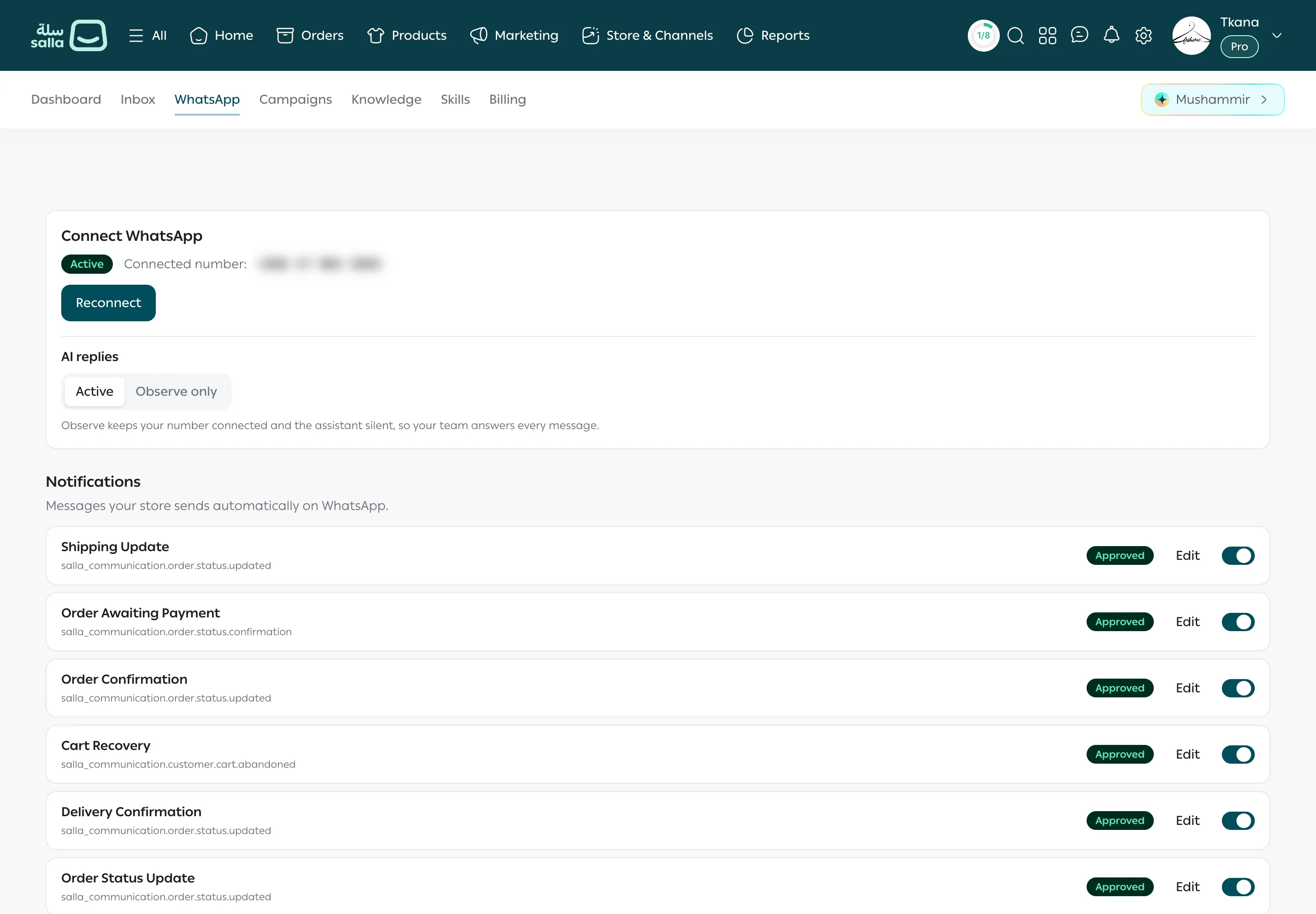
When something happens in your Salla store, such as an order being confirmed, shipped, or a cart left behind, tkana sends the customer a WhatsApp message from your store’s number. These messages come from the Salla notifications skill, and you manage them on the WhatsApp tab under Notifications.
The ready-made messages
Section titled “The ready-made messages”Your store comes with a ready-made message for each common event, in Arabic and English. They include:
- Order confirmation and Order awaiting payment.
- Shipping update, Order status update, and Delivery confirmation.
- Cart recovery for customers who left products in their cart.
Under each message’s name you see the Salla event that triggers it, such as salla_communication.order.status.updated.
When a message is sent
Section titled “When a message is sent”A message reaches the customer when three things are true:
- Salla tells tkana about the event for the customer’s order.
- The notification is turned on.
- The message text is approved by WhatsApp.
Message statuses
Section titled “Message statuses”WhatsApp reviews every business message before it can be sent. The badge on each row shows where the message is:
| Status | What it means | What to do |
|---|---|---|
| Pending connection | No WhatsApp number is connected yet. | Connect your WhatsApp number. |
| Awaiting submission | Your number is connected and the message is about to be sent for review. | Nothing, just wait a little. |
| In review | WhatsApp is reviewing the message. | Wait. Review usually takes minutes to hours. |
| Approved | The message is ready to send. | Turn the notification on if it isn’t already. |
| Rejected | WhatsApp didn’t approve the message. | Click Fix & resubmit. See Edit a notification message. |
Turn a notification on or off
Section titled “Turn a notification on or off”-
Open the WhatsApp tab and scroll down to Notifications.
-
Click the toggle on the notification’s row.
-
While a notification is off, tkana doesn’t send that message to your customers, even if the event happens in Salla.
When a customer replies
Section titled “When a customer replies”Notifications are separate from your assistant’s replies, so they go out even when the assistant is set to Observe only. If a customer replies to a notification, their message appears in Inbox like any other conversation, and the assistant answers it if it’s active.
Was this article helpful?
Thanks for the feedback, it helps us improve these guides.