

Send a template after the 24-hour window
WhatsApp lets businesses send free-form messages only within 24 hours of the customer’s last message. After that, you can only message them with a template WhatsApp has approved.
Know when the window has closed
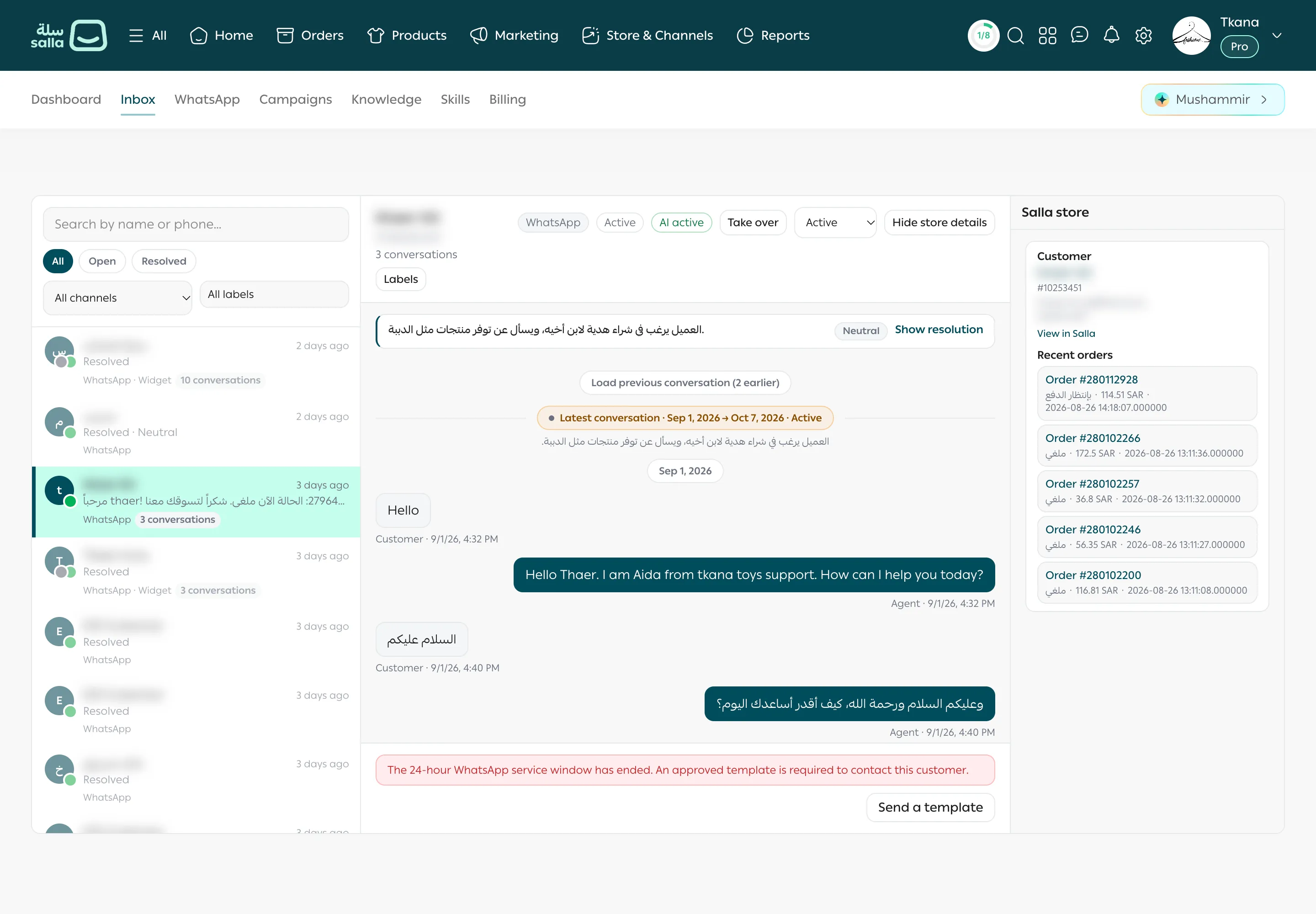
Section titled “Know when the window has closed”When the window closes, the reply box disappears and a red notice appears below the conversation: The 24-hour WhatsApp service window has ended. An approved template is required to contact this customer. The Send a template button appears under it.
Send the template
Section titled “Send the template”-
Click Send a template below the conversation.
-
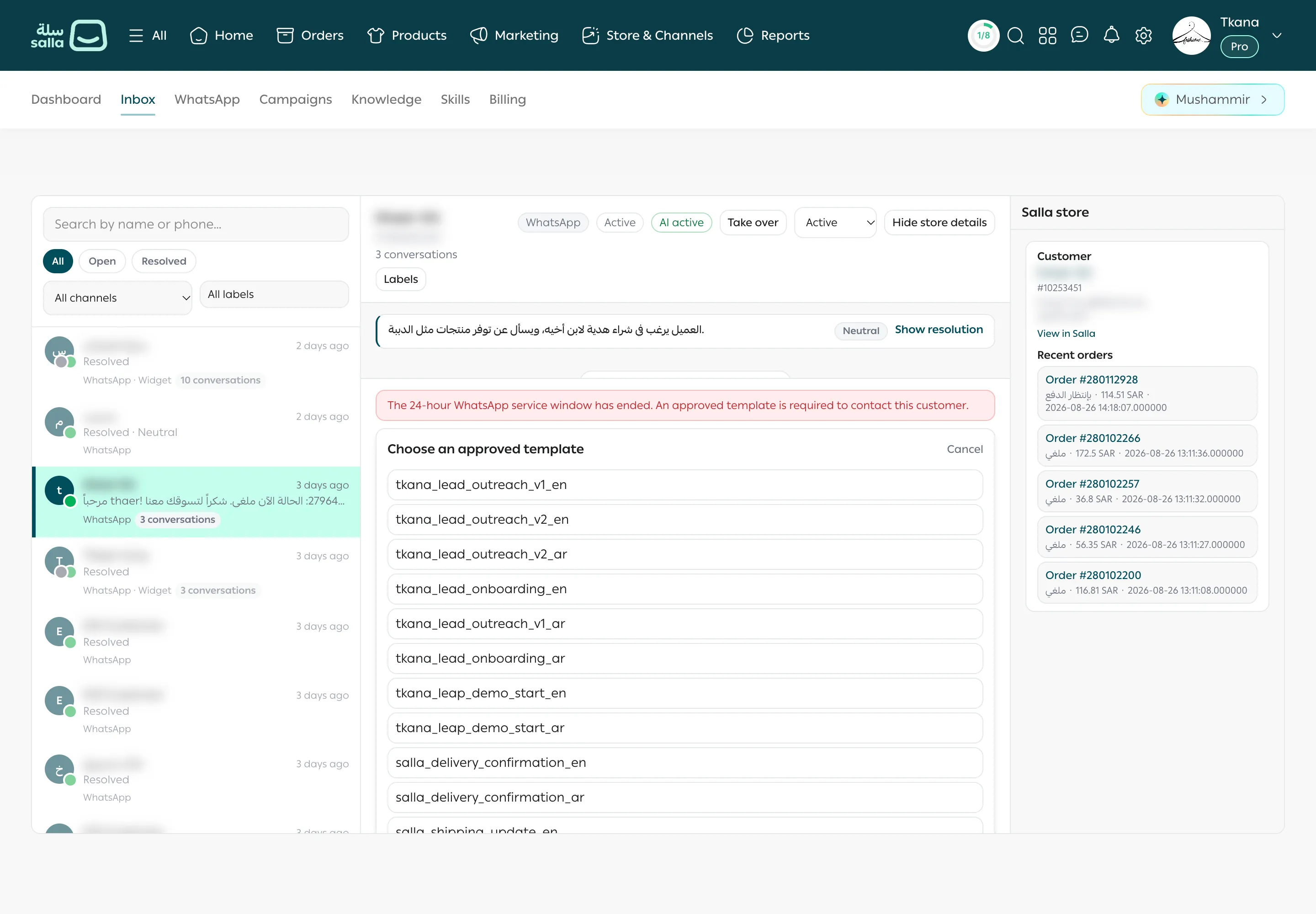
The Choose an approved template list shows your store’s approved WhatsApp templates. Choose the right one. Each template usually has an Arabic version ending in
_arand an English version ending in_en, so pick the customer’s language. -
Under Fill in the message details, fill in the values the template asks for, such as the customer’s name or the order number.
-
If the template includes an image, add it under Header image.
-
Click Send template. You see Template sent, and the template appears in the conversation.
To pick a different template, click Back to templates. To leave without sending, click Cancel.
What happens after you send it
Section titled “What happens after you send it”- As soon as the customer replies to the template, the 24-hour window opens again and the reply box comes back, so you can write freely.
- Sending a template doesn’t pause the assistant. If the badge shows AI active, the assistant answers the customer’s reply.
Was this article helpful?
Thanks for the feedback, it helps us improve these guides.