

Open a conversation and see the customer's orders
When you open a conversation, the messages appear in the middle and the Salla store panel appears beside them, showing the customer’s details and their latest orders in your store. That way you know who you are talking to and what they ordered before you reply.
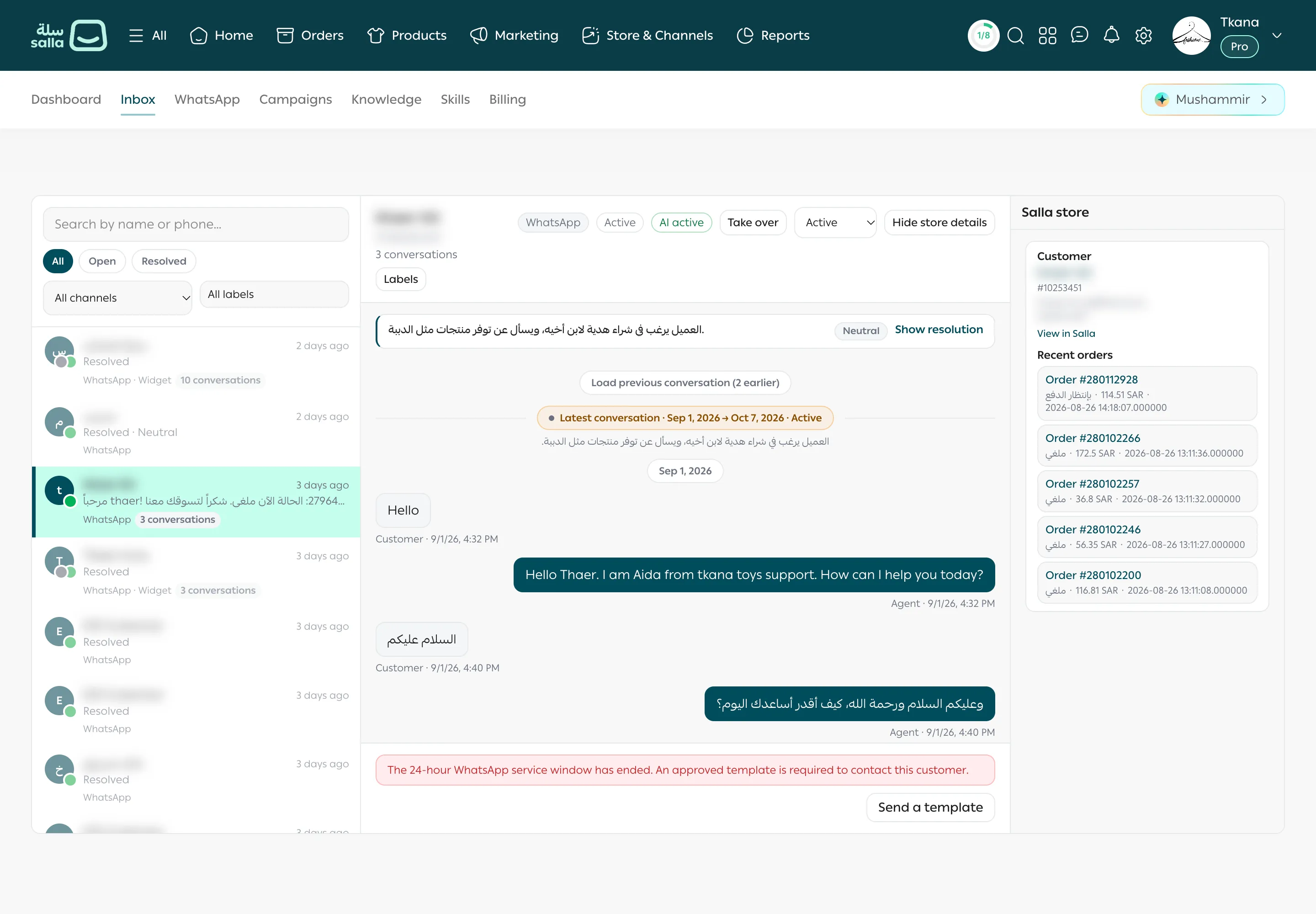
Open the conversation
Section titled “Open the conversation”-
Open the Inbox tab.
-
Click the customer’s row in the list. The conversation opens in the middle, with the latest messages at the bottom.
-
To read older messages, click Load previous conversation above the messages.
What you see in the conversation
Section titled “What you see in the conversation”- At the top: the customer’s name, how many conversations they have had, the Labels button, then badges for the channel (such as WhatsApp), the conversation status, and the assistant’s state (such as Observe mode), and the status menu.
- The messages: the customer’s messages are labelled Customer, and replies from the assistant or your team are labelled Agent, each with its date and time.
- Imported WhatsApp history: if your earlier WhatsApp chats were imported, a WhatsApp history import bar shows the number of messages. Click Show to see them or Hide to fold them.
- Resolution summary: when a conversation ends, click Show resolution to read its summary and the customer’s sentiment (Positive, Neutral, or Negative).
See the customer’s details and orders
Section titled “See the customer’s details and orders”The Salla store panel opens by itself on wide screens. If it doesn’t, click Show store details at the top of the conversation. To close it, click Hide store details, and tkana remembers your choice next time.
The panel has two sections:
- Customer: the Salla customer matching the phone number, with their Salla ID, email, and phone. Click View in Salla to open their profile in your Salla dashboard.
- Recent orders: each order’s number, status (such as awaiting payment or cancelled), total, and date. Click the order number to open it in Salla.
What’s next
Section titled “What’s next”- To reply yourself, see Reply and take over from the assistant.
- If a 24-hour window notice appears below the conversation, see Send a template after the 24-hour window.
Was this article helpful?
Thanks for the feedback, it helps us improve these guides.