

Connect your WhatsApp number
Your assistant talks to customers on WhatsApp, and your store notifications and campaigns go out from the same number. You connect the number once from the WhatsApp tab, through a short Facebook signup window.
Before you start
Section titled “Before you start”- A mobile number that can receive a verification code, to use as your store’s WhatsApp number.
- A Facebook account that can manage your business in Meta Business, or that can create one during signup.
- Pop-ups allowed for the Salla dashboard in your browser, because connecting opens a new window.
No Meta Business account yet? Create one from your Facebook account first, as shown in this video:
Connect your number
Section titled “Connect your number”-
Open the WhatsApp tab.
-
On the Connect WhatsApp card, click Connect WhatsApp. You see Opening the connect window…, then a new window opens.
-
In the new window, click Continue with Facebook.
-
Follow Meta’s steps: sign in to Facebook, choose or create your business, then choose or add your store’s WhatsApp Business number and enter the verification code.
-
Wait until you see Finalizing the connection… and then WhatsApp connected!.
-
Close the window and go back to Salla.
Check the connection
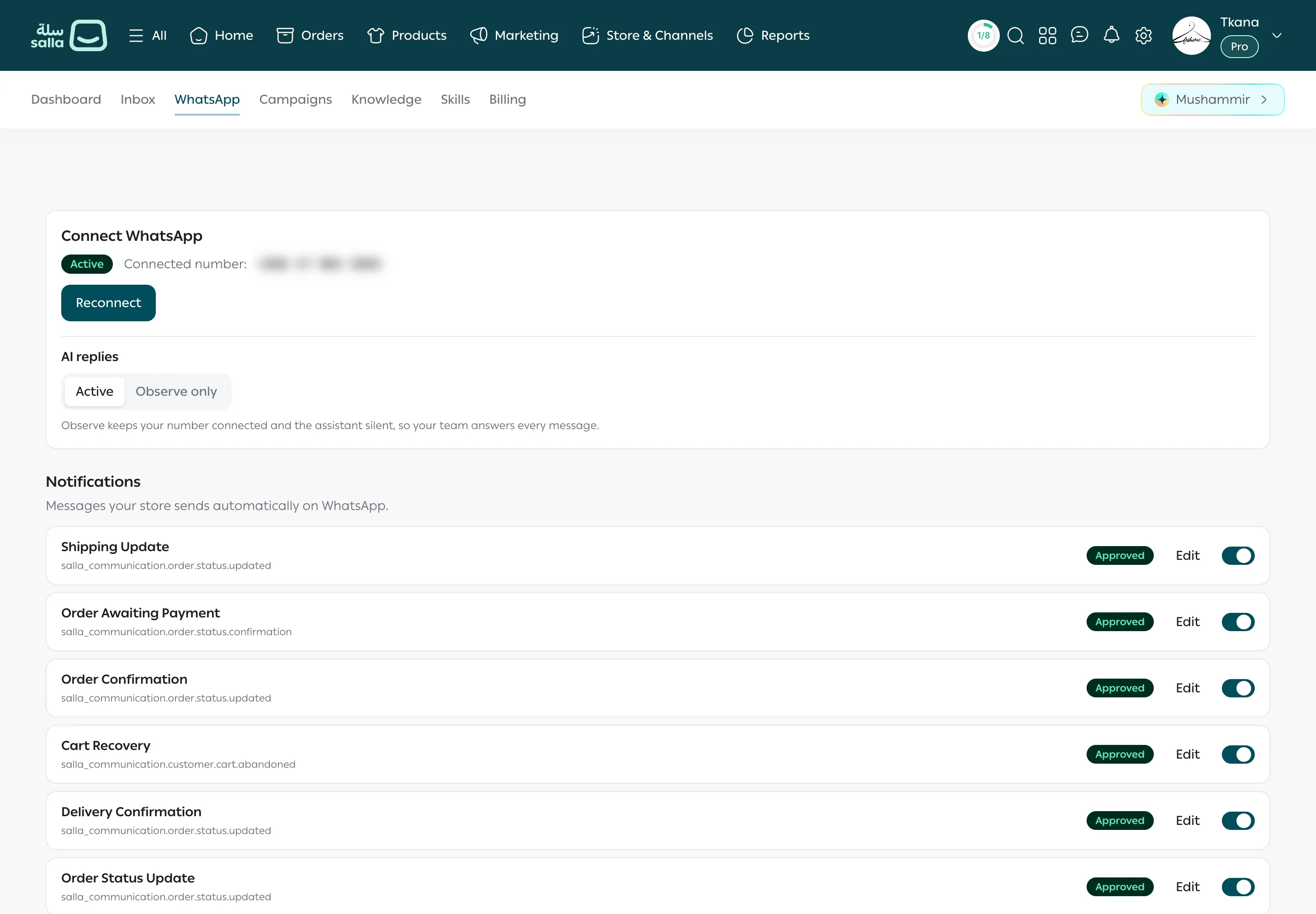
Section titled “Check the connection”Once connected, the Connect WhatsApp card shows an Active badge with your Connected number, and a Reconnect button replaces the connect button. From now on:
- Your assistant starts answering customers who message this number, if AI replies is set to Active.
- Your store notification messages are sent to WhatsApp for review. See Store notifications on WhatsApp.
- You can send campaigns. See Get to know the Campaigns page.
Reconnect your number
Section titled “Reconnect your number”If the card shows a Not active badge, or you changed something in your Meta account, reconnect:
-
Open the WhatsApp tab.
-
Click Reconnect.
-
Go through the same Facebook steps and choose the same number.
Your conversations, notifications, and settings stay as they are after reconnecting.
Was this article helpful?
Thanks for the feedback, it helps us improve these guides.