

Reply and take over from the assistant
Your assistant answers customers on its own. Sometimes, though, you’ll want to step in: a sensitive complaint, a large order, or a question only your team can answer. You can take over the conversation, reply yourself, then hand it back to the assistant.
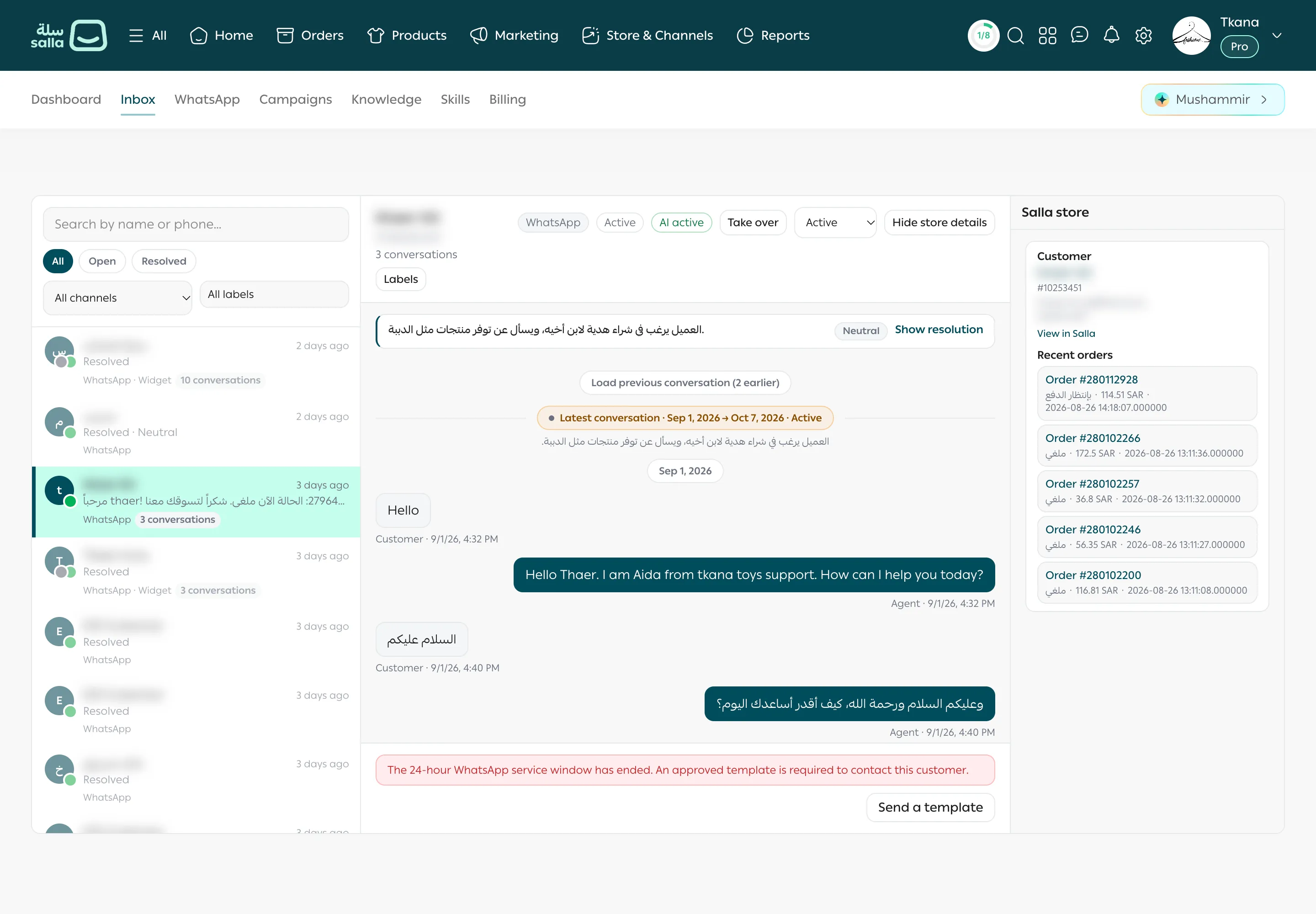
See who is handling the conversation
Section titled “See who is handling the conversation”A badge at the top of the conversation shows the assistant’s state:
| Badge | What it means |
|---|---|
| AI active | The assistant is answering the customer. |
| AI paused | You or someone on your team is handling the conversation, and the assistant doesn’t reply. |
| Observe mode | The assistant is silent in every WhatsApp conversation, because AI replies is set to Observe only. |
Take over the conversation
Section titled “Take over the conversation”-
Open the conversation in Inbox.
-
When the badge shows AI active, click Take over next to it.
-
The badge changes to AI paused, and the assistant stops replying in this conversation only.
Reply to the customer
Section titled “Reply to the customer”-
Type your reply in Write a WhatsApp reply… at the bottom of the conversation.
-
To send an image or file, click Attach a file and choose it. To drop it before sending, click Remove attachment.
-
Click Send reply.
The reply reaches the customer on WhatsApp from your store’s number and appears in the conversation. When you reply yourself, the assistant also stops replying in this conversation for a while so it doesn’t talk over you.
Hand the conversation back
Section titled “Hand the conversation back”When you’re done, click Resume AI at the top of the conversation. The badge goes back to AI active, and the assistant answers the customer’s next message.
Was this article helpful?
Thanks for the feedback, it helps us improve these guides.