

Lead qualification
What it does
Section titled “What it does”Not everyone who messages your store is a regular shopper: a company wants gifts for its staff, a shop wants to buy wholesale, or someone asks about a large custom order. With Lead qualification, your assistant assesses these conversations against your own definition of a serious lead. It asks a few focused questions, works out each customer’s stage, and emails you as soon as a serious lead comes in, so you can reach them while they’re still interested.
Good for
Section titled “Good for”Stores that get wholesale, corporate, or large custom orders and want someone from their team to follow them up personally.
What it needs
Section titled “What it needs”- Qualification criteria: a paragraph describing what makes a lead serious for your store.
- Sales alert email: the address that receives the alerts about serious leads.
What your customers experience
Section titled “What your customers experience”Customer: Hi, we’d like gifts for our company’s staff for National Day.
Assistant: Hello! Happy to help. Roughly how many gifts do you need, and when would you like to receive them?
Customer: About 150 gifts, before the end of the month.
Assistant: Thank you, that’s helpful. Someone from our team will contact you shortly to discuss the details and pricing.
What happens behind the scenes
Section titled “What happens behind the scenes”- Asks focused questions one at a time based on your criteria, without repeating anything the customer already answered.
- Records the customer’s details, such as their name, email, and organization, as it learns them.
- Works out each customer’s stage: hot, nurture, or unqualified, then contacted once a real conversation has happened. It saves the stage as a tag on the customer’s record in tkana.
- Sends an email to your sales alert email when a serious lead comes in, with the customer’s name, phone number, and a short title for their request.
Turn it on
Section titled “Turn it on”This skill is optional. You’ll find it on the Skills tab as the Lead Qualification card. The card shows Needs setup. Turning it on opens the settings first. because it has required fields.
-
Open the Skills tab in tkana inside your Salla dashboard.
-
Click the toggle on the Lead Qualification card. The settings window opens.
-
Write your Qualification criteria and fill in the Sales alert email. Both fields are marked Required.
-
Keep the four tag names as they are, or rename them.
-
Click Turn on. You’ll see Skill turned on, and the card’s state changes to Enabled.
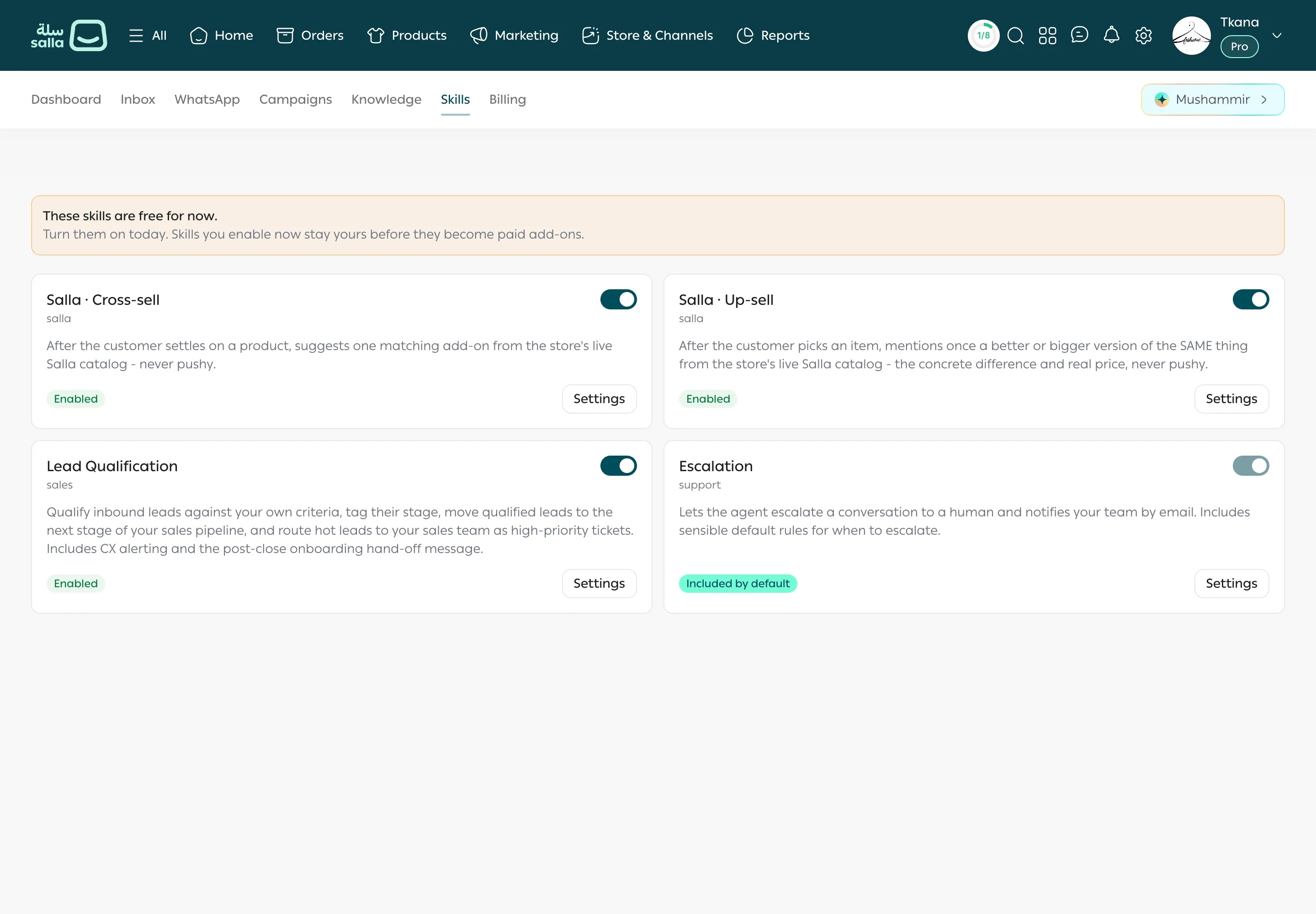
To change the settings later, click Settings on the card, then Save. To turn the skill off, click the toggle again.
Settings
Section titled “Settings”| Setting | What it controls | Example |
|---|---|---|
| Qualification criteria | What makes a customer hot, nurture, or unqualified. Required. Your assistant follows this text closely. | “A hot lead is an organization ordering 50 or more pieces with a delivery date within two months.” |
| Hot lead tag | The tag saved for customers who meet your criteria. | hot-lead |
| Nurture tag | The tag saved for interested customers who aren’t ready yet. | nurture |
| Unqualified tag | The tag saved for customers who aren’t a fit. | unqualified |
| Contacted tag | The tag added once a real conversation has happened. | contacted |
| Sales alert email | Where the alerts about serious leads are sent. Required. | sales@yourstore.com |
Follow up on serious leads
Section titled “Follow up on serious leads”When an email about a serious lead arrives, search for the customer by name or phone number in the Inbox and read the conversation to see their answers. Then click Take over to continue with them yourself in the same conversation, without restarting the questions. See Find a conversation and Reply and take over from the assistant.
Was this article helpful?
Thanks for the feedback, it helps us improve these guides.