

Edit a notification message
You can change the text of any notification message to match your store’s voice, for example to add your store name or change the greeting. Each message has an Arabic and an English version, and customers get the one for their language.
Edit the message
Section titled “Edit the message”-
Open the WhatsApp tab and scroll down to Notifications.
-
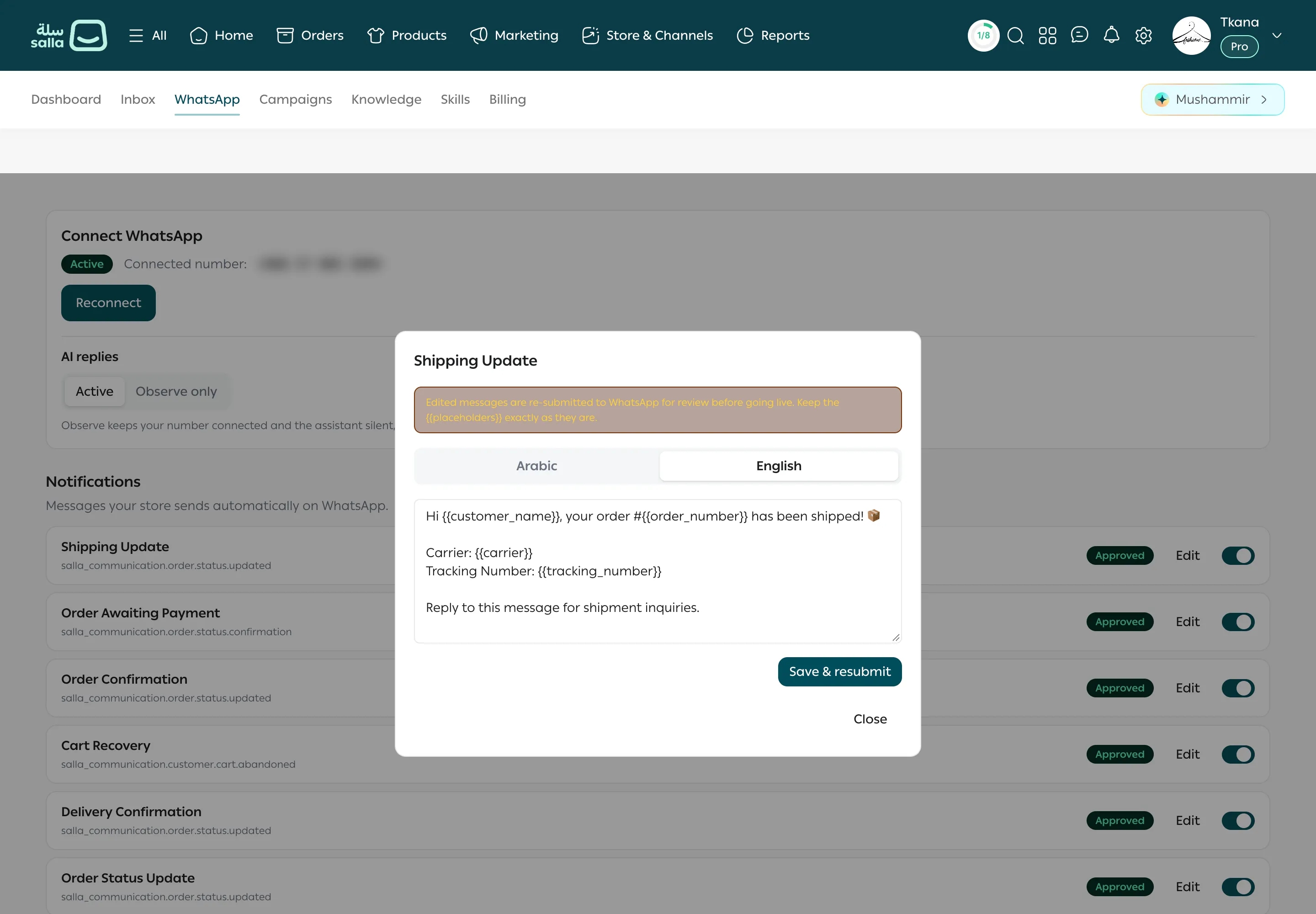
On the message’s row, click Edit. If the message was rejected, the button reads Fix & resubmit.
-
A window opens with the message’s name, such as Shipping update. Choose Arabic or English.
-
Edit the text in the box.
-
Keep every variable in double curly brackets exactly as it is, such as
{{customer_name}},{{order_number}}, and{{tracking_number}}. tkana fills these in with the customer’s and order’s details when it sends the message. -
To edit the other language, choose its tab and edit it the same way.
-
Click Save & resubmit. To leave without saving, click Close.
What happens after you save
Section titled “What happens after you save”The edited message goes back to WhatsApp for review before it’s used, and the row shows In review. Once approved, it shows Approved and the new text starts going out.
Tips for a message WhatsApp approves
Section titled “Tips for a message WhatsApp approves”- Don’t delete or rename variables. A deleted variable means the order details won’t show, and a misnamed one can get the message rejected.
- Keep it a service message, not marketing. Notifications are about the customer’s order. If you add an offer or a discount, WhatsApp may reject it.
- Write clearly and briefly, telling the customer what happened and what to do next, such as “For questions about your shipment, reply to this message.”
- Edit both languages together so every customer gets the same information.
Was this article helpful?
Thanks for the feedback, it helps us improve these guides.