

Salla notifications
What it does
Section titled “What it does”With Salla notifications, your customers get a WhatsApp message whenever something happens with their order in your Salla store: it is confirmed, shipped, delivered, or waiting for payment. The skill also recovers abandoned carts, reminds customers about unpaid orders, and asks for a rating after delivery. The messages go out automatically from your own WhatsApp number, in Arabic or English.
Good for
Section titled “Good for”Any Salla store that wants to keep customers informed on WhatsApp without sending messages by hand.
Works automatically
Section titled “Works automatically”There is nothing to install. This skill is set up for your store automatically when you install tkana from the Salla app store, and it does not appear on the Skills tab. You manage its messages on the WhatsApp tab, in the Notifications section.
For the messages to start reaching your customers, you need two things:
- A connected WhatsApp Business number. Connect it on the WhatsApp tab. See Connect your WhatsApp number.
- WhatsApp approval for each message. The messages go to review after you connect your number, and start reaching customers once approved.
What your customers experience
Section titled “What your customers experience”Your store (WhatsApp): Hi Sara, your order #220145 has shipped with the courier. Tracking number: 7730192.
Customer: Thanks! When will it arrive?
Assistant: Your order is on its way. Here is the tracking link so you can follow it.
When a customer replies to a notification, your assistant picks up the conversation as usual.
What happens behind the scenes
Section titled “What happens behind the scenes”The skill adds these automatic messages. Each one is sent when Salla reports the event for that customer:
| Message | When it is sent |
|---|---|
| Order awaiting payment | An order is waiting for payment. Includes the payment link. Not sent for orders your assistant created in the chat, because the assistant already shared the link. |
| Order confirmed | The order is confirmed. |
| Order shipped | The order ships. Includes the courier and tracking number. |
| Order delivered | The order is delivered. |
| Order updates | The order moves to any other status. |
| Abandoned cart recovery | A customer leaves items in their cart. Sent at most once a day to the same customer. |
| Payment reminder | A payment is due. |
| Rating request | Your store asks the customer to rate their order. |
| Refund processed | A refund is processed. |
| Back in stock | A product the customer asked to be notified about is available again. |
| Loyalty points earned | The customer earns loyalty points. |
A message may show a slightly different name in the Notifications section, such as Shipping update instead of Order shipped.
Manage the messages on the WhatsApp tab
Section titled “Manage the messages on the WhatsApp tab”-
Open the WhatsApp tab in tkana inside your Salla dashboard, and scroll to the Notifications section.
-
Check the badge on each message’s row, such as In review, Approved, or Rejected.
-
Click the toggle on a message’s row to turn it on or off.
-
To change a message’s text, click Edit, or Fix & resubmit if it was rejected.
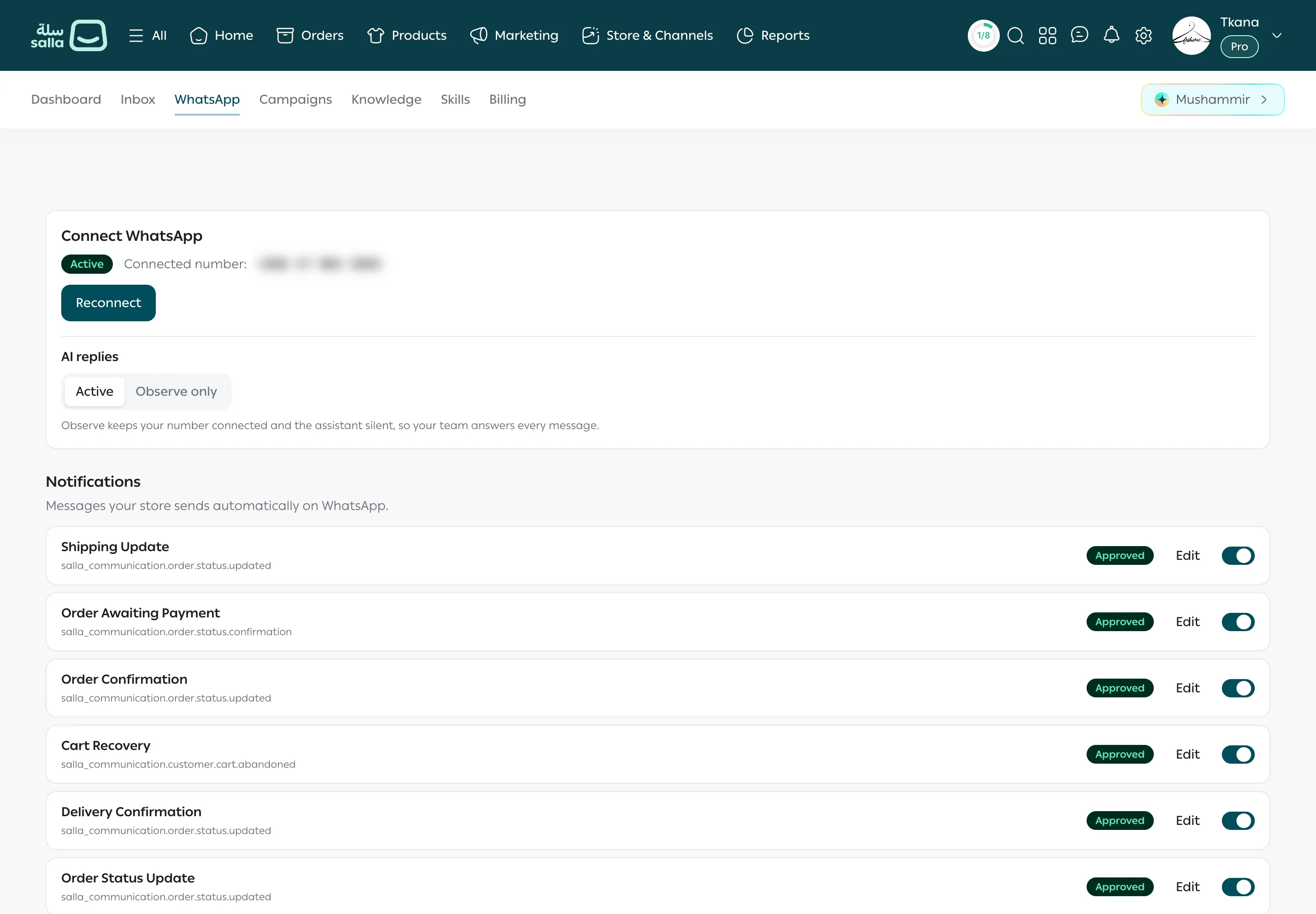
For details, see Store notifications on WhatsApp and Edit a notification message.
Tips and limits
Section titled “Tips and limits”- A message is only sent if the customer’s Salla order has a phone number.
- Messages aren’t sent until WhatsApp approves them. If nothing arrives, check that your WhatsApp number is connected and check the message’s status in the Notifications section.
- Notifications are sent even when assistant replies are set to Observe only. See Choose how the assistant replies: Active or Observe only.
- If you see Salla notifications are not set up for this store yet. Contact support to enable them., contact tkana support.
Was this article helpful?
Thanks for the feedback, it helps us improve these guides.