

Get to know the Campaigns page
A campaign is one WhatsApp message you send to a group of customers at once, such as announcing a new collection or a limited-time offer. Campaigns go out from your store’s WhatsApp number and use a marketing template WhatsApp has approved in advance.
What you see on the page
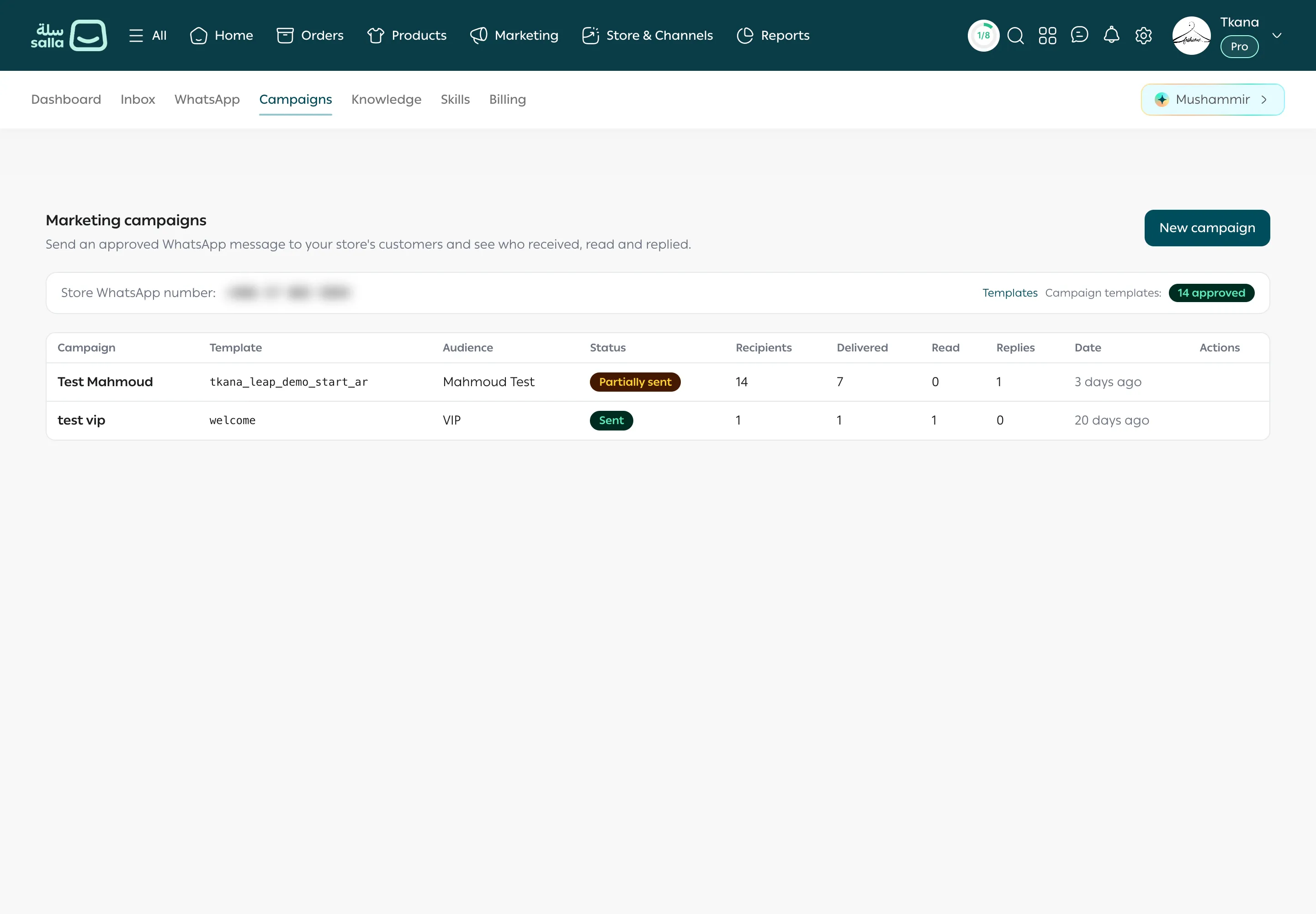
Section titled “What you see on the page”Open the Campaigns tab. The Marketing campaigns page has three parts:
- The New campaign button at the top, to start a campaign. See Send a campaign in three steps.
- The readiness card, which shows:
- Store WhatsApp number: the number campaigns are sent from.
- Campaign templates: how many templates are approved (for example “10 approved”), plus a badge for each template that isn’t approved yet, with its name, language, and status, such as In review.
- The Templates link, to open your full list of marketing templates. See Understand template statuses.
- The campaigns list, with each campaign’s Campaign, Template, Audience, Status, Recipients, Delivered, Read, Replies, and Date. Click a campaign’s name to open its results. See Read your campaign results.
Before your first campaign
Section titled “Before your first campaign”You need two things:
- A connected WhatsApp number. If you haven’t connected one, you see a Connect WhatsApp first card with a Connect WhatsApp button. See Connect your WhatsApp number.
- An approved marketing template. If you don’t have one, you see a No marketing template yet card with a Create a template button. See Create a marketing template and submit it for review.
Campaign statuses
Section titled “Campaign statuses”| Status | What it means |
|---|---|
| Sending | The campaign is going out now. |
| Sent | It was sent to every recipient. |
| Partially sent | It reached some recipients and couldn’t be sent to others. |
| Failed | The campaign couldn’t be sent. |
Was this article helpful?
Thanks for the feedback, it helps us improve these guides.
Need more help?