

Change a conversation's status and organize with labels
Status and labels keep your Inbox organized. Status tells you whether a conversation is finished or still needs work, and labels group similar conversations, such as “VIP customer” or “Wholesale orders”.
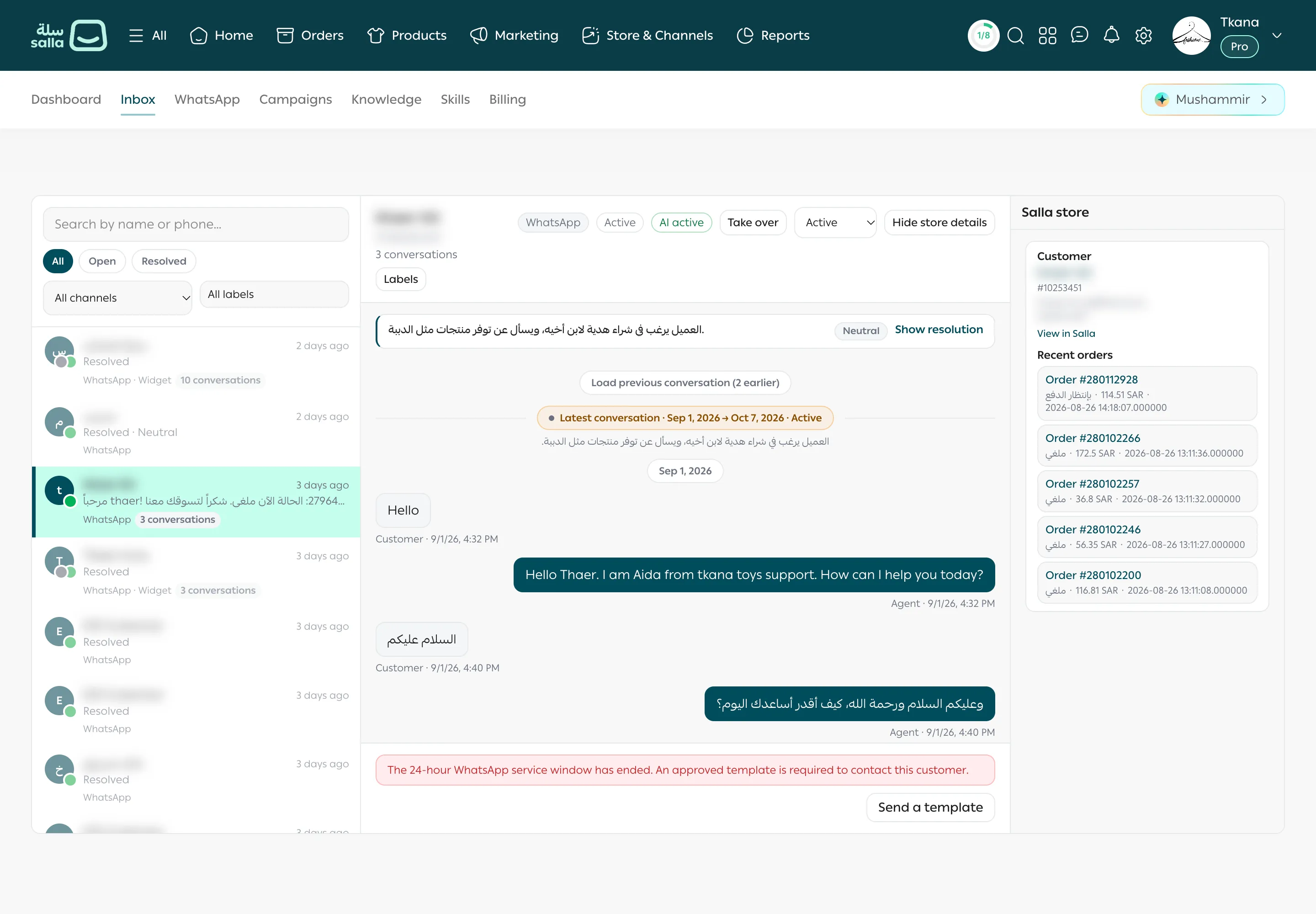
Change a conversation’s status
Section titled “Change a conversation’s status”-
Open the conversation in Inbox.
-
Open the status menu at the top of the conversation (it shows the current status, such as Resolved).
-
Choose the new status:
- Active: the conversation is ongoing.
- Escalated: the conversation needs your team.
- Resolved: the customer’s request is complete.
- Closed: the conversation ended with no follow-up needed.
Add a label to a conversation
Section titled “Add a label to a conversation”-
Open the conversation.
-
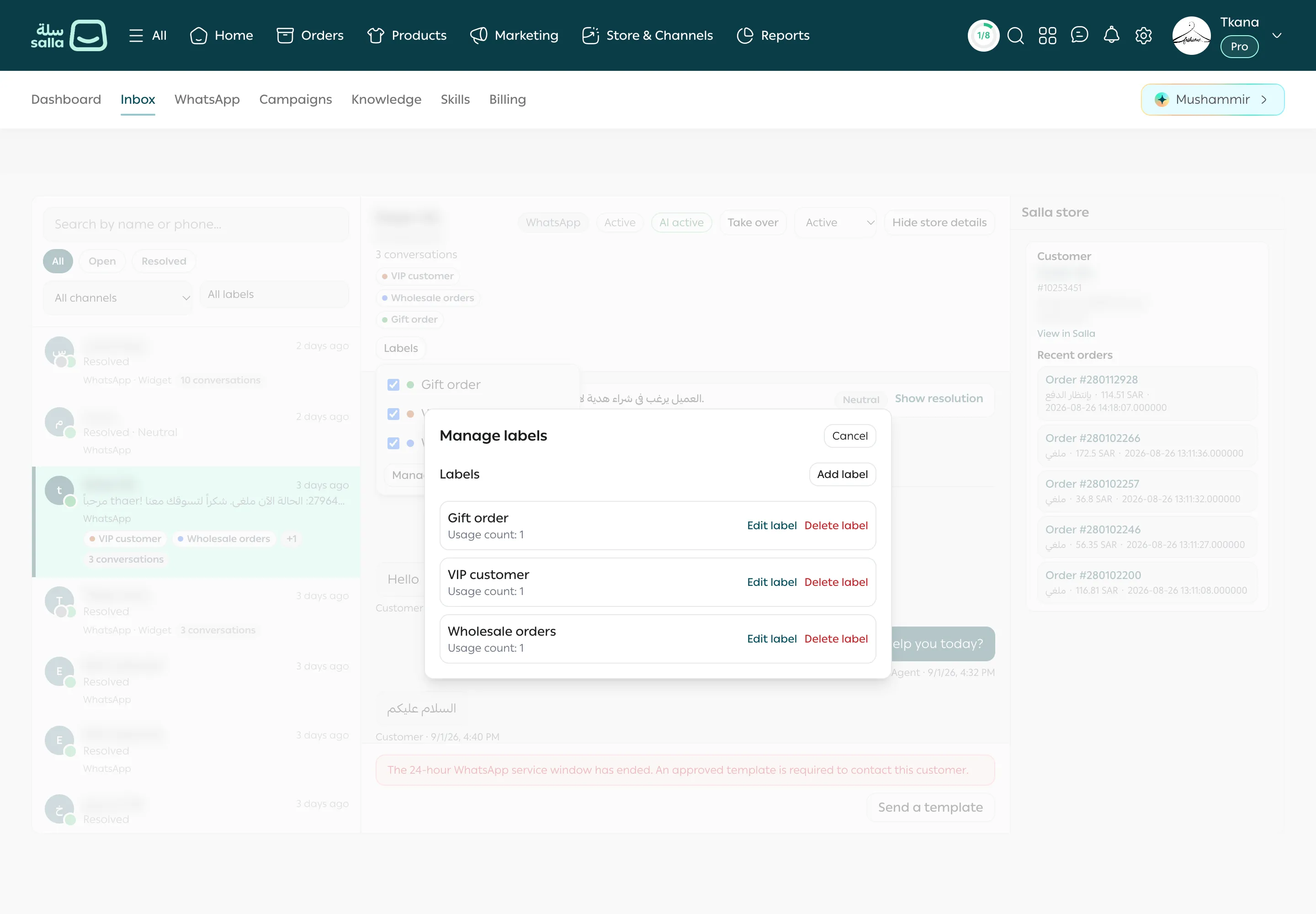
Click Labels under the customer’s name.
-
Select or clear the label you want. You see Conversation labels updated.
Create or edit a label
Section titled “Create or edit a label”-
Open any conversation, click Labels, then Manage labels.
-
To create a label, click Add label, fill in the English name and Arabic name, choose a Color, then click Save. At least one name is required.
-
To edit a label, click Edit label next to it, change what you need, then click Save.
-
To delete a label, click Delete label and confirm. The label is removed from every conversation that had it, and the conversations themselves stay as they are.
Filter conversations by label
Section titled “Filter conversations by label”In the conversation list, open All labels and select the label, so only conversations with that label show. See Find a conversation.
Was this article helpful?
Thanks for the feedback, it helps us improve these guides.