

Understand template statuses
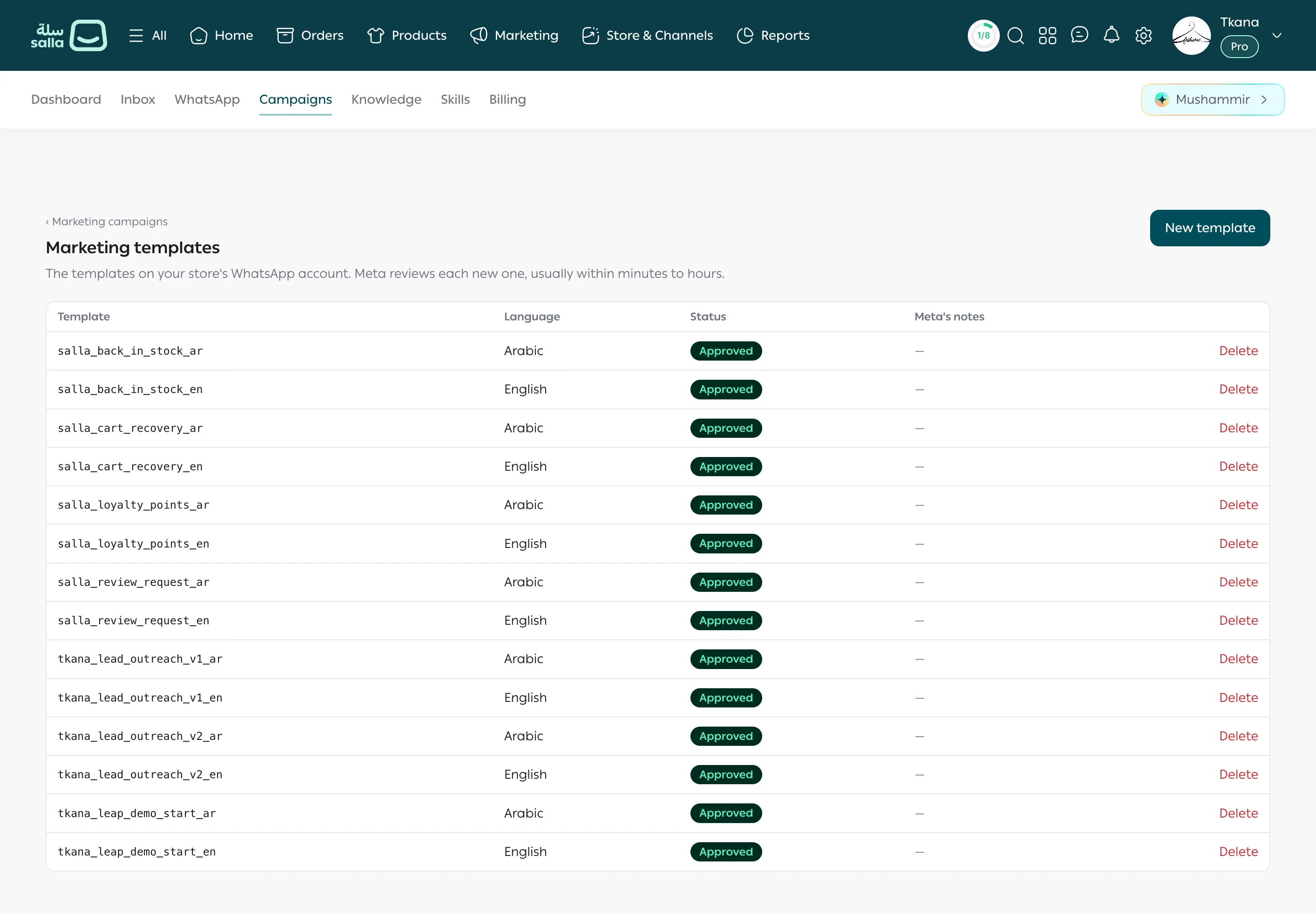
The Marketing templates page shows every template on your store’s WhatsApp account, with each template’s language, status, and Meta’s notes on it.
Open the templates list
Section titled “Open the templates list”-
Open the Campaigns tab.
-
On the readiness card, click the Templates link.
The table shows each template’s Template (its name), Language (Arabic or English), Status, and Meta’s notes.
What each status means
Section titled “What each status means”| Status | What it means | Shows in New campaign? |
|---|---|---|
| Approved | Meta approved it, and it’s ready to send. | Yes |
| In review | Meta is reviewing it, usually within minutes to hours. | No |
| Rejected | Meta didn’t approve it. Read the reason in Meta’s notes. | No |
| Paused | Meta paused it for now, often because of low customer engagement or customer reports. | No |
| Not supported here | The template is approved, but needs values campaigns can’t fill in, such as a header image. | No |
Fix a rejected template
Section titled “Fix a rejected template”-
Read the rejection reason in the Meta’s notes column.
-
Click Edit and resubmit on the template’s row.
-
Change the text or buttons based on the reason, then click Submit for review.
You can only edit a template that is Rejected. To change an approved template, create a new one. See Create a marketing template and submit it for review.
Delete a template
Section titled “Delete a template”Click Delete on the template’s row, then confirm.
Was this article helpful?
Thanks for the feedback, it helps us improve these guides.