

Escalation
What it does
Section titled “What it does”Some conversations need a person from your team. With Escalation, your assistant recognizes those moments, escalates the conversation to your team, and stays with the customer until one of you steps in. No upset customer is left talking only to the assistant.
Good for
Section titled “Good for”Every store. That’s why the skill comes switched on in every store.
Always on
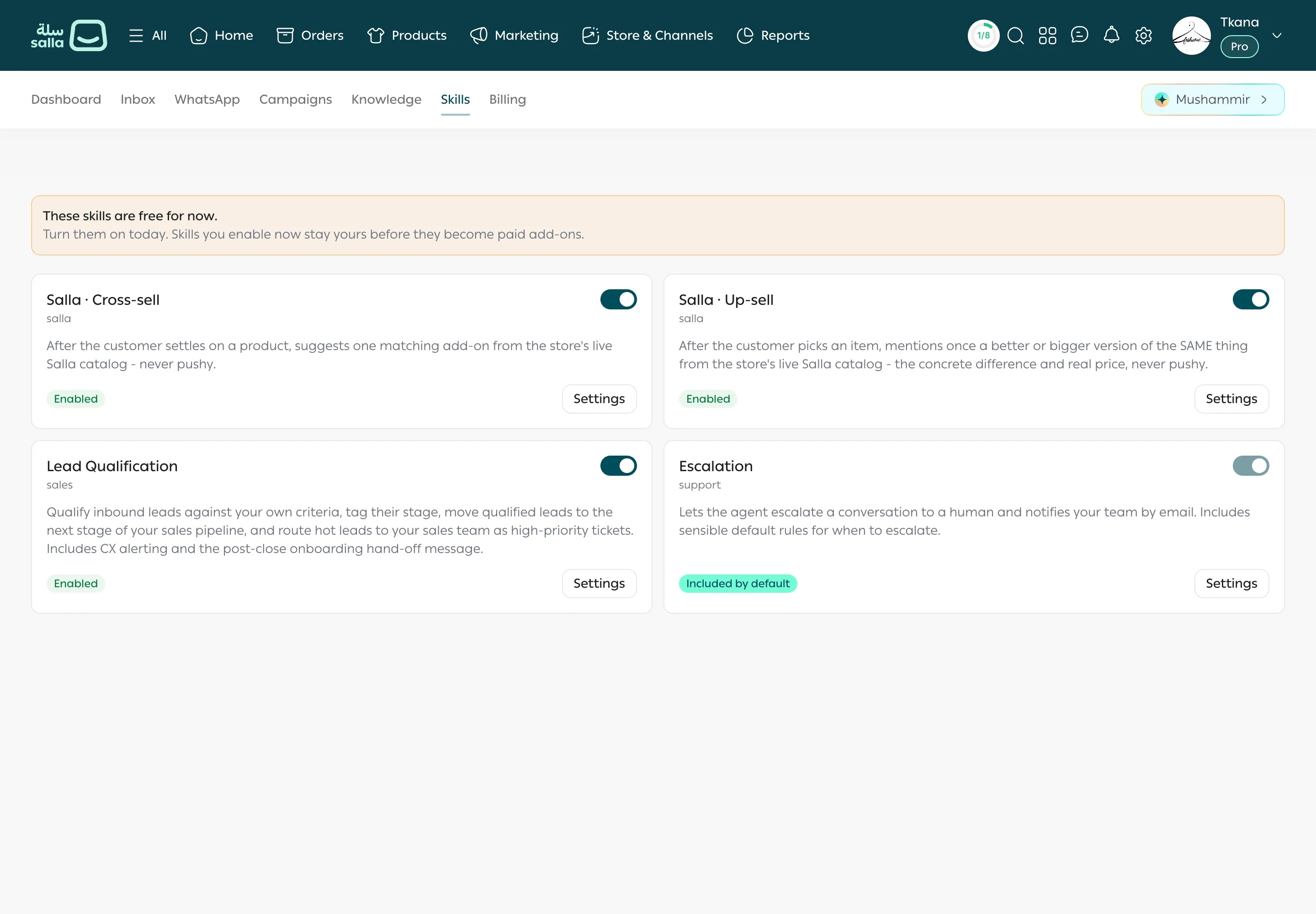
Section titled “Always on”The skill appears on the Skills tab as the Escalation card, with an Included by default badge. You can’t turn it off, but you can change its settings at any time.
What your customers experience
Section titled “What your customers experience”Customer: This is the second time my order has arrived damaged. I want to speak to someone in charge.
Assistant: I’m sorry this happened again. I’ve passed your conversation to our team, and a member of staff will reply to you here.
The assistant doesn’t promise a reply time, and keeps answering simple questions until someone from your team replies.
When the assistant escalates
Section titled “When the assistant escalates”- The customer asks for a member of staff or someone in charge.
- The customer complains about one of your staff, or raises a legal or safety issue.
- The customer needs a decision the assistant can’t make, such as a refund or an exception to your policy.
- The assistant has tried to help several times and the request is still unresolved, if that option is on in the settings.
- Any extra case you write in Additional escalation criteria.
What you see in the Inbox
Section titled “What you see in the Inbox”- The conversation’s status becomes Escalated, and an Escalated badge shows on the customer in the conversation list.
- The conversation moves to the Needs attention section at the top of the list, so you don’t miss it.
Then open the conversation and click Take over to reply to the customer yourself. The assistant stops replying until you hand it back. When you’re done, change the status to Resolved. See Reply and take over from the assistant and Change a conversation’s status and organize with labels.
Change the settings
Section titled “Change the settings”-
Open the Skills tab in tkana inside your Salla dashboard.
-
Click Settings on the Escalation card. A window with the skill’s name opens.
-
Change these values:
Setting What it controls Example Escalate repeated unresolved issues The assistant also escalates when it has tried to help several times and the request is still unresolved. On by default. On Attempts before escalation How many unsuccessful attempts before escalating: 1 attempt, 2 attempts, or 3 attempts. 2 attempts (the default) Additional escalation criteria Cases specific to your store, written in plain language. Optional. “Escalate any bulk or corporate order request.” Customer tag after escalation The tag added to the customer’s record when their conversation is escalated. Required, and Escalated by default. Escalated -
Click Save. You’ll see Settings saved.
Tips and limits
Section titled “Tips and limits”- The tag is saved on the customer’s record in tkana. It’s different from the Labels you put on conversations in the Inbox.
- If the card shows This skill was paused because a requirement is no longer met, contact tkana support, because this skill can’t be turned off and on again.
Was this article helpful?
Thanks for the feedback, it helps us improve these guides.