

A tour of the tkana tabs
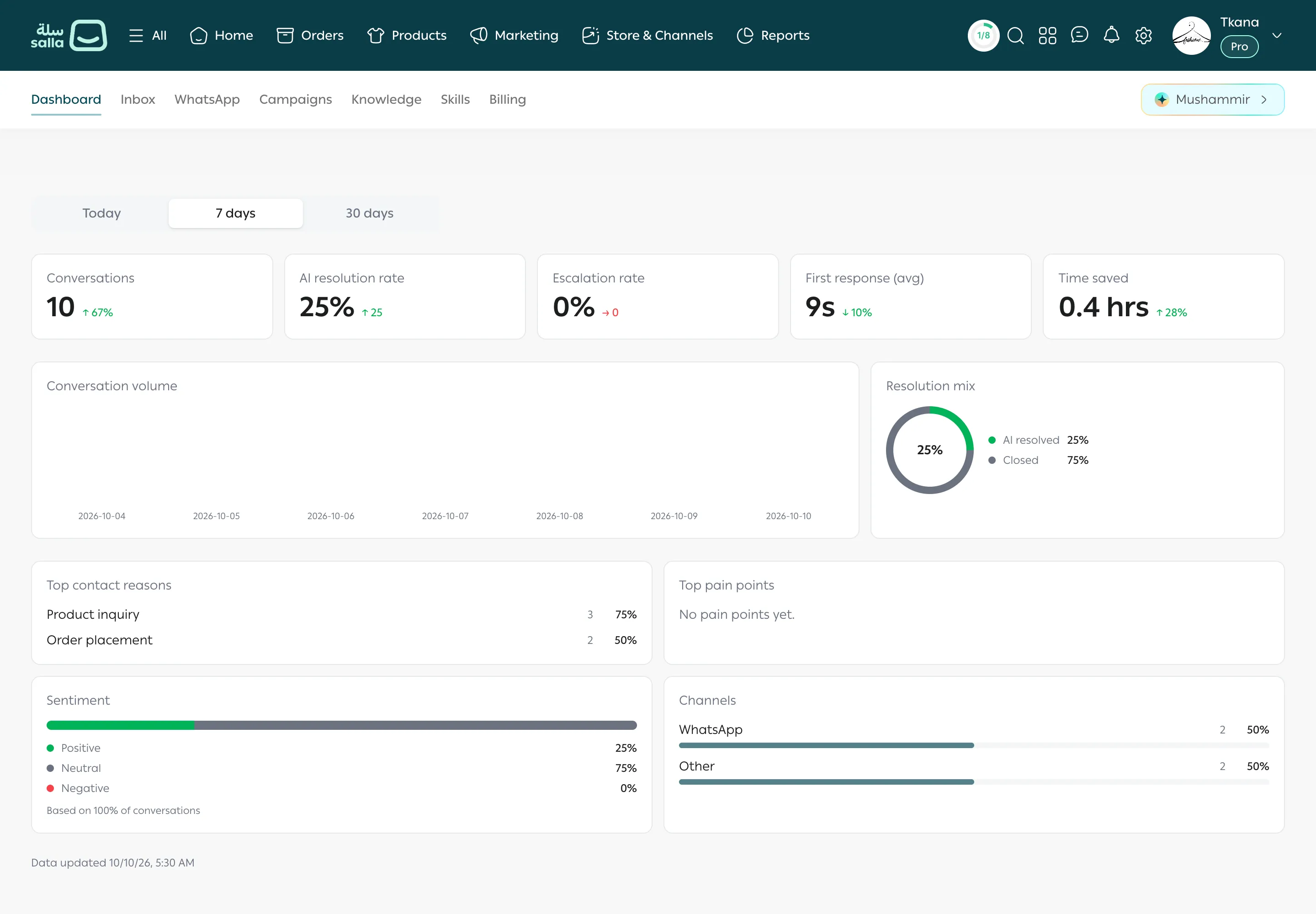
tkana appears inside your Salla dashboard, with its tabs in the sub-navigation bar at the top of the page. This article explains what each tab does, so you always know where to go.
The tabs
Section titled “The tabs”| Tab | What you do there |
|---|---|
| Dashboard | Follow how your assistant is doing: conversations, how many it resolved on its own, response speed, and why customers contact you. See Read your dashboard numbers. |
| Inbox | Read your customers’ conversations, see their Salla orders, reply yourself, and take over from the assistant. See Find a conversation. |
| Connect your WhatsApp number, choose whether the assistant replies or only observes, and manage store notifications. See Connect your WhatsApp number. | |
| Campaigns | Write marketing templates, send WhatsApp campaigns to your customers, and follow the results. See Get to know the Campaigns page. |
| Knowledge | Teach your assistant about your store in three sections: Content, FAQs, and Instructions. See What your assistant knows. |
| Skills | Turn optional skills on or off and change their settings. See Turn skills on and change their settings. |
| Billing | See your balance and plan. |
Where to find common tasks
Section titled “Where to find common tasks”- I want to see what the assistant is telling my customers: open Inbox.
- I want to reply to a customer myself: open the conversation in Inbox, then click Take over. See Reply and take over from the assistant.
- I want to pause the assistant in every conversation: open WhatsApp and choose Observe only. See Choose how the assistant replies.
- I want to change the order confirmation or shipping message: open WhatsApp, then Notifications. See Edit a notification message.
- I want the assistant to know my return policy or delivery times: open Knowledge. See Add FAQs.
- I want to send an offer to my customers: open Campaigns. See Send a campaign in three steps.
Was this article helpful?
Thanks for the feedback, it helps us improve these guides.
Need more help?