

Turn skills on and change their settings
Skills are the jobs your assistant knows how to do, such as finding a product or tracking a shipment. Some skills always work with your store, and some are optional and turned on from the Skills tab.
Skills that always work
Section titled “Skills that always work”These skills are set up for your store automatically when you install tkana, and work with your Salla store directly. They don’t appear on the Skills tab, and there’s nothing to install or turn on:
| Skill | What your assistant does |
|---|---|
| Product search | Helps customers find the right product in your catalog. |
| Order tracking | Tells the customer their order’s status and where it is. |
| Returns & refunds | Takes return and refund requests and passes them to your team. |
| Ordering in chat | Helps the customer complete their order inside the conversation. |
| Salla notifications | Sends order updates and abandoned-cart messages on WhatsApp. You manage them on the WhatsApp tab, see Store notifications on WhatsApp. |
Skills on the Skills tab
Section titled “Skills on the Skills tab”Open the Skills tab to see the optional skills as cards. Each card shows the skill’s name and description, a toggle, its state (Enabled or Off), and a Settings button:
- Salla · Cross-sell: after a customer picks a product, the assistant suggests one fitting add-on from your catalog.
- Salla · Up-sell: the assistant mentions, once, a better or larger version of the product the customer picked.
- Lead Qualification: qualifies potential customers against your criteria and passes the serious ones to your team.
- Escalation: lets the assistant hand the conversation to your team when a customer needs a person. It shows an Included by default badge and can’t be turned off, but you can change its settings.
Other skills may appear on this tab over time. A newly added skill carries a New badge.
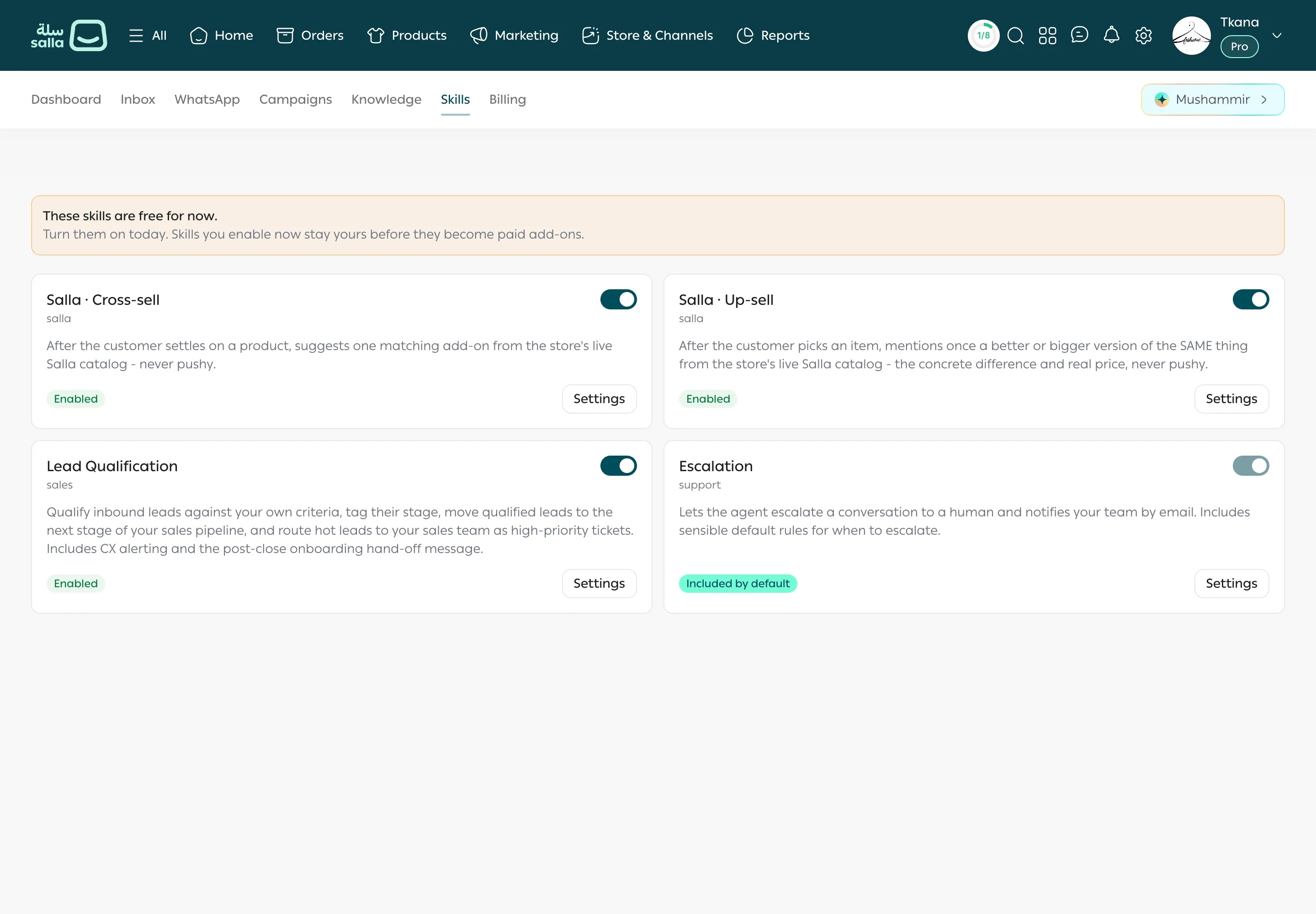
Turn a skill on or off
Section titled “Turn a skill on or off”-
Open the Skills tab.
-
Click the toggle on the skill’s card. You see Skill turned on or Skill turned off.
-
If the card says Needs setup. Turning it on opens the settings first., the settings window opens when you turn it on. Fill in the fields marked Required, then click Turn on.
Change a skill’s settings
Section titled “Change a skill’s settings”-
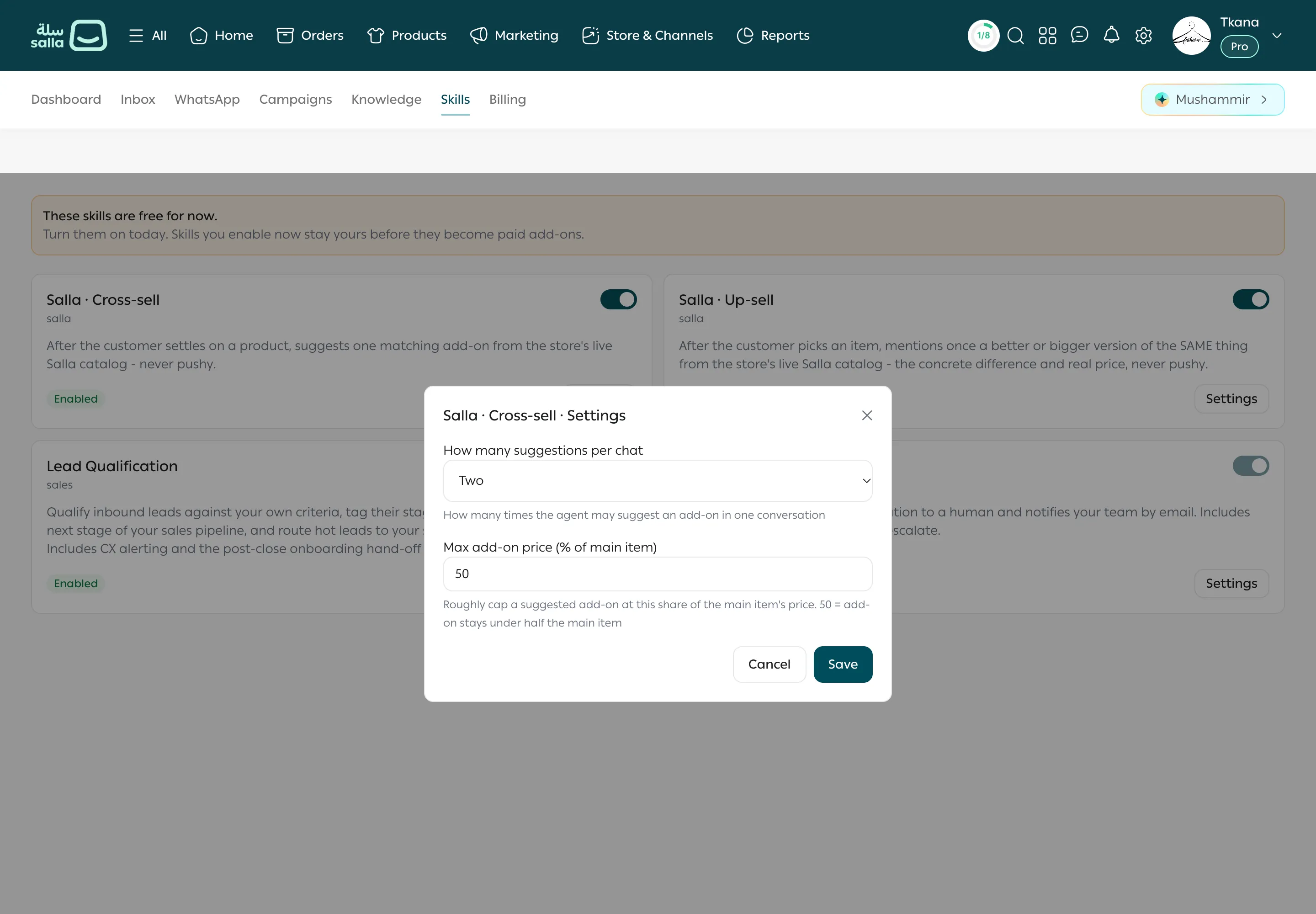
Click Settings on the skill’s card. A window opens with the skill’s name.
-
Change the values. Each field has a short explanation under it. For example, for Salla · Cross-sell you set how many suggestions the assistant can make in one conversation and the highest add-on price as a percentage of the main product.
-
Click Save. You see Settings saved. To leave without saving, click Cancel.
A card that says No settings works as it is.
Was this article helpful?
Thanks for the feedback, it helps us improve these guides.