

Install tkana from the Salla app store
tkana runs inside your Salla dashboard as a Salla app. You don’t need a separate tkana account, email, or password: Salla signs you in every time you open the app.
Before you start
Section titled “Before you start”- Sign in to your Salla dashboard as the store owner, or as a team member who is allowed to install apps.
- Have a mobile number ready for your store’s WhatsApp, because you will connect it right after installing.
Install the app
Section titled “Install the app”-
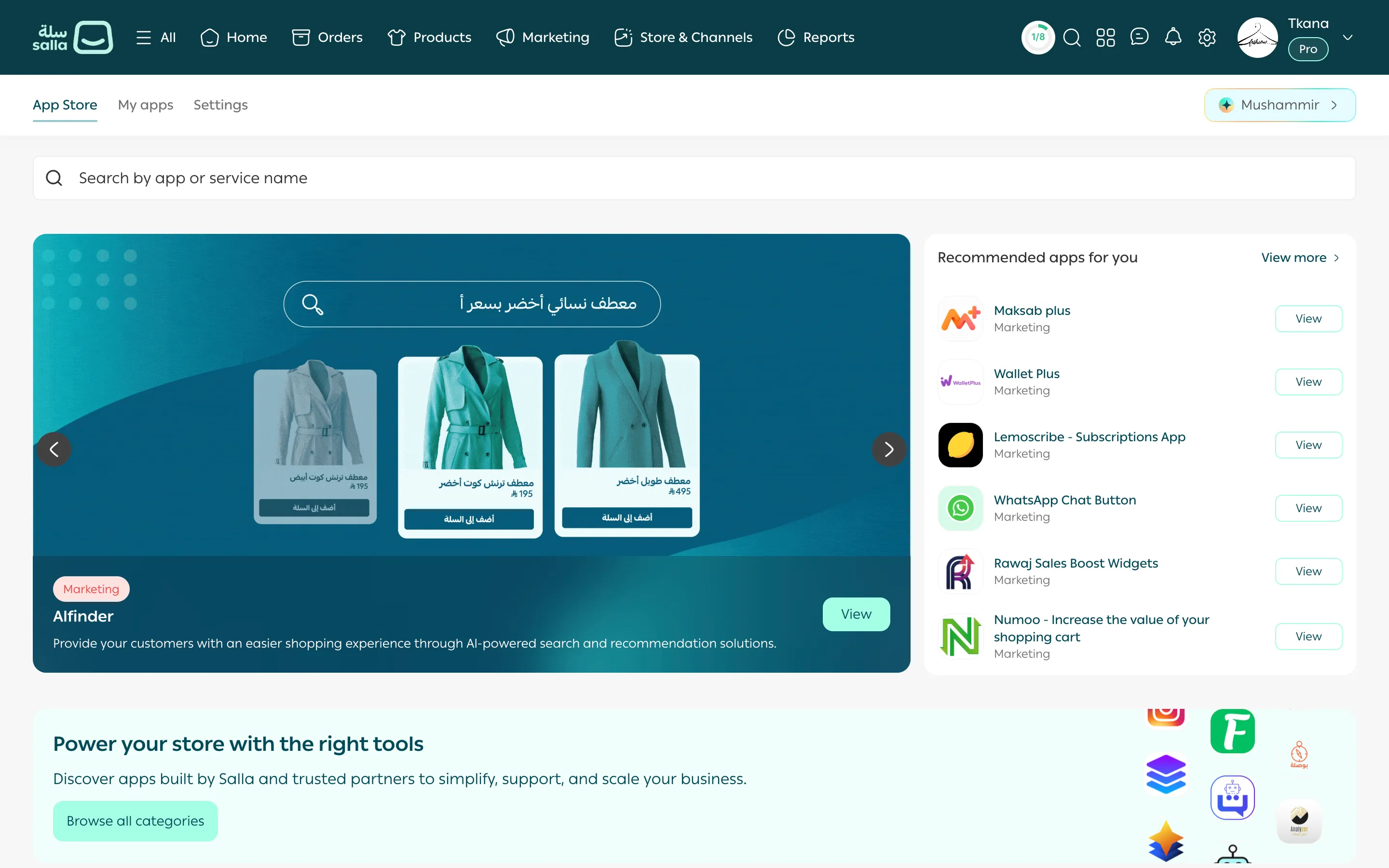
In your Salla dashboard, open Apps, then the App store tab.
-
Type tkana in the search box at the top of the page, then open the app’s page from the results.
-
Click the install button on the app’s page. Salla shows the permissions tkana needs to access your store, such as store details, products, customers, and orders. Review them and approve.
-
Once the install finishes, open the app. The first time, you may see Setting up your account… for a short while. The page refreshes by itself as soon as your store is ready.
What tkana sets up for you
Section titled “What tkana sets up for you”As soon as you install the app, tkana prepares what your assistant needs to start, without you entering anything:
- Your account. A tkana account is created for your store and linked to it. Only people who can open your Salla store dashboard can open it.
- Your store information. tkana reads your store’s name, description, and link, and saves them in Knowledge as content your assistant relies on. You can review it later, see What your assistant knows: Content.
- Your product catalog. Your assistant reads your products from Salla directly, so it can search them, suggest them, and take orders.
- Your assistant and store skills. Your assistant comes ready with the core Salla skills: Product search, Order tracking, Returns & refunds, Ordering in chat, and Salla notifications.
- Notification messages. WhatsApp messages for order updates and abandoned carts are prepared, waiting for you to connect a WhatsApp number so they can be sent for review.
What’s next
Section titled “What’s next”Open the app from your Salla dashboard, see Open tkana from your Salla dashboard, then follow Your first-day setup checklist.
Was this article helpful?
Thanks for the feedback, it helps us improve these guides.